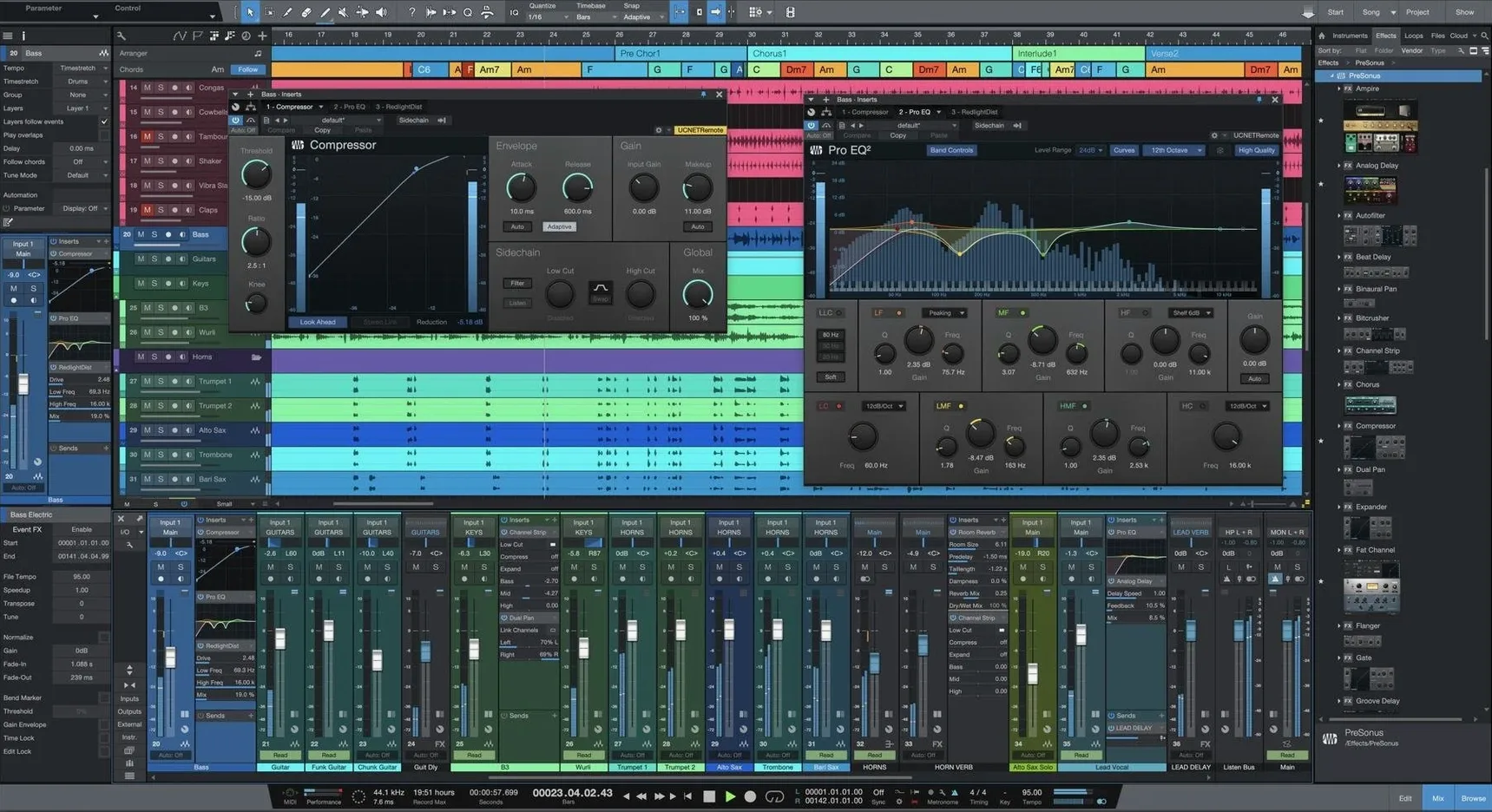
Studio One is the digital audio workstation for people who record, produce, mix, master, and perform without switching between different apps. The Project page handles mastering and compiling recordings, while the Song page offers unlimited tracks and buses, plus virtual instruments for synthesis, sample playback, and rhythm.
Smart Templates and drag-and-drop define the workflow
| Detail | Value |
|---|---|
| Version | 7.0.0 |
| Developer | PreSonus Audio |
| macOS | 12.4 or later |
| Architecture | Apple Silicon and Intel 64-bit |
| Language | English |
Workflow is drag-and-drop, and the interface is customizable. Note that neither Studio One 6 nor 7 supports ReWire, so plan around that if you rely on it.
ReWire is missing and has no workaround
A few things catch new users off guard. The most common is the ReWire situation: if you have an older host or instrument that depends on ReWire, it will not connect. There is no workaround inside the application. You need to reroute audio through a virtual audio cable or use a different plug-in format if your hardware supports it.
Another snag appears when opening a Song or Project from an earlier Studio One version. Version 7 opens them fine, but if you save and re-open them in the older version, things may not translate correctly. Keep a backup copy of the original file before you save in 7.0.0 if you still need to work in both versions.
The AI-powered offline Stem Separation is a new feature that runs locally. If your Mac is low on free disk space, the process can stall or take much longer. Make sure you have several gigabytes free before you attempt separation on a full-length mix. The temp files need room to write.
Advanced tempo detection works on most audio material, but very sparse recordings or extreme tempo changes can confuse the algorithm. If the detected tempo looks wrong, manually tap the tempo in using the tap-tempo function or edit the tempo map by hand. The detection is a starting point, not a replacement for your ears.
Three user types that Studio One 7 suits best
This version suits three kinds of users especially well.
- Songwriters who start fast. Smart Templates cut out the blank canvas. You pick a template for a typical band setup, a podcast, or an electronic track, and the routing and basic tracks are ready. You can be recording in under a minute.
- Mixing engineers working with stems. The Stem Separation tool lets you split a mixed stereo file into vocal, bass, drum, and other stems. This is useful for rebalancing old mixes or extracting parts for remixes. The separation happens offline and does not need a cloud connection.
- Live performers using the Show page. Unlimited Launcher Scenes and Playlists mean you can organize sets of any length, switch between them without stopping playback, and trigger backing tracks or click tracks per song. The customization of the interface helps you see only what you need on stage.
If you are a mastering engineer, the Project page keeps all your masters in one place with consistent processing chains, but you already knew that. For podcasters, the unlimited tracks and buses let you run multiple microphone channels and soundboard feeds without counting tracks.
Easy-to-miss conveniences
Some useful things are not obvious on first launch.
- Drag-and-drop works both ways. You can drag audio from the timeline to the browser to create a new file, or drag a plug-in from the mixer to a track to add it as an insert. The same gesture moves clip gain envelopes if you hold a modifier key.
- The customizable user interface lets you hide panels you do not use. If you never touch the virtual instruments, collapse that section of the browser. If you always use the same plug-in chain, save it as a channel strip preset so you can drop it onto any track in one drag.
- Unlimited Launcher Scenes do not have to be static. Each scene can load its own set of tracks, effects, and routing. This means your verse scene can have a different reverb send and a different guitar chain than your chorus scene, and switching happens without a break in audio.
- Playlists are not just for comping vocal takes. You can use them to store alternate arrangements of a section, different drum takes, or even different song arrangements, and switch between them to compare. Each playlist lane works independently.
- Native Effects plug-ins include a full channel strip with gate, compressor, EQ, and limiter. The EQ has a spectrum analyzer that you can toggle on and off per instance, so you are not always looking at a frequency display when you do not need one.
Starting a session with the Rock Band Smart Template
You open Studio One 7 and pick a Smart Template called “Rock Band.” The template creates a song with one audio track for vocals, one for guitar, one for bass, and a folder for drums with sub-tracks for kick, snare, and overheads. Each track already has a basic channel strip inserted. You click record on the guitar track, play a part, and the waveform appears.
You record the bass part next, then decide the drum folder has too many sub-tracks for the simple beat you want. You add a single stereo audio track instead, bypassing the folder, and drag a pre-recorded drum loop from the browser onto it. The loop snaps to the song tempo because the Smart Template set the project tempo to 120 BPM, and the loop’s source tempo is detected and matched automatically.
For the vocal, you record three takes on the same track, using the Playlist feature to comp the best phrases from each take. You switch between playlist lanes by clicking the lane header, and when you have a composite, you flatten the playlist to a single audio file.
You open the Mix console and adjust the level of each fader. The Native Effects reverb sends are pre-routed from the Smart Template. You send the vocal to a bus with a short room reverb and the snare to a different bus with a plate. You add a limiter to the master bus and set the ceiling to -0.1 dB. Then you export the mix as a stereo file.
You drag that stereo mix into a new Project page, add the Project’s processing chain of EQ, multiband compressor, and limiter, and adjust the final loudness. You save the Project as “Album Master 1.” The whole session takes around forty-five minutes, and you never touched another application.
Workflow for separating stems from a finished mix
You have a stereo mix of an old recording, and you want to rebalance the vocal and the bass without remixing from scratch. Here is the full workflow in Studio One 7.
- Create a new Song using the Empty template. Set the sample rate to the same rate as your mix file so you avoid sample rate conversion.
- Drag the stereo mix file from the Finder into the timeline. It appears as one audio event on one track.
- Select the audio event. Right-click and choose “Separate Stems.” The AI-powered offline Stem Separation dialog opens.
- Choose which stems you want: vocal, bass, drums, and other. The dialog shows estimated processing time. Click “Separate.”
- Wait for the processing to complete. A new track is created for each stem, with the separated audio on it. The original mix track remains, muted.
- Audition each stem. The vocal track usually has the most bleed from other elements, but it is clean enough for rebalancing. Solo each stem to check for artifacts.
- Adjust the volume faders on the stem tracks. If the vocal is too quiet, raise its fader. If the bass is too loud, lower it. You can also add an EQ or compressor to a stem track if needed.
- When the balance sounds right, select all stem tracks, then choose “Export Audio” from the Song menu. Pick the format and bit depth you want. The export renders a new stereo mix with your new balance.
- Save the Song with a name like “Mix_Rebalanced.” The original mix file is still on your drive, untouched.
This workflow uses the offline Stem Separation, which does not require an internet connection. The quality of the separation depends on the source material. Dense mixes with many instruments in the same frequency range produce less clean stems, but for most pop, rock, and electronic music, the results are usable for rebalancing.
- Unlimited Launcher Scenes and Playlists added.
- AI-powered offline Stem Separation added.
- Advanced tempo detection added.
- macOS 12.4 or later
- Apple Silicon or Intel 64-bit
Questions from the notes
Does Studio One 7 run on Apple Silicon Macs?
Yes. Studio One supports both Apple Silicon and Intel 64-bit Macs, so it runs natively on M-series chips.
Can I use ReWire with Studio One?
No. Studio One 6 and Studio One 7 do not support ReWire, so you'll need another way to route audio between apps.
What is the Project page for?
The Project page is used for mastering compositions and compiling recordings, giving you a dedicated space for finalizing tracks.
Install procedure
- Open the included installation and activation instructions.
- Follow the instructions inside the package to install and activate the app.
Reports from players
Sign in or create a tester account to file a report.
No reports filed yet.