
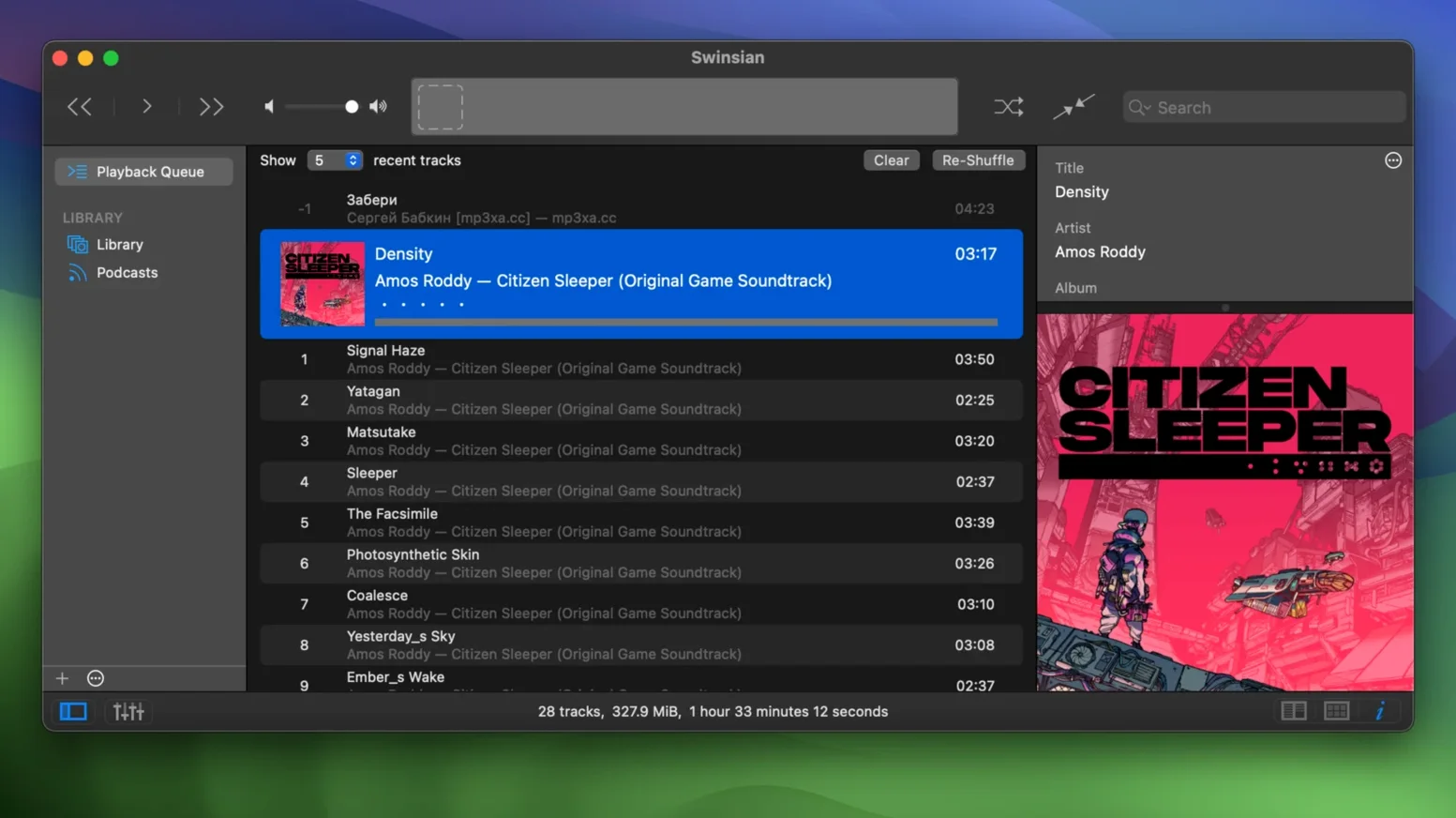
You have a library of 50,000 tracks, some in FLAC, some in MP3, and you just want to play them without the interface stuttering. Swinsian 3.0.8 for Mac is built for that. It handles large libraries without slowing down, and it can import your existing iTunes library so you don't have to start over.
Managing the library
Swinsian watches folders, so new files appear automatically. Smart playlists and library statistics keep the collection organized. The tag editor is deep enough to fix metadata in bulk, and it supports most formats you'll encounter, including FLAC, Opus, and APE.
Playing music
Global keyboard shortcuts work from any app, and playback notifications show what's playing. The current version adds hidden options to make interface text larger, which is useful on high-resolution displays. It also fixes playback of quadraphonic FLAC files, which was broken in earlier releases.
Getting the most out of it
Swinsian can fetch album artwork automatically and change the device sample rate to match the audio file, which matters for lossless listening. Version 3.0.8 adds more customization for art grid labels, so you can choose what shows under each cover.
Typical setup and first run
Swinsian asks what you want to do when it opens for the first time: start with an empty library or import from iTunes. If you pick the import option, it reads the iTunes library XML file and preserves your playlists, ratings, and play counts. After that, you point it at the folders where you keep your music files, and folder watching takes over. Anything you add to those folders later appears in the library without manual importing.
The equalizer is set to off by default, which makes sense for most listening. If you need it, both the 10-band and 31-band versions are available, and the setting stays between restarts.
Working with tags on a batch of files
Say you have a folder of live recordings where every track has "Live" in the title and no album artist set. This is where find-and-replace with regular expressions helps.
- Select the tracks in the main window.
- Open the tag editor and choose find-and-replace mode.
- Type a pattern to catch the word "Live" and replace it with nothing, or change it to something else.
- Set the album artist field for all selected tracks at once.
The same regex engine works across the search bar too. If you know the pattern well enough, you can locate tracks that match unusual naming conventions in seconds.
Common snags and workarounds
Transcoding rules don't stick after updating
Version 3.0.8 specifically fixed an issue where transcoding rules were not saved correctly. If you upgraded from an earlier build, open the preferences and verify your transcoding settings are still there. If they are not, re-enter them once. They should persist from that point on.
Quadraphonic FLAC files skip or play wrong channels
This is another fix in 3.0.8. Earlier versions had trouble with multi-channel FLAC. If you still have problems after updating, check whether the file is actually quadraphonic or uses a non-standard channel layout. Swinsian plays standard stereo and multichannel layouts correctly now, but odd channel assignments may still cause issues.
iPod playlists lose tracks
A bug in the previous version could remove tracks from iPod playlists when syncing. 3.0.8 resolves this. If you sync an iPod, update to the current version first, then rebuild the sync. The tracks should stay where you put them.
Sorting in the Complete Tags window
Some users reported that sorting columns in the Complete Tags window did not work properly. 3.0.8 fixes that too. Click the column header again to re-sort after updating.
Podcast management
Swinsian can download podcasts automatically if you add the feed URL. It treats them as a separate source in the sidebar, so they do not clutter your music library. The download behavior is configurable per podcast. If you prefer to manually grab episodes, you can turn automatic downloads off for individual feeds.
AirPlay and remote playback
AirPlay support works for sending audio to compatible speakers and receivers. It appears as a playback destination in the output menu. The sample rate switching also applies here if the AirPlay device supports it, though not all receivers will accept every rate. In practice, standard rates like 44.1 kHz and 48 kHz are fine.
- Adds more customization options for art grid labels.
- Adds hidden options to make interface text larger.
- Fixes playback of quadraphonic FLAC files.
- Fixes transcoding rules not being saved correctly.
- Fixes problems removing tracks from iPod playlists.
- Fixes sorting in the Complete Tags window.
- macOS 10.13 or later
- Intel or Apple Silicon
Questions from the notes
Does Swinsian support FLAC files?
Yes, Swinsian supports FLAC, along with MP3, AAC, ALAC, Ogg Vorbis, WMA, WAV, Opus, AC3, AIFF, MusePack, DSF, and APE.
Can Swinsian import an iTunes library?
Swinsian can import an iTunes library, making it easy to switch from Apple's player.
Install procedure
- Mount the downloaded disk image.
- Drag the app to the Applications folder alias.
- Open the app from Launchpad after copying finishes.
Reports from players
Sign in or create a tester account to file a report.
No reports filed yet.