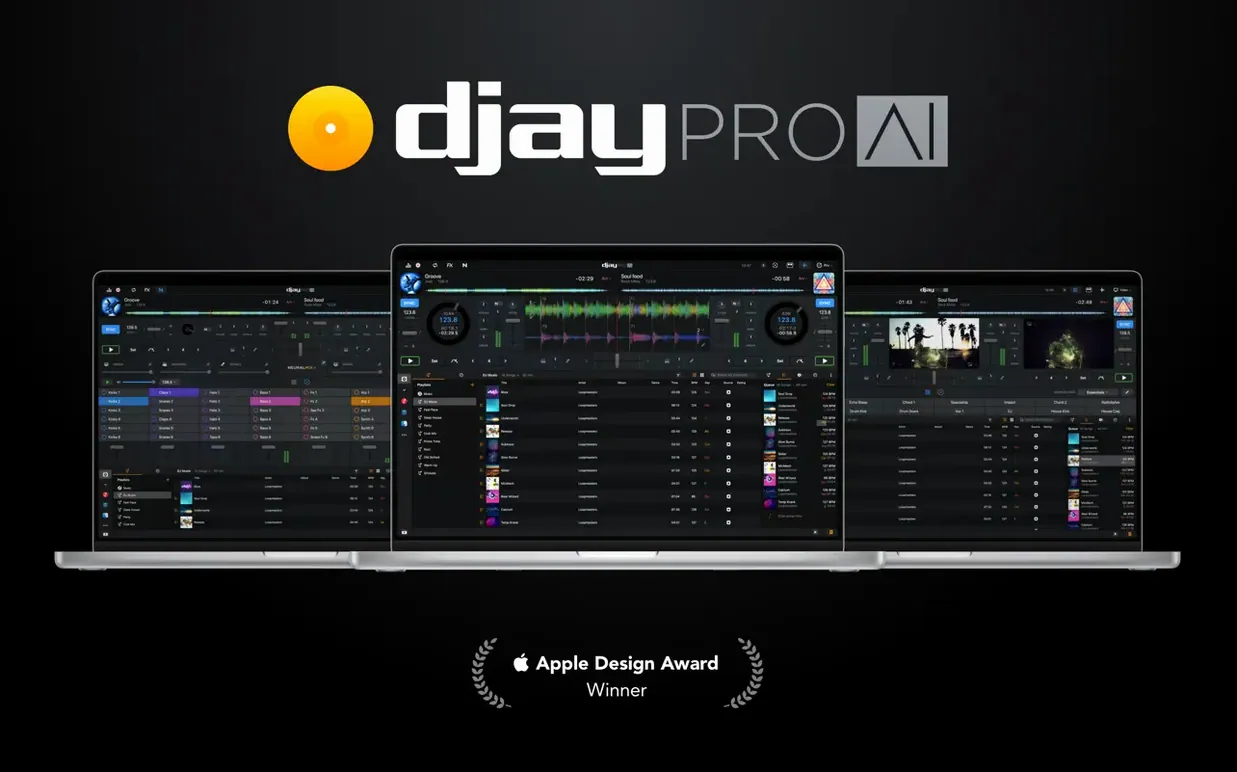
If you already use Ableton Live for production, djay Pro fits alongside it as a live-performance tool that doesn't require session-view prep. It handles track mixing, video, and real-time stem separation out of the box. Here's where a newcomer should start.
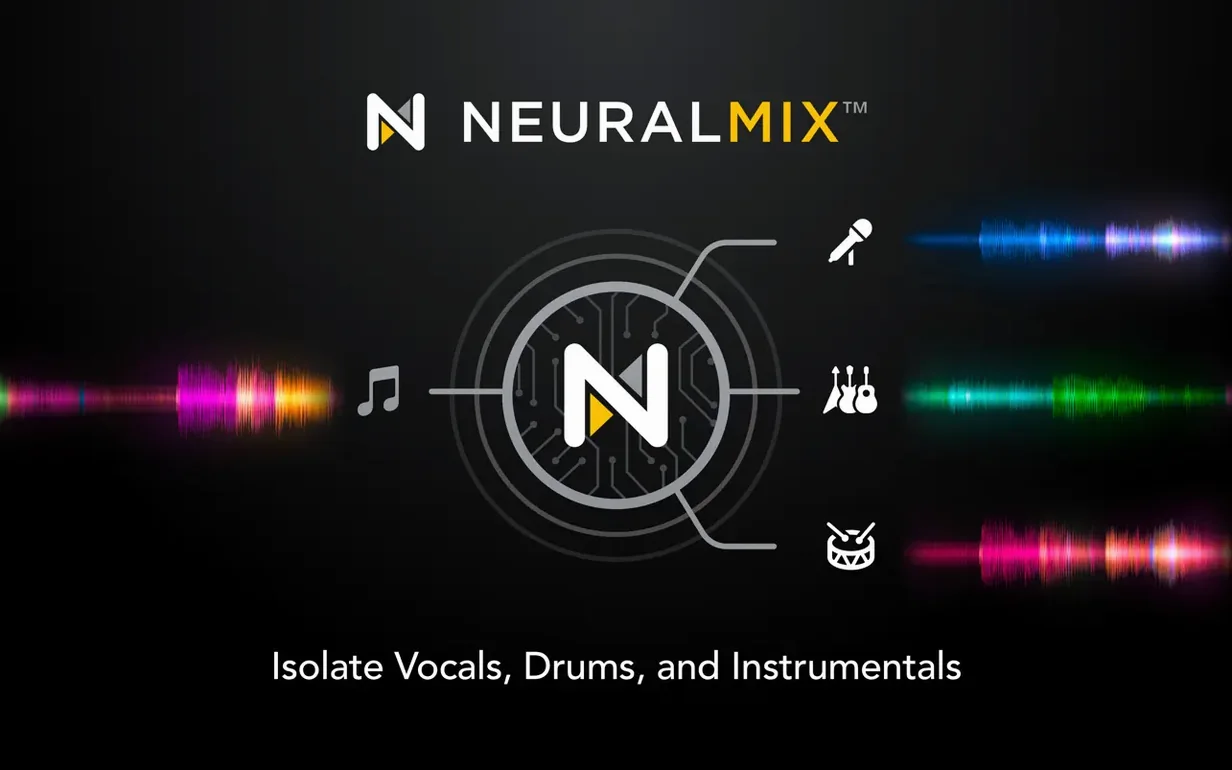
Separates vocals, drums, and melody in real time with Neural Mix
- Separating vocals, drums, and melody on the fly — Neural Mix works in real time, no pre-analysis.
- Syncing multiple devices over a network via Ableton Link, useful for jam sessions or multi-room setups.
- Using motorized controllers or CDJs with native display support (RANE System One included in 5.6.9).
- Automix mode when you need a hands-off set with crossfade and effect transitions.
- More than 40 built-in audio effects and high-definition waveforms for beatmatching and cueing.
- Hardware integration works well with supported controllers, but check the compatibility list if you use an older model.
- Version 5.6.9 improves playlist presentation on CDJs and fixes cue-point jumping on motorized platters — worth updating if you rely on those.
- Disabling SIP may be necessary for certain MIDI controllers or audio interfaces, though the app runs under standard Gatekeeper settings.
Syncs tempo and phase via Ableton Link with other Mac apps
djay Pro doesn't need to run alone. It connects to Ableton Link, which means any other Link-enabled app on the same network can sync tempo and phase. A typical setup: run djay Pro on one Mac for the main mix, and an iPad running another Algoriddim app or a desktop DAW on a second machine — all staying in time without a master clock. The Link implementation is a toggle in the settings panel; enable it, and any device on the local network that also has Link active will sync automatically.
On macOS, djay Pro uses the system audio routing by default. If you have an aggregate device set up in Audio MIDI Setup — combining multiple outputs or inputs — the app sees it as a single interface. This matters for setups where you want a separate headphone cue and a main output, or when you're sending audio to a mixer that expects multiple channels. The app also respects the macOS screen-sharing and Sidecar features. Running djay Pro on a MacBook and extending the display to an iPad via Sidecar gives you a second screen for waveforms or a browser without extra hardware.
For file management, djay Pro reads your iTunes or Apple Music library directly — it doesn't need to import or copy files. Any playlist you've built in Music shows up under the iTunes node in the app's browser. The same applies to Finder folders you've dragged into the file browser sidebar. This keeps the workflow inside existing macOS conventions; you don't have to learn a new library system.
Fixes friction points for RANE System One hardware users
The 5.6.9 update is not a major redesign, but it fixes several friction points for hardware users. The most noticeable change for anyone with a RANE System One controller is the native display support — track names, BPM, and waveform data now show on the controller's screen without relying on a secondary program or workaround. If you own that controller, the update removes a step you previously had to take.
For motorized controller owners, two changes matter. First, 45 RPM records now behave correctly — the platter speed matches the expected response, so scratching and pitch adjustments feel more natural. Second, cue point jumping while scratching or during the platter spindown is no longer glitchy. Previously, hitting a cue during those moments could cause the track to jump erratically or not jump at all. That's fixed.
The MIDI actions addition lets you assign beat jump duration changes to a button or encoder on your controller. If you wanted to switch between 1-beat and 4-beat jumps mid-set without touching the mouse, this is now possible. The playlist presentation change for CDJs is cosmetic but practical — longer playlist names and folder structures display correctly on CDJ screens now, which matters if you browse through hundreds of tracks during a set.
Set up audio routing before loading music to avoid dropouts
- Set up audio routing before loading music. Open djay Pro's audio preferences first. If you plan to use an external interface or aggregate device, select it there. Changing audio devices mid-session can cause a dropout or reset the deck state.
- Test Neural Mix on a few tracks before a live situation. The stem separation works in real time, but the quality varies by genre. Pop and electronic tracks separate cleanly; dense metal or heavily layered orchestral recordings can produce artifacts. Run a test set with your own library so you know which tracks work.
- Map your controller in the MIDI learn panel. Even if djay Pro auto-detects your device, check that the mapping matches your muscle memory. The learn mode assigns parameters by moving the control on the controller and clicking the on-screen target. Spend ten minutes on this before your first serious mix.
- Turn on waveform zoom in the settings. The high-definition waveforms are useful, but the default zoom level shows a wide view. Zooming in on the decks makes beat placement more precise — especially if you're mixing without sync assistance.
A workflow for mixing two tracks with stem isolation
This workflow goes from loading a track to a finished transition, using Neural Mix to swap only the vocal of one track over the instrumental of another.
- Load the first track on Deck A. Let it play to establish the groove. Set a memory cue at the start of the section you want to bring in the second track.
- Load the second track on Deck B. Activate Neural Mix by clicking the headphones icon on the Deck B waveform panel. The track splits into four colored segments: vocals (blue), drums (red), bass (green), and other (yellow).
- Mute the vocals on Deck B by clicking the blue segment. The track now plays without its vocal line. You hear the instrumental, drums, and bass.
- Start Deck B at a cue point that fits the key and tempo of Deck A. Use the sync button if you want automatic tempo alignment; otherwise, nudge the pitch fader manually.
- As the transition point approaches, bring up Deck B's volume on the crossfader while lowering Deck A's. You now hear the instrumental of Deck B with everything from Deck A faded out.
- Unmute the vocals on Deck B. The vocal line from the second track comes in cleanly — you've effectively replaced the first track's vocal with the second track's, using only the original recordings without a separate acapella file.
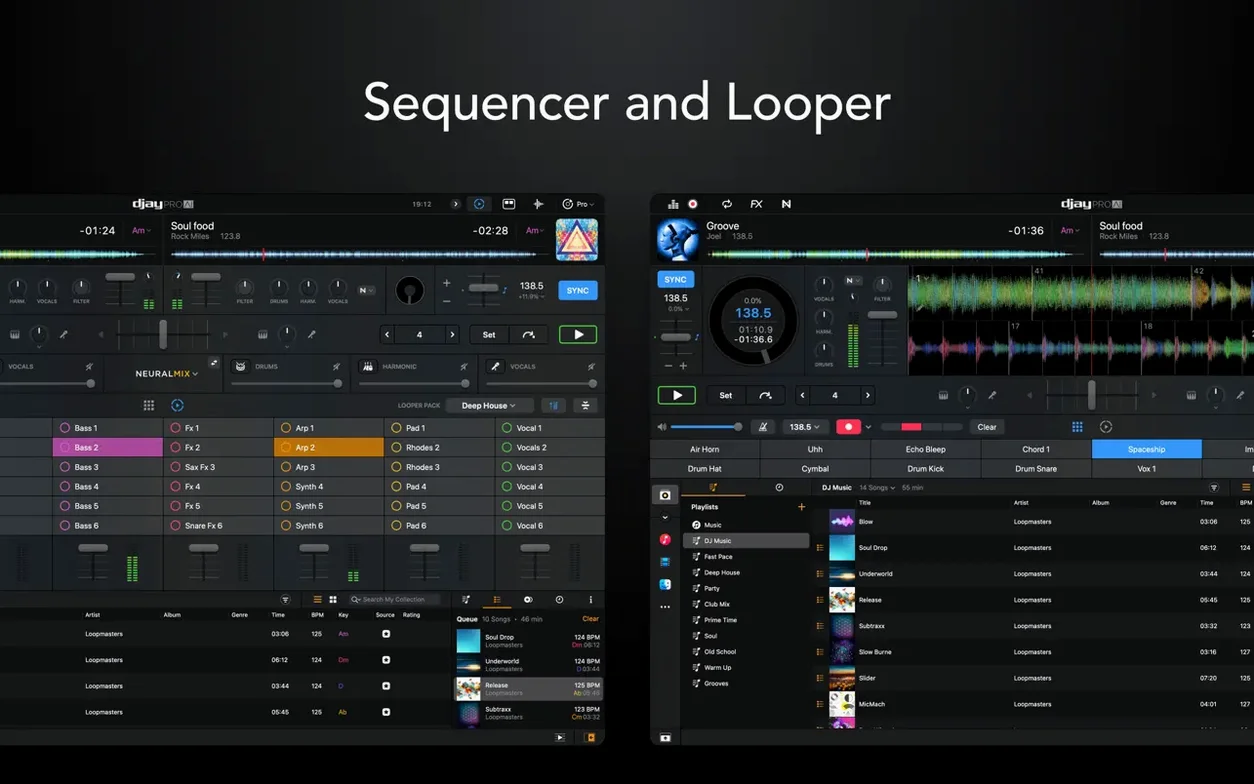
- Use the looper on Deck A to catch a phrase if you want to layer a sample over Deck B. The looper can capture up to 48 loops from the track.
Opens with two decks and your iTunes library already loaded
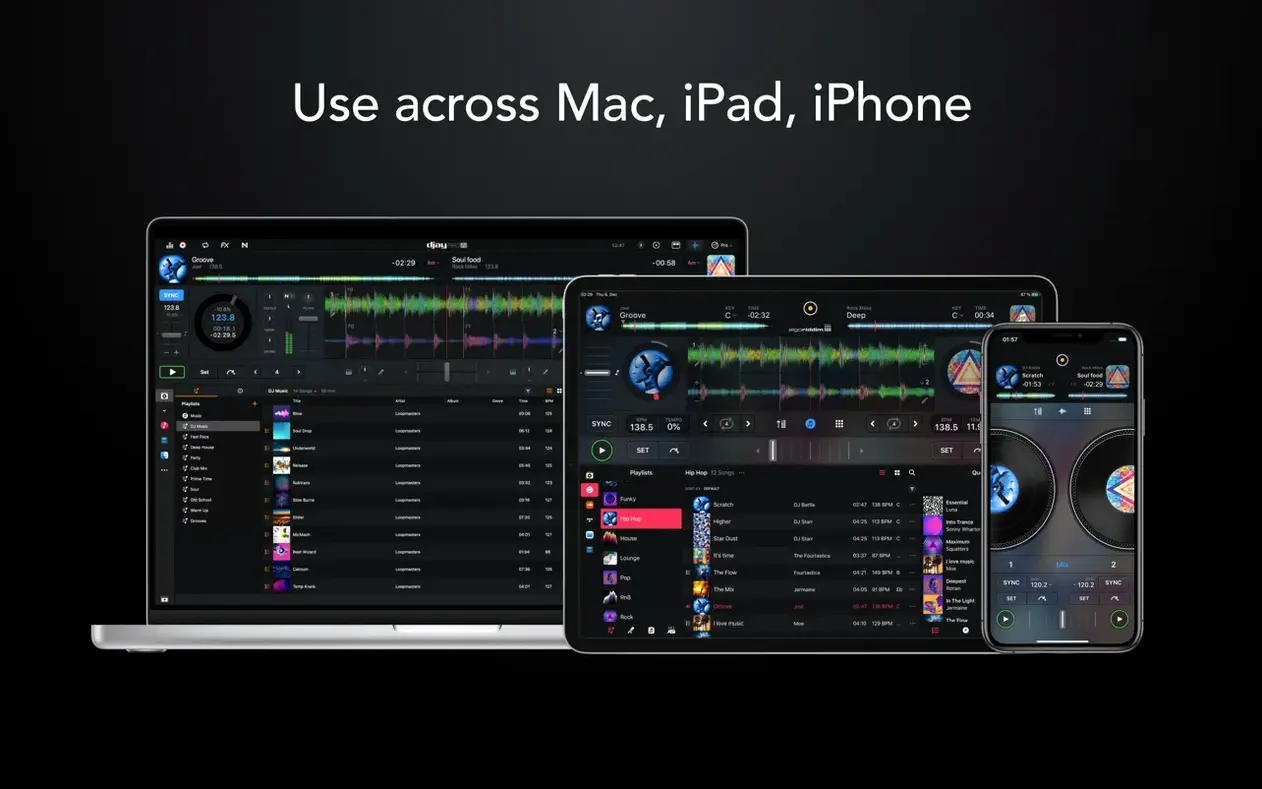
The session starts at 9 PM on a Friday. You open djay Pro from the Applications folder. The app loads with two empty decks and a browser panel on the left. Your iTunes library appears automatically — no import step, no waiting for a scan. You click on a playlist called "Tech House 2024" and drag a track onto Deck A.
You set the crossfader to the center. The track starts, and the waveform scrolls across the top of the deck in high definition. You adjust the master volume — not too loud, the neighbors are home. You flip through the browser and load a darker techno track onto Deck B. Neural Mix activates with a single click on the Deck B panel. You mute the drums on Deck B, leaving only the bass and the atmospheric pads. The sound is sparse but interesting.
After a few minutes, you decide to bring Deck B in. You press sync — the tempos match, the beats align. You move the crossfader slowly to the right. Deck A's volume drops, Deck B's rises. When the crossfader reaches the far right, Deck A is silent. You unmute the drums on Deck B, and the track hits with its full arrangement. The transition took about thirty seconds.
Halfway through the set, a friend wants to join from their laptop. You enable Ableton Link in the app settings. They open a Link-compatible app on their machine, and within a second, both devices are synced. You hand them a cable for the second output, route it through Audio MIDI Setup as an aggregate device, and now you have a two-person mix — one person handling the main deck, the other adding loops and effects from a second machine.
Later, you load a track with a vocal hook. You activate Neural Mix on Deck A, mute everything except the vocals, and route it to the send effect bus. You add a filter sweep to the vocal — the low-pass opens and closes with the effect knob. The crowd responds. You capture a four-bar loop of the vocal using the looper and let it play while you cue up the next track. The session ends with an automix sequence — you toggle automix mode, and the app takes over the transition after the current track finishes. You step away for a drink. The app handles the crossfade and the timing.
- Added RANE System One integration with native display support.
- Added MIDI actions to change beat jump duration.
- Improved media library playlist presentation on CDJs.
- macOS 10.15 or later
- Intel or Apple Silicon
Questions from the notes
Does djay Pro support Ableton Link?
Yes, djay Pro includes support for Ableton Link, letting you sync tempo and playback with other Link-enabled apps on the same network.
Can I disable Gatekeeper to install djay Pro?
The installer uses a terminal command to bypass Gatekeeper, which is a standard workaround for unsigned apps. You do not need to disable SIP unless a specific controller or driver requires it.
Install procedure
- Mount the disk image and run Open Gatekeeper friendly.
- Press Enter in the Terminal window to bypass Gatekeeper.
- Drag the app into the Applications folder.
- Disable SIP if required.
Reports from players
Sign in or create a tester account to file a report.
No reports filed yet.