Audiobook Builder 2.2.9 is a Mac application that combines separate audio files and CD tracks into audiobooks for Apple devices.
Drag audio files into a new project
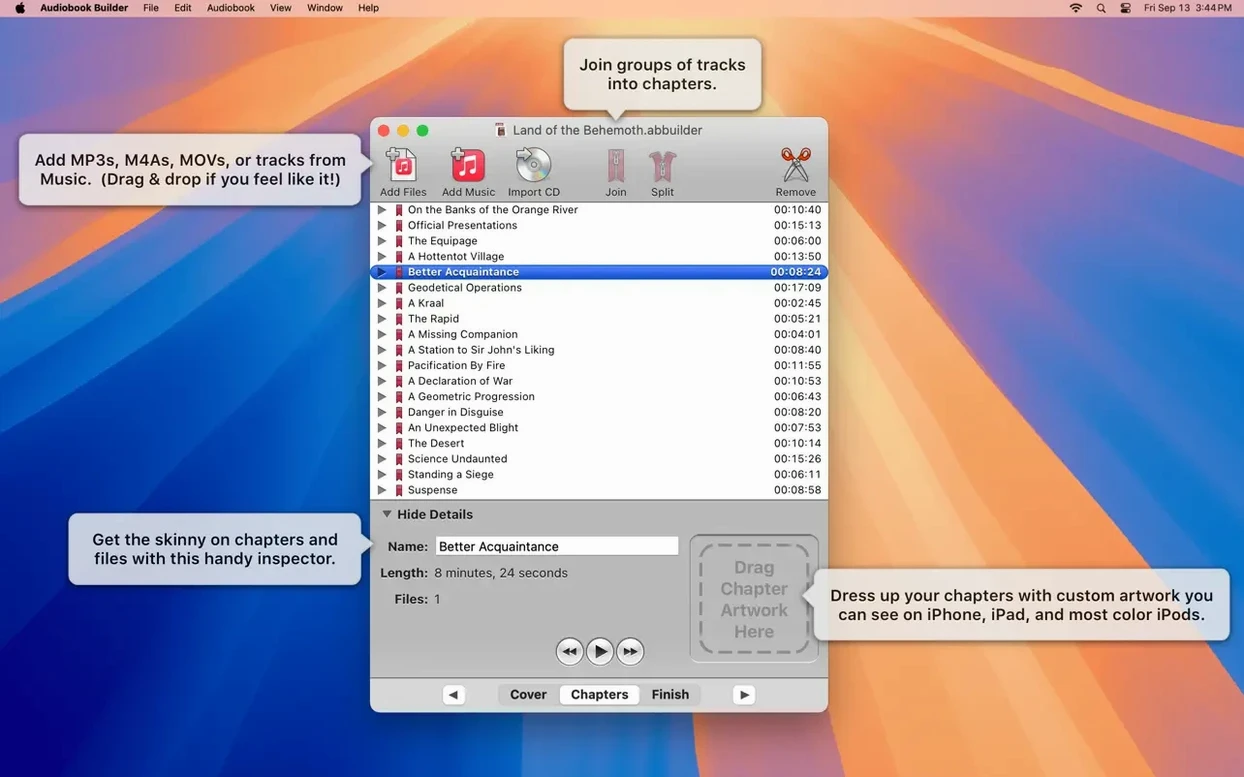
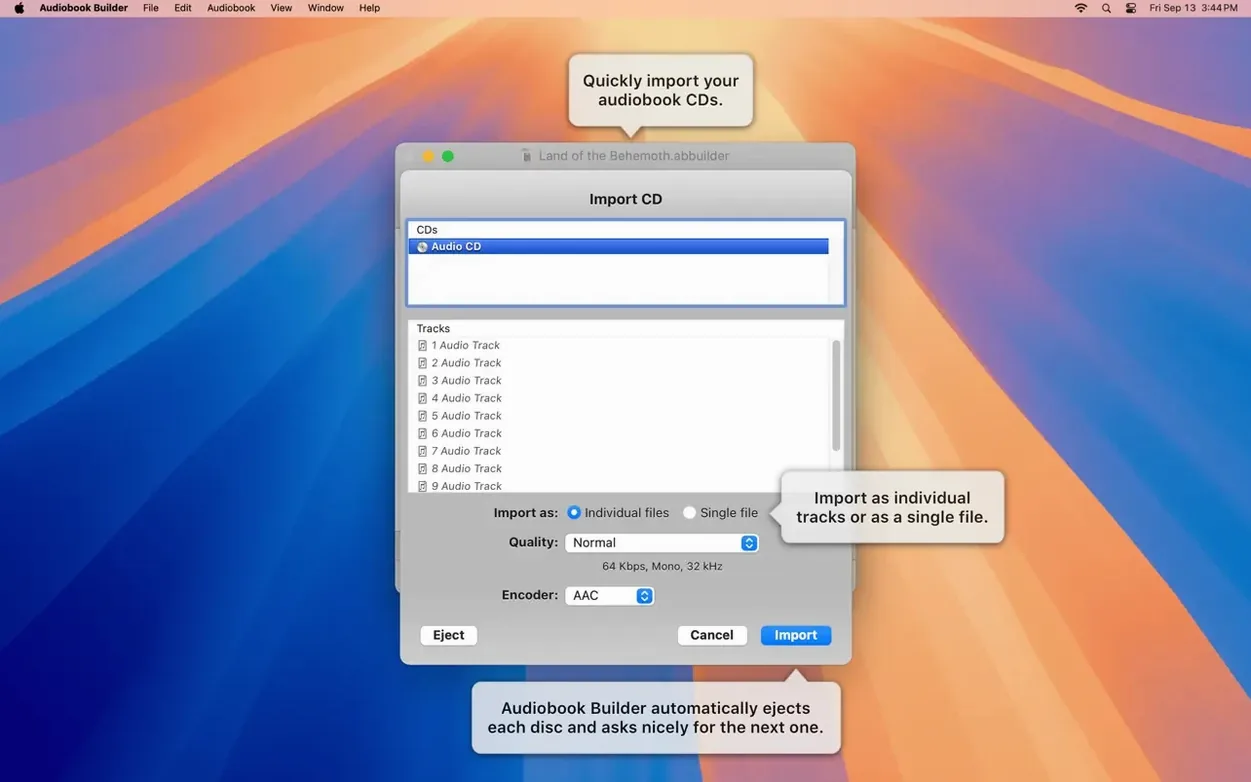
Create a project — Drag audio files or CD tracks into the project window. The app lists them as raw tracks.
Chapter grouping — Select multiple tracks and choose "Merge into chapter" to combine them into one chapter, or use "Split chapter" to break a long track at a marker. You have manual control over chapter content.
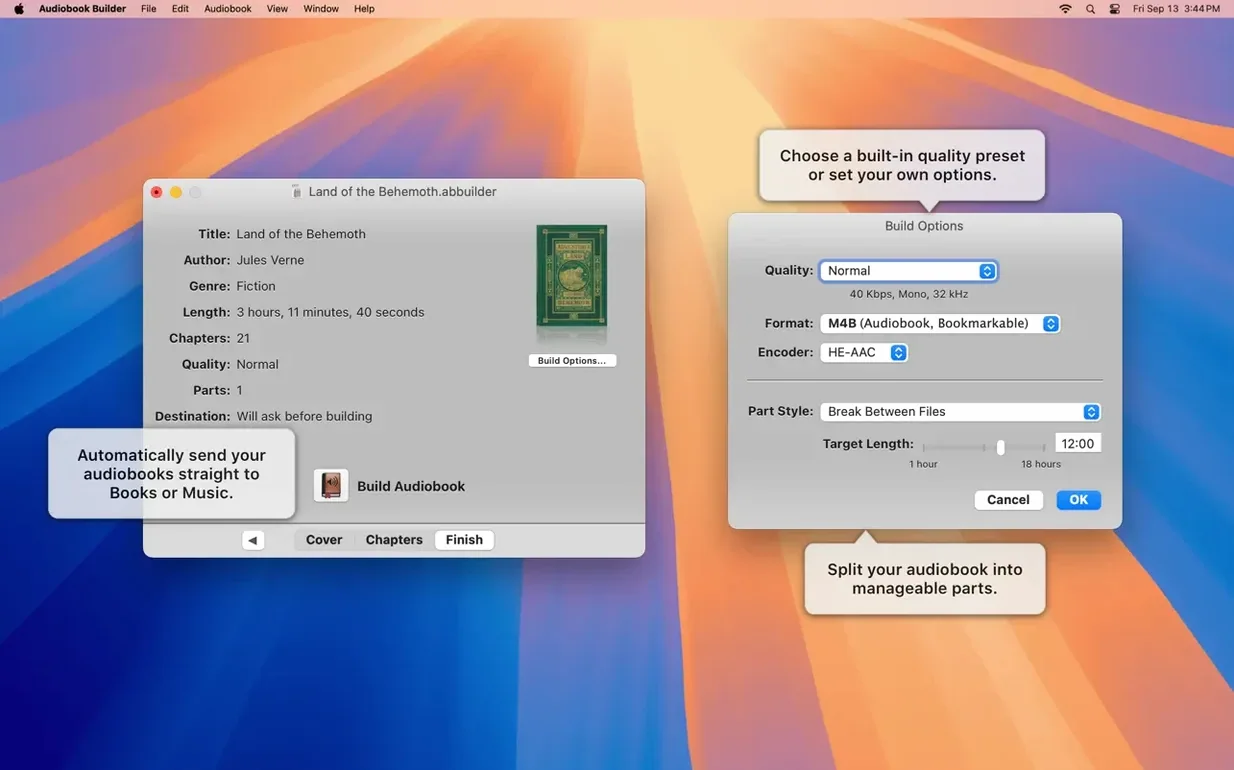
Set audio parameters — Under project settings you can adjust output format, bitrate, and sample rate. The app lets you set custom audio file parameters before building.
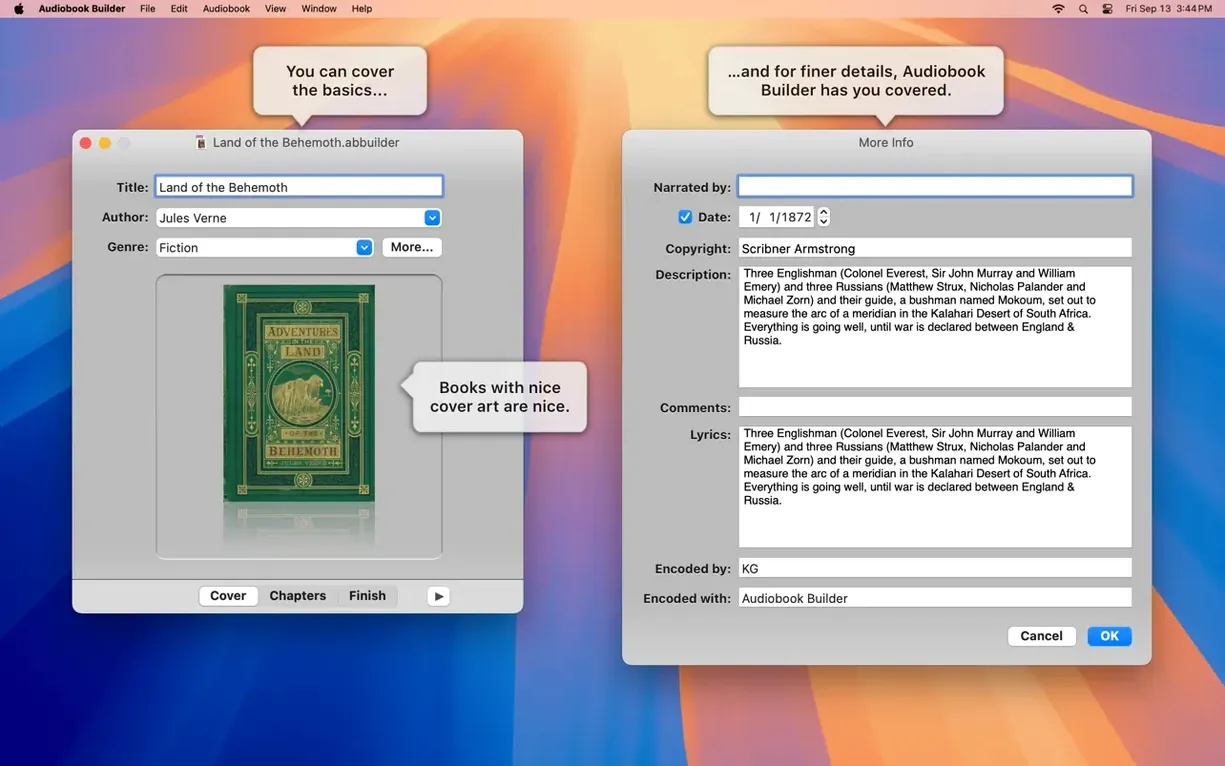
Add artwork — Drag a cover image onto the project. Cover and chapter artwork display correctly on macOS 13 Ventura and later.
Build and deliver — Click Build. The finished audiobook can be added directly to iTunes, Music, or Books, ready for iPhone, iPad, or other Apple devices.
Runs on any Mac with El Capitan or newer
Given the system requirements, Audiobook Builder 2.2.9 is a light application that does not demand a recent or powerful machine. It runs on any Mac with OS X 10.11 El Capitan or newer, including those with Apple Silicon (ARM) or Intel processors. The app itself is a standard 64-bit binary, so there is no 32-bit version to worry about.
It supports six interface languages: English, Russian, German, Spanish, Portuguese, and Swedish. The language setting is system-wide, so the app will match your macOS language preference if available. There is no separate language selector inside the app.
Since the app is designed to output audiobooks for Apple devices, the entire workflow stays inside the Apple ecosystem. You do not need third-party conversion tools or cloud services. The app handles file reading, chapter assembly, and metadata embedding locally.
Check audio format and metadata before starting
After you finish the installation — mount the disk image, run Open Gatekeeper friendly, press Enter in Terminal to bypass Gatekeeper, drag the app to Applications, then open it — there are a few things worth checking before you start your first project.
- Check the default output format — Open project settings and look at the preset sound quality. It may default to a setting that works for most listeners, but if you are building an audiobook for a classic iPod, you might want to switch to a lower bitrate. The app lets you choose preset sound quality settings or set custom audio file parameters.
- Test with a short file first — Drag in a single MP3 or WAV file, assign a book title and author, add cover art, and build the project. This confirms the app sees your files correctly and the output lands where you expect — iTunes, Music, or Books.
- Check artwork behavior — If you are on macOS 13 Ventura or later, cover and chapter artwork should display without issues. On older systems, the artwork may still embed but might not preview in the app. The 2.2.9 update specifically fixed artwork on Ventura.
- Name your chapters as you go — Tracks imported from a CD often have generic names like "Track 01, Track 02." Rename them in the project before merging, so the final audiobook has readable chapter titles.
It compiles chapters, artwork, and metadata into a finished file
Audiobook Builder does not replace an audio editor or a media player. It is a compiler: it takes source files, organizes them into chapters, applies metadata and artwork, and produces a finished audiobook file that standard Apple apps can read.
- iTunes, Music, Books — The built audiobook can be added directly to these libraries. From there, it syncs to iPhones, iPads, and other Apple devices normally.
- Finder and drag-and-drop — The app relies on drag-and-drop for importing files and cover images. You can organize your source files in Finder folders by author or series, then drag them into the project window in the correct order.
- Audio editors — If a source file has silence at the start or end, you may want to trim it in an external audio editor before importing. Audiobook Builder does not include waveform editing or silence removal.
- CD rippers — For audio CDs, the app reads tracks directly. If you prefer to rip the CD to files first with another tool, that works too. The app accepts common audio formats.
- macOS Gatekeeper — The install process requires a Terminal command to bypass Gatekeeper because the app is not signed by an Apple-recognized developer. This is a one-time step. Once installed, the app runs without further intervention.
Incorrect file order causes problems when building
Most issues with Audiobook Builder come from assumptions about how the app handles files, not from bugs or crashes. Here are common ones.
- Not checking file order before building — The app lists tracks in the order they were imported. If you drag in files from a folder that is not sorted alphabetically, the chapters may end up scrambled. Rename files with leading numbers or drag them in the correct sequence.
- Skipping cover art — Some beginners leave the cover art field empty, which produces an audiobook with a blank cover in iTunes or Books. The app supports cover and chapter artwork on macOS 13 Ventura and later, so it is worth adding at least a book cover.
- Using unsupported audio formats — The app reads common formats like MP3, WAV, and AAC. If you try to import FLAC, Ogg Vorbis, or other lossless formats, the app may skip them or show errors. Convert unsupported files to MP3 or AAC before importing.
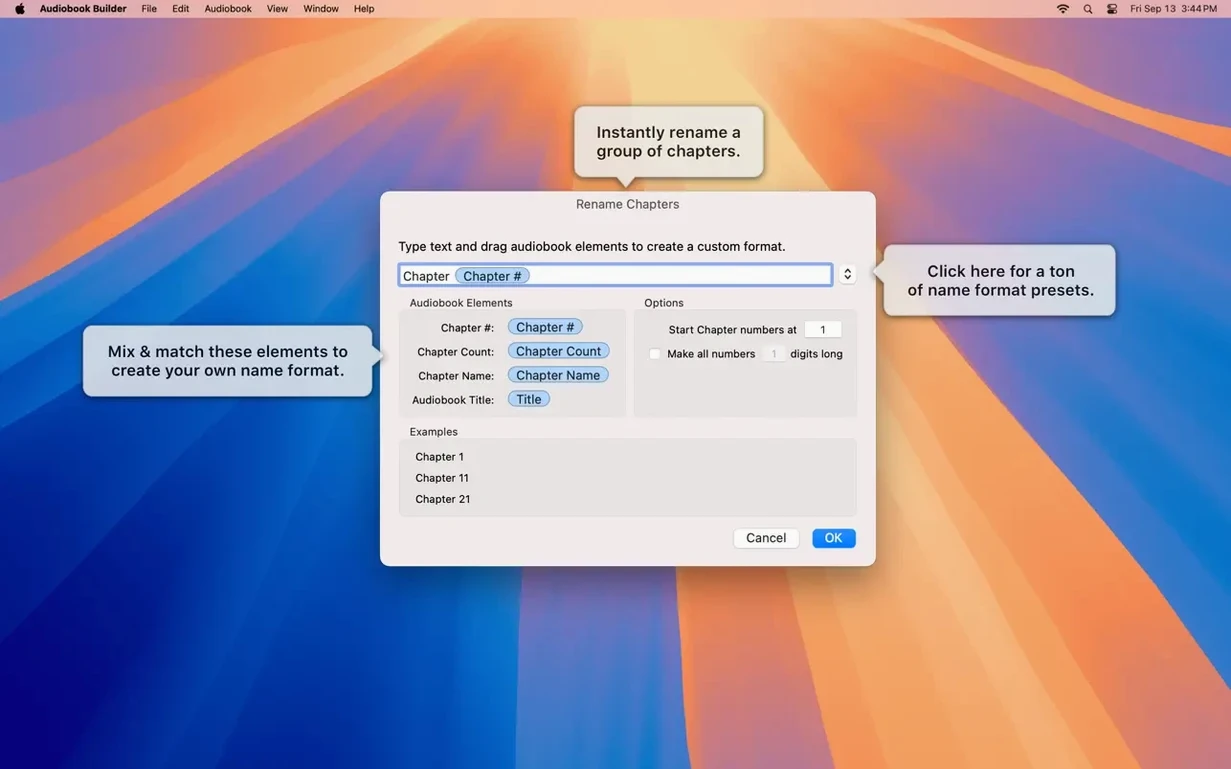
- Ignoring chapter titles — Merging tracks without renaming them leaves you with chapters named "Track 01" or "Part 1." The app lets you set custom chapter titles during project editing. Doing that before the final build saves editing later.
- Not adjusting bitrate for older devices — A high-bitrate audiobook may play fine on a current iPhone but fail to sync to an older iPod with limited storage. The custom audio file parameters let you lower the bitrate for compatibility.
- Forgetting to bypass Gatekeeper on first install — If you double-click the app without the Terminal step, macOS blocks it. The install instructions include the Gatekeeper workaround for a reason. On subsequent launches the app opens normally.
- Expecting it to edit audio — The app does not trim silence, adjust volume, or fix clipping. If the source files need editing, do that in a separate audio editor before bringing them into Audiobook Builder.
- Ready for macOS 15 Sequoia.
- Cover and chapter artwork work on macOS 13 Ventura.
- No longer shows “no audio in file” errors for WAVE files with MP3 audio data.
- Corrects an error reporting glitch on pre-macOS 11.3 Macs.
- Restores the Description tag for some classic iPods.
- macOS OS X 10.11 or later
- 64-bit processor
- Works on Apple Silicon
- Works on Intel
Install procedure
- Mount the disk image and run Open Gatekeeper friendly.
- Press Enter in Terminal to bypass Gatekeeper.
- Drag the app to the Applications folder.
- Open the app when installation is complete.
Reports from players
Sign in or create a tester account to file a report.
No reports filed yet.