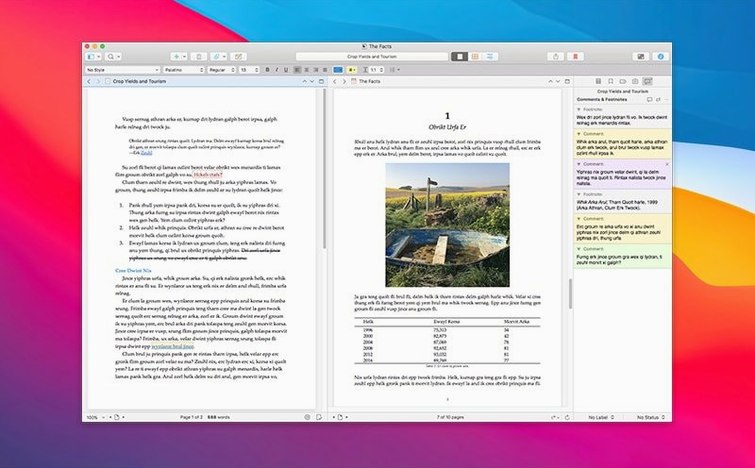
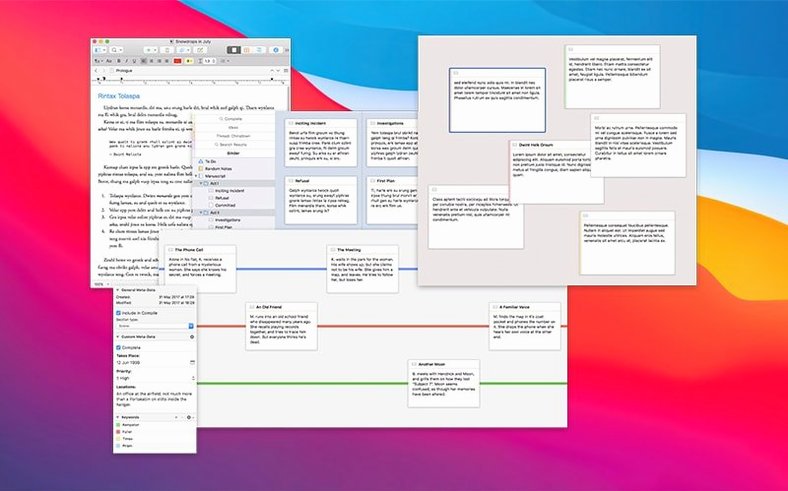
Scrivener handles the parts of a big writing project that a regular word processor doesn't: the notes, the research, the outlines, the drafts. It stores everything in one project, including PDFs, images, and audio, and it saves automatically as you go. The interface is English, which suits most writers fine. A new project comes with a Research folder for supporting material, and snapshots let you keep several versions of a document without cluttering your draft.
- Is Scrivener 3.5.2 a major update? No, it's a bug-fix release.
- Can I organize non-text material? Yes — notes, photos, links, PDFs, and audio all live inside the project.
- It requires macOS 10.13 or later, both Intel and Apple Silicon.
- Will I lose work if the app quits? Automatic saving is built in.
- Is it available in languages other than English? No, the interface is English only.
If you're weighing a scrivener mac download for a long-form project, this version is stable and does what it says. The bug fixes in 3.5.2 address issues from earlier releases, so it's a reasonable point to start.
Pick a project template that matches your format
Opening Scrivener starts with a project template. You pick one that matches your format — novel, script, nonfiction, or a blank project — and the app builds a starting structure. A novel template gives you folders for chapters and a Manuscript folder. A script template sets up proper screenplay formatting from the first page.
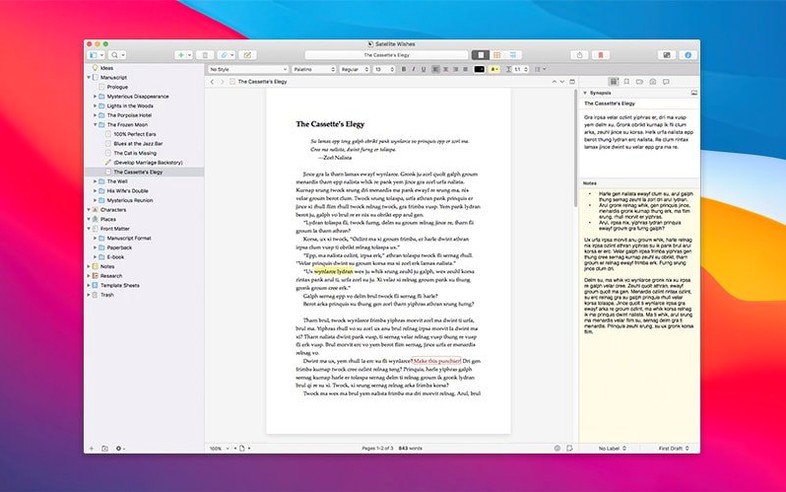
The left sidebar holds the Binder, which lists every document, folder, and research file in the project. A session often begins here: you drop a PDF interview transcript into the Research folder, then open a blank text document in the Draft folder to start writing. The editor pane takes up the center. Split views are common — one pane shows an outline, the other shows the current chapter. You can also split vertically to compare two parts of the same document.
As you write, the built-in automatic saving runs in the background. There’s no save dialog, no lost paragraphs. When you need to revise a section without losing the original, you take a snapshot. The snapshot stores the current state of the note or a selected fragment. Later, you can look back at any snapshot or restore it.
Toward the end of a session, you might compile the project into a single file. The compile feature collects all the text in the Draft folder, applies formatting, and exports to a variety of formats — Word, PDF, plain text, or final manuscript layouts. You set page size, font, and whether to include the Research folder. The output is a clean document ready for submission or backup.
Long-form writers benefit most from the Binder
Writers working on long-form projects benefit most. Novelists and academic writers live inside the Binder, organizing chapters and subdocuments. Screenwriters use the script templates and the formatting rules built into the editor. Journalists handling multiple interviews and drafts find the Research folder useful for keeping source material next to the text they are writing.
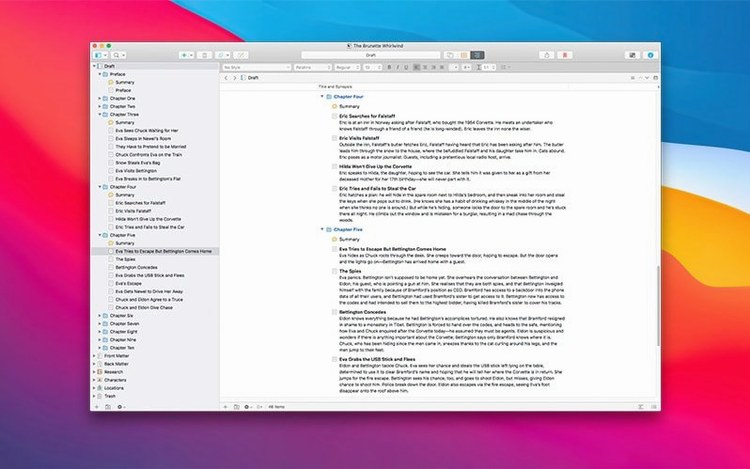
Students writing theses or dissertations also fit. The corkboard view, which displays index cards for each document, helps with sequencing arguments. The outliner shows word counts and synopses per section. Both views make it easier to move entire sections without copy-pasting.
Writers who collect research — screenshots, web clippings, audio notes — will appreciate that Scrivener stores those files inside the project rather than linking to external folders. A PDF of a source document stays exactly where you put it, and the app indexes the text inside PDFs for search.
Drag files from Finder into the Research folder
Scrivener works well alongside standard macOS tools. You can drag files from Finder into the Research folder — PDFs, images, audio files, web archives. The app does not convert them; it keeps them in their original format and opens them with the default macOS viewer when you double-click.
Text can be copied and pasted between Scrivener and other word processors. The compile function exports to .docx, .rtf, and .txt, so a final draft moves into Word, Pages, or Google Docs without formatting loss. Scripts export to Final Draft format if you work with screenwriting software.
iCloud or Dropbox sync works if you store the Scrivener project file in a synced folder. Open the same project on another Mac and the edits carry over. The app handles the sync by saving the whole project as a package file, so cloud services treat it as a single item. Just make sure both Macs run Scrivener 3 — older versions use a different project format.
Spotlight indexes the text inside Scrivener project files. You can search for a phrase from the menu bar and find it inside a project without opening the app first. That works for the main text and for plain-text research notes.
Crashes fixed when switching between projects
Scrivener 3.5.2, released 18 December 2025, is a bug-fix release. Everyday changes are small but noticeable. A few crashes that happened when switching between projects are gone. The compile function handles certain script formatting rules more consistently. Snapshot comparisons load faster when a document has many saved versions. None of the changes add new features or alter the interface layout — the app works the same way as before, just with fewer interruptions.
For someone doing a scrivener mac download for the first time, this version is a stable starting point. The bugs addressed in 3.5.2 were reported in earlier builds, so the release feels polished. Users who already have Scrivener installed can update without reconfiguring their projects or templates.
- Bug-fix release.
- macOS 10.13 or later
- Intel or Apple Silicon
Questions from the notes
Does Scrivener 3.5.2 work on Apple Silicon Macs?
Yes, the app supports both Intel and Apple Silicon architectures, and requires macOS 10.13 or later.
Install procedure
- Mount the disk image and run Open Gatekeeper friendly.
- Press Enter in Terminal to bypass Gatekeeper.
- Drag the app to the Applications folder.
- Open the app after installation is complete.
Reports from players
Sign in or create a tester account to file a report.
No reports filed yet.