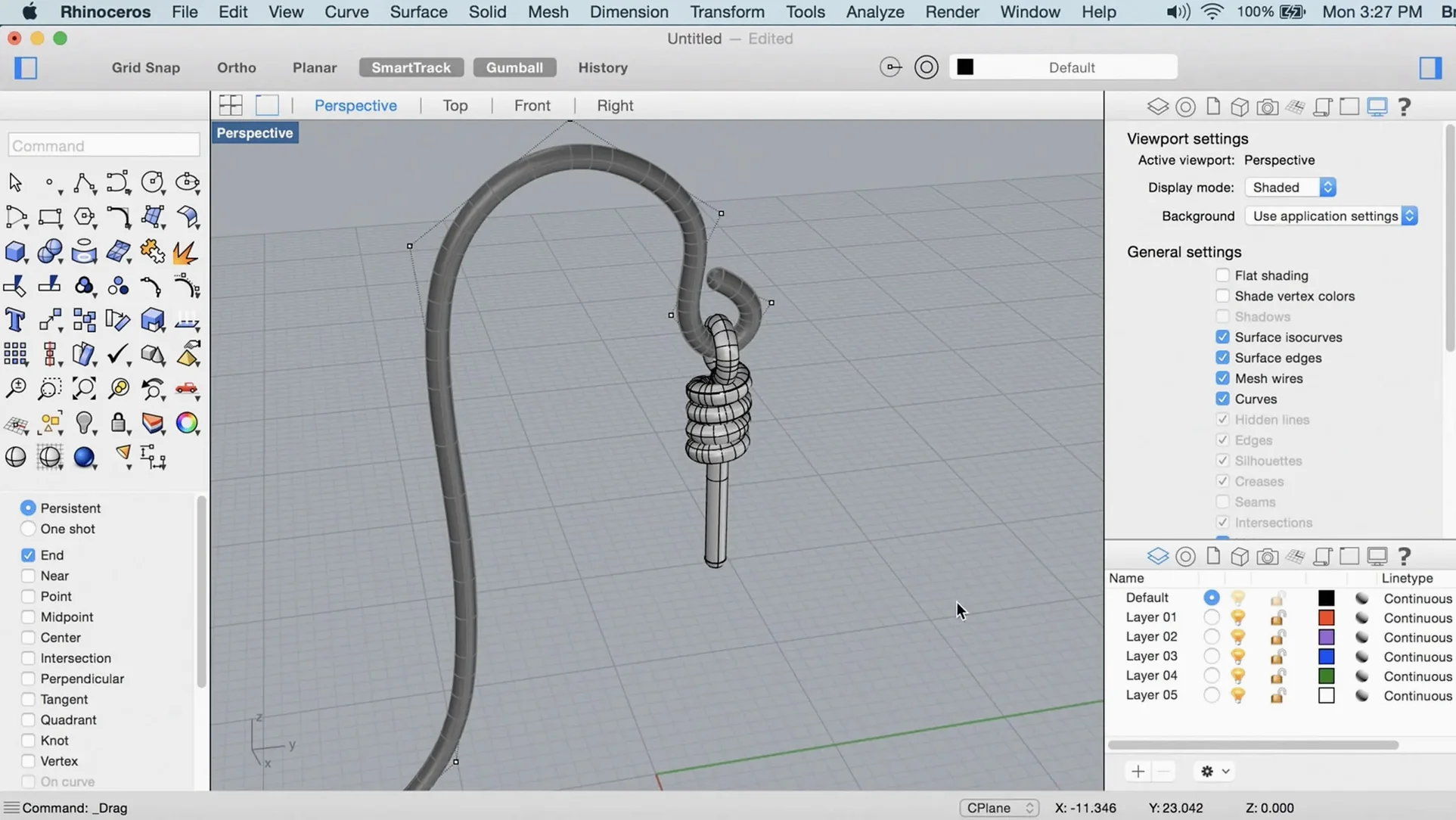
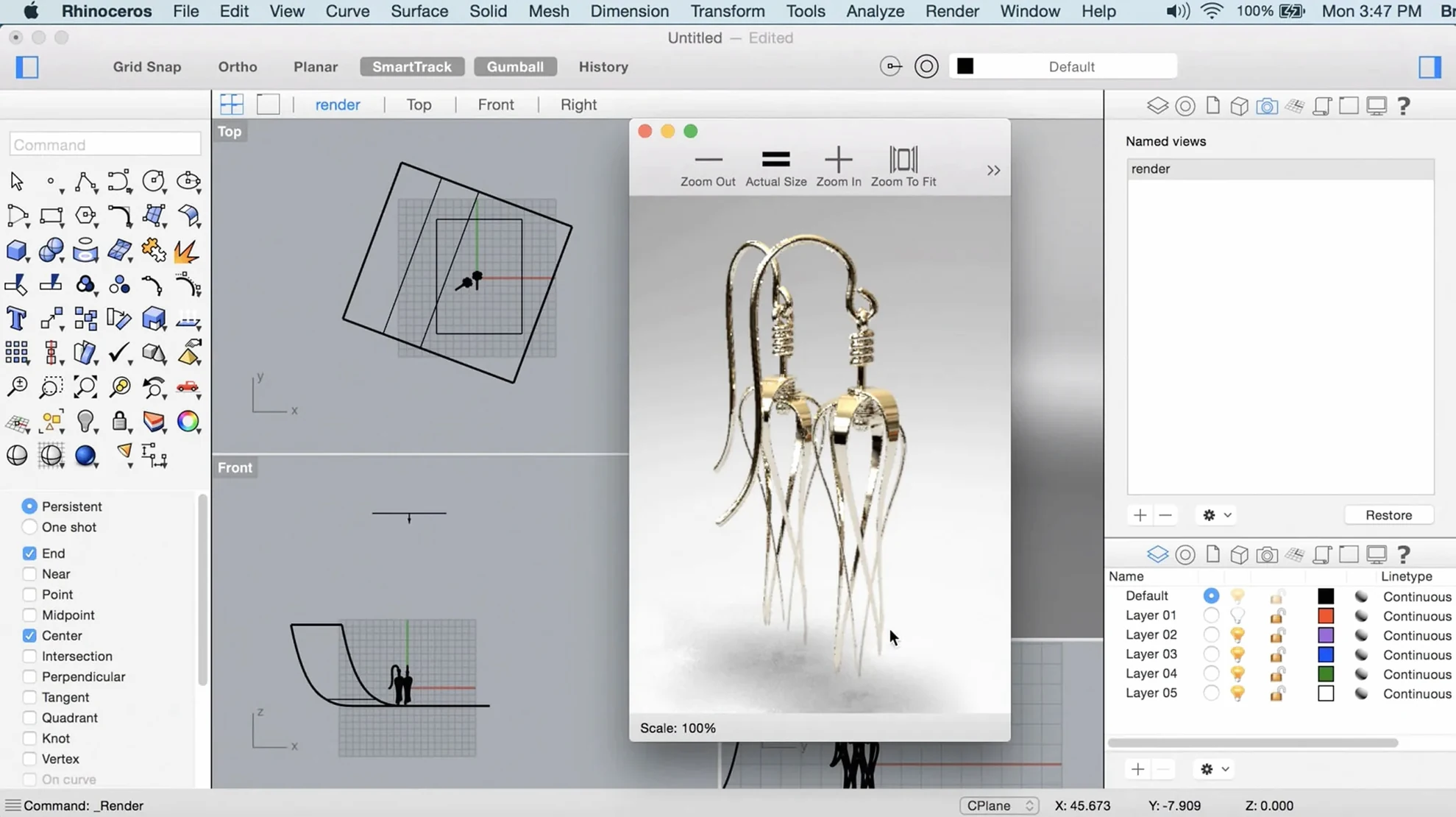
SubD Creases land in Rhino 8 for Mac, giving you control over sharp edges without converting to NURBS. That alone is worth the update if you've spent time fighting fillets on organic shapes.
Model large assemblies
The new workflow changes target bottlenecks in big models and team projects. Opening, saving, and viewport navigation feel less sluggish when the scene file gets heavy. Metal-based graphics on Mac also help with smooth rotation and zoom on both Apple Silicon and Intel machines.
ShrinkWrap for quick meshes
ShrinkWrap produces a watertight mesh around any geometry, useful for 3D printing or quick collision proxies. It works on messy imported data without cleanup, so you can skip the repair step.
Grasshopper gets more data types
Grasshopper in Rhino 8 includes new data types, which opens up more flexible definitions. If you've hit the limit of lists and trees before, this is where you'll notice the difference.
PushPull changes how you edit solids
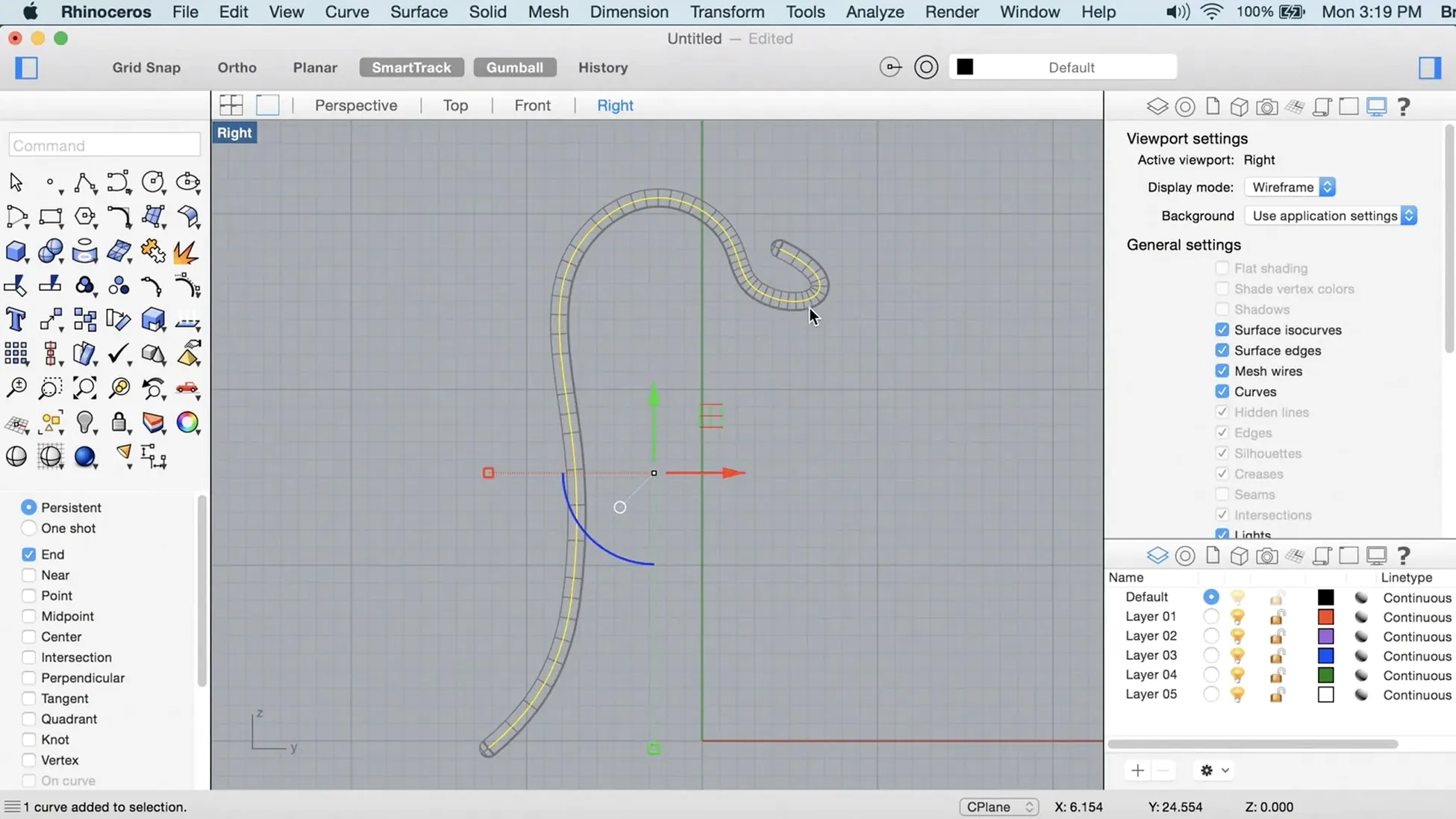
PushPull makes direct manipulation of solid faces feel more like the direct modeling you expect from a sketch tool. You grab a face, move it, and the geometry follows. It reduces the number of steps between where you are and where you want the surface to be. For anyone coming from other solid modelers, this is the workflow that feels familiar without requiring a separate set of commands.
Custom UI without scripting
The more customizable interface means you can rearrange toolbars, palettes, and panels without digging into RhinoScript or Python. Beginners often assume they need to learn a scripting language to get the interface right. That is rarely true for the common setups. You drag, dock, and save the layout. The main thing to watch is that you do not accidentally close the command line — that is the mistake that slows down new users more than anything else.
Preview iterations speed up with the faster render engine
- Faster render engine — The render engine in version 8 processes previews quicker than before. You can iterate on lighting and materials without waiting through a full render cycle each time. It is not a real-time renderer, but the delay is shorter.
- Metal-based display — On Mac, the Metal display technology handles viewport redraws without relying on OpenGL translation layers. The difference shows when you orbit around a model with a few thousand polys.
- ShrinkWrap one-shot — ShrinkWrap runs on a selection and outputs a mesh in one command. There is no wizard, no multi-step dialog. Select the source geometry, run the command, and the mesh appears. For beginners, that is the kind of direct feedback that helps build confidence with mesh tools.
Bridges conceptual modeling to CAD and mesh tools
Rhino for Mac works as a bridge between conceptual modeling and production. You can export NURBS to SolidWorks or Fusion 360 via STEP, IGES, or 3DM. The mesh output from ShrinkWrap is ready for ZBrush or Blender. Point clouds import from Cyclone or FARO. If you work in an all-Mac studio, Rhino plus Grasshopper plus a slicing tool gives you a pipeline from parametric design to fabrication without leaving the platform.
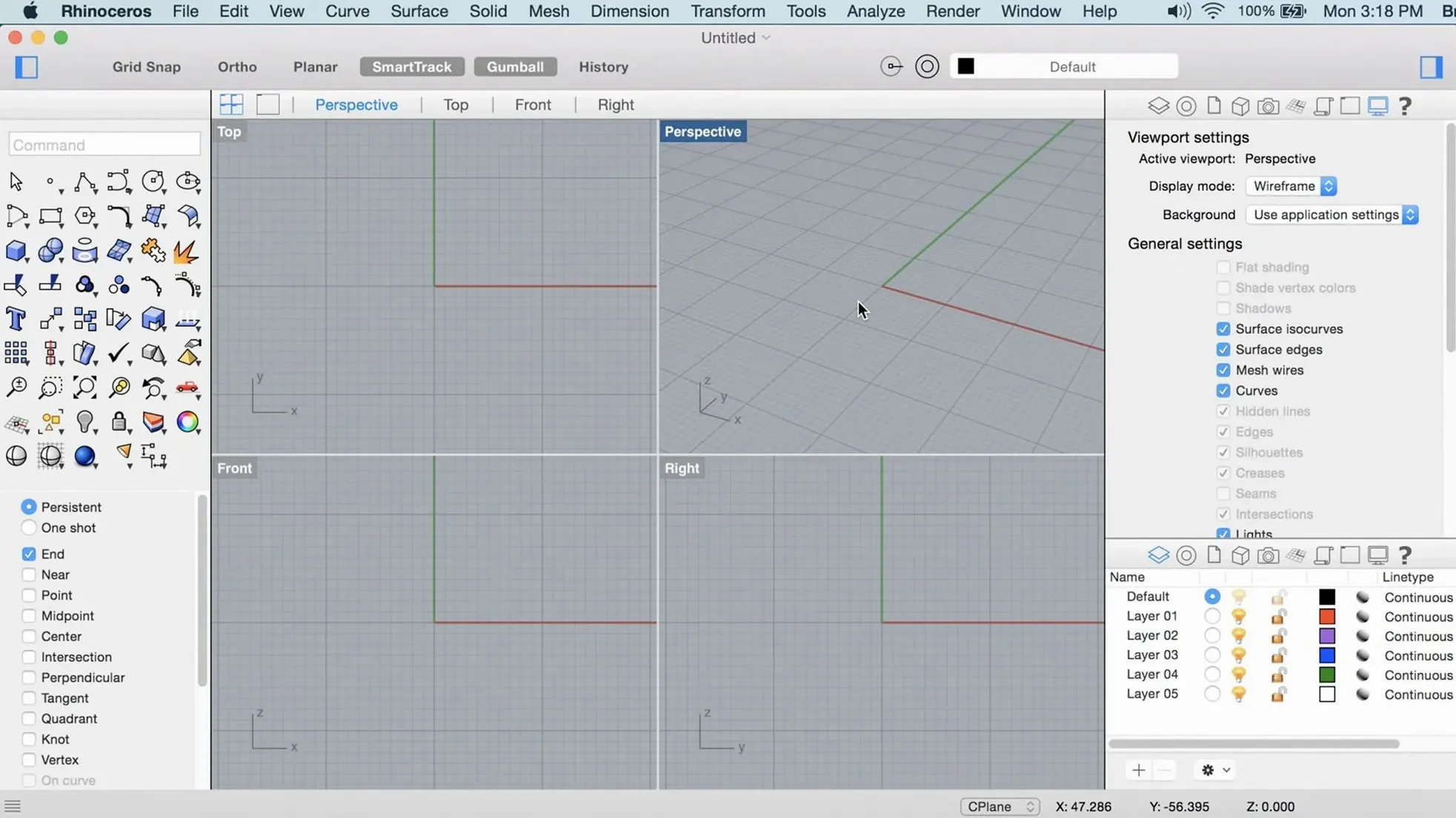
On the macOS side, Rhino uses the standard file dialogs, so Finder tags and iCloud Drive paths work normally. The application respects macOS dark mode and the system accent color for some UI elements. You can use Apple Trackpad gestures for two-finger scroll and pinch zoom in viewports if you prefer not to use a mouse, though the recommendation remains a multi-button mouse with a scroll wheel.
Don't ignore the command line for faster tool access
- Ignoring the command line — New users often click through menus to find tools. The command line is faster for almost everything. Type the first few letters of a command and press Tab to autocomplete. This one habit changes how quickly you can work.
- Using too many polygons early — Beginners sometimes set the polygon count high on a simple shape, making the file slow before it needs to be. Start with a low-poly preview, then increase the count only for the final export. Rhino handles large models, but it does not need to handle them during sketching.
- Forgetting to save the custom UI layout — After rearranging toolbars and panels, the layout resets on restart if you haven't saved it. The save option is in the interface management section, not in the regular file menu. Losing the layout once is usually enough to teach that step.
- Placing objects too far from the origin — Rhino's coordinate precision suffers when geometry is far from the origin. Importing a DWG with a bounding box offset by kilometers can cause snapping errors and display glitches. Move the model close to the origin before doing detailed work.
Comparison with similar Mac apps
Rhino vs. Blender
Blender is free and excels at polygon mesh modeling, animation, and rendering. Rhino is stronger with NURBS and precision-driven surface modeling. If your work is organic sculpting and rendering, Blender covers it. If you need accurate curves for fabrication or engineering, Rhino's NURBS engine is the differentiator. Both run on Apple Silicon, but Rhino's Metal display gives it a slight edge in viewport responsiveness on Mac hardware.
Rhino vs. Shapr3D
Shapr3D targets iPad and Mac with a simplified, gesture-based interface. It is faster to learn for basic solid modeling. Rhino covers more complexity: point clouds, large assemblies, Grasshopper automation, and the full command set. Shapr3D is a good entry point; Rhino is where you go when you outgrow the simplified toolset.
Rhino vs. Fusion 360
Fusion 360 runs on Windows and Mac, with integrated CAM and cloud collaboration. Its parametric modeling is strong, but its NURBS surface tools are less developed than Rhino's. Rhino handles organic surface creation and analysis more naturally. Fusion 360 pulls ahead when you need built-in CAM toolpaths and a product lifecycle pipeline. For pure 3D modeling and analysis, Rhino remains the deeper tool on macOS.
ShrinkWrap and SubD Creases now stable for daily production
The current build, 8.30.26103.11002, refines the features introduced in the 8.0 release. ShrinkWrap and SubD Creases are now stable enough for daily production. The render engine no longer forces a full restart when switching between standard and Metal modes. The customizable UI also remembers panel positions across sessions more reliably than the initial 8.0 release. If you are coming from version 7, the biggest everyday change is the speed of viewport navigation and the shorter wait for renders. If you are coming from an earlier 8.x build, the improvements are mostly under the hood: fewer crashes on complex SubD operations, cleaner export to Grasshopper, and better memory handling with imported point clouds.
- Fixes: SubD creases now work as expected.
- Changes: faster render engine, Metal-based graphics on Mac, more customizable UI.
- New: ShrinkWrap, additional Grasshopper data types.
- macOS 12.4 Monterey or later
- Apple Silicon or Intel Mac
- At least 8 GB RAM recommended
- 10 GB disk space
- Multi-button mouse with scroll wheel recommended
Questions from the notes
Does Rhino 8 run on Apple Silicon Macs natively?
Yes, the Mac version runs natively on Apple Silicon and Intel Macs.
Install procedure
- Mount the disk image.
- Run Open Gatekeeper friendly.
- Press Enter in Terminal to bypass Gatekeeper.
- Drag the app to the Applications folder.
- Launch the app.
Reports from players
Sign in or create a tester account to file a report.
No reports filed yet.