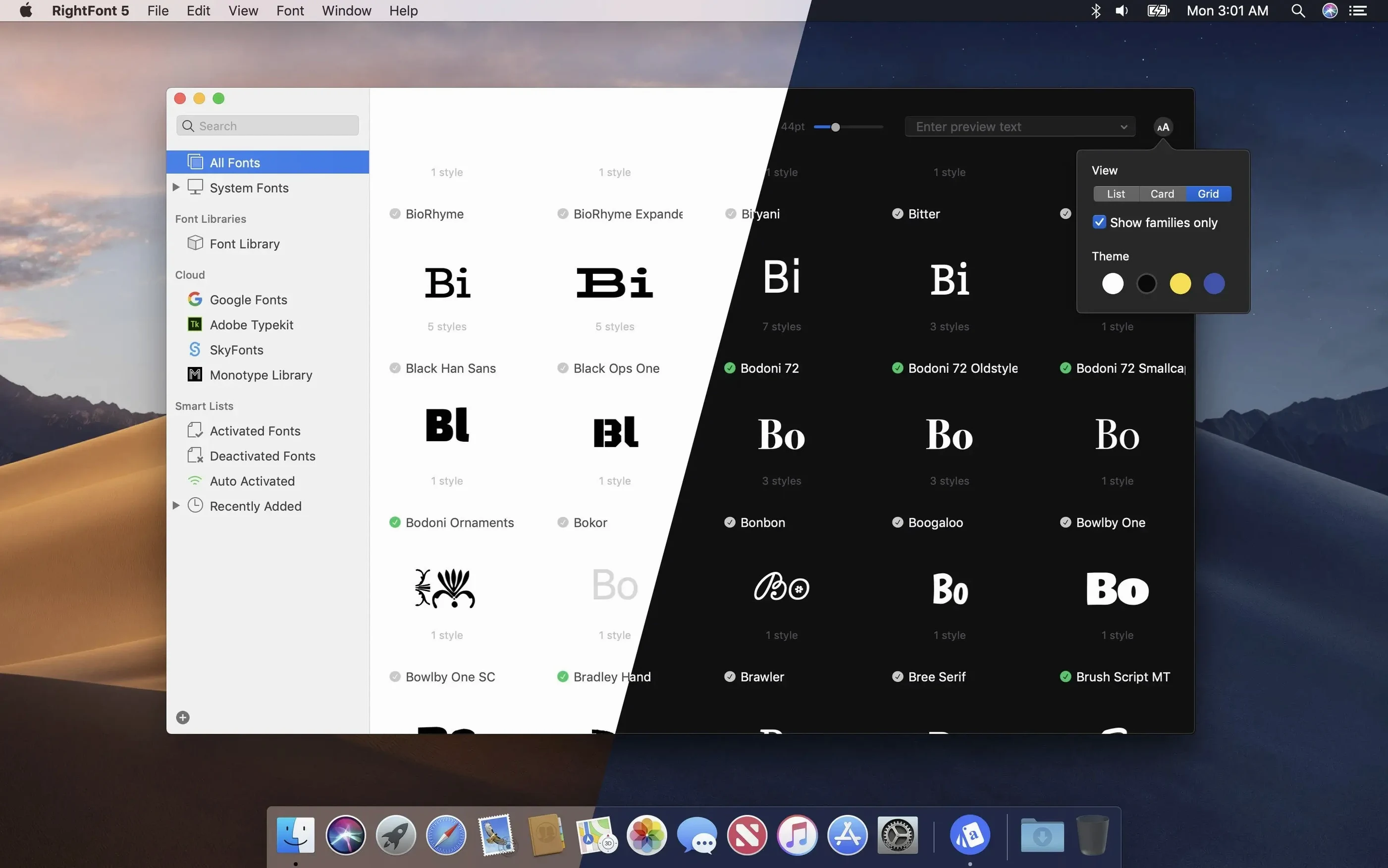
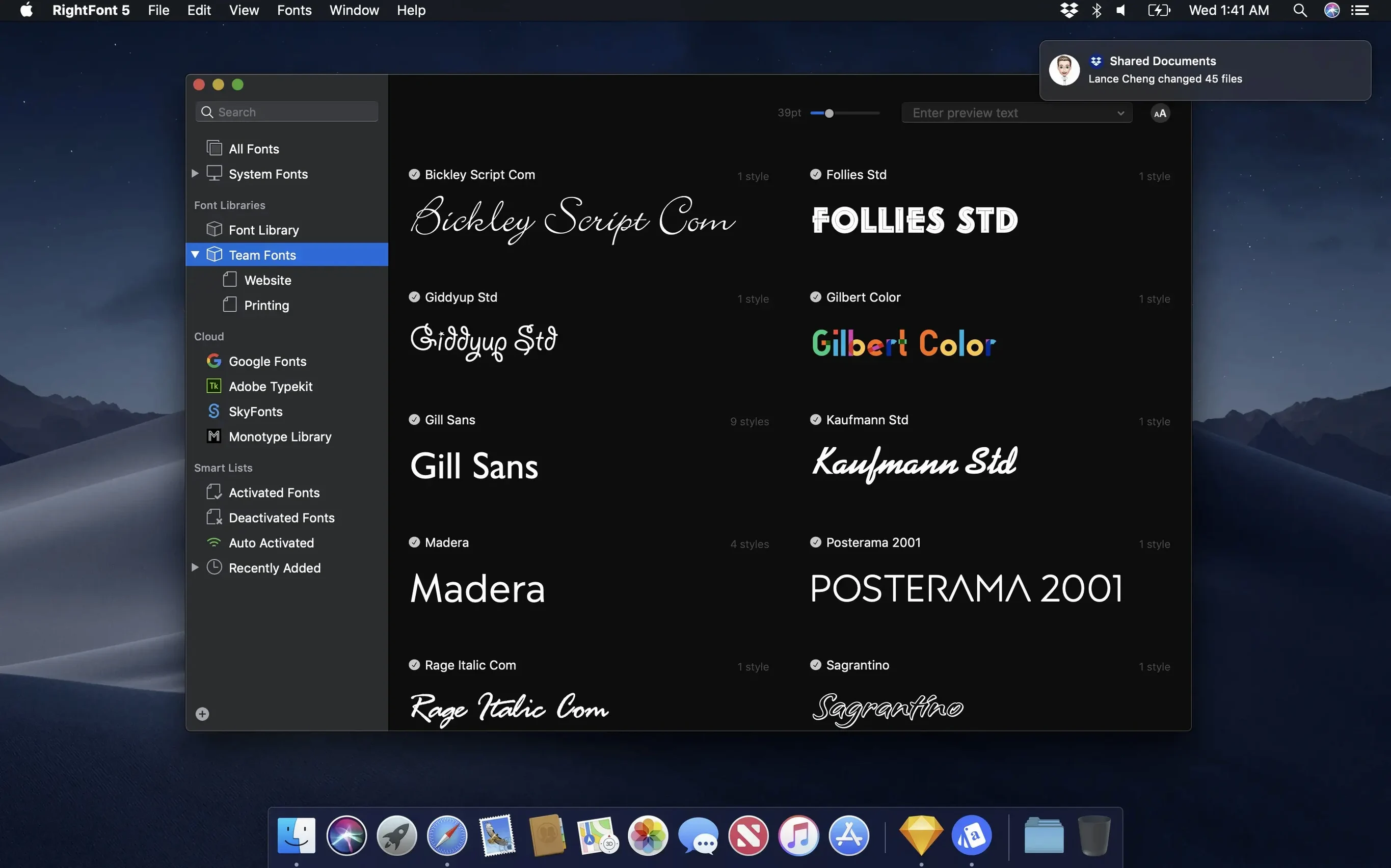
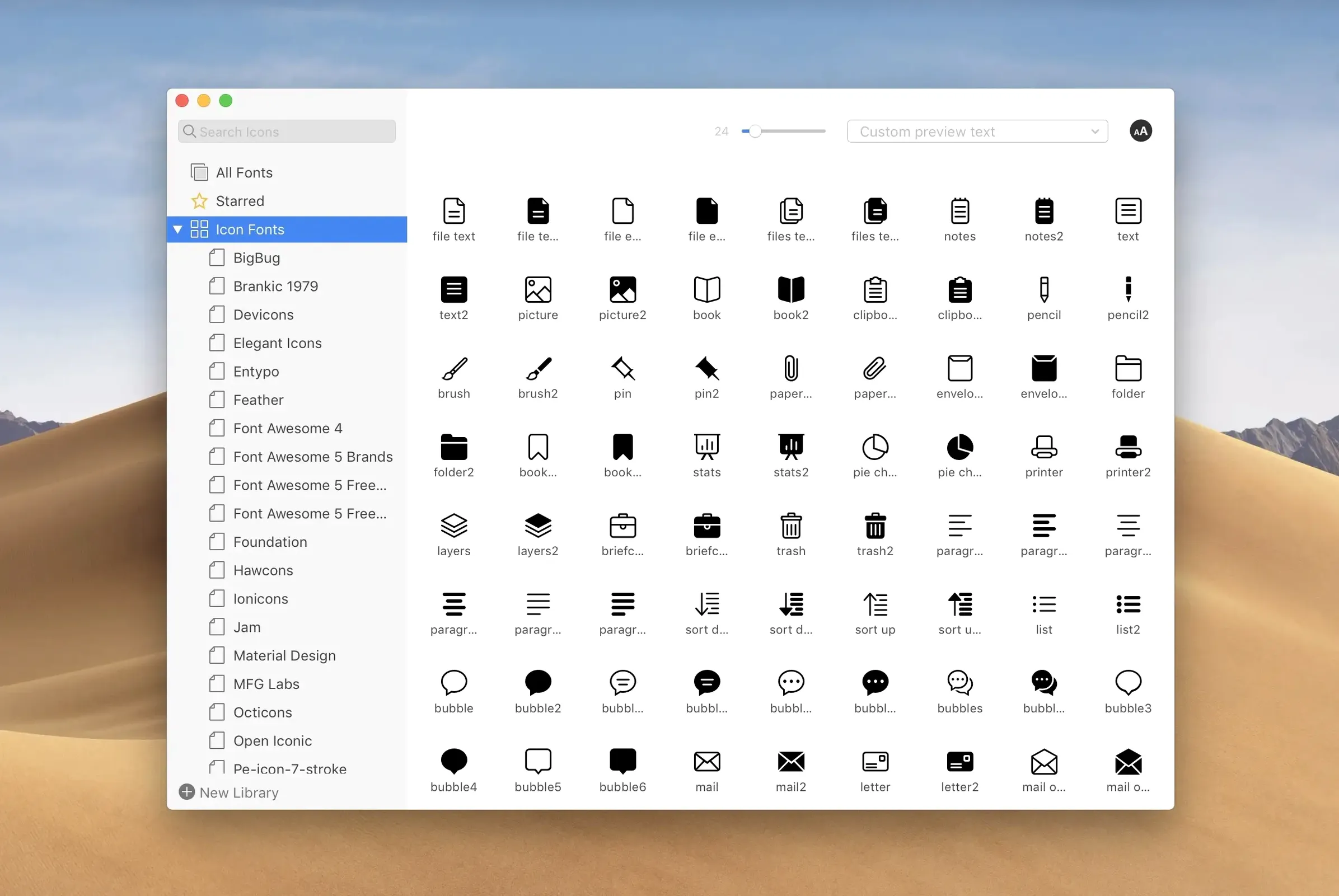
RightFont is a lightweight font manager for macOS that helps you organize, preview, install, and sync fonts. The current version, 10.2.1, keeps things stable and adds a few quality-of-life improvements.
Import a folder and search fonts quickly
Start by importing a folder of fonts. RightFont will show search results as you type, so finding a specific face is quick. Create font lists to group families you use often, and drag subtags back under the main Tags section when you reorganize. For backup or sharing, the font library lets you move fonts around easily.
Version 10.2.1 for macOS 11 or later, Intel and Apple Silicon
| Item | Detail |
|---|---|
| Version | 10.2.1 |
| Developer | LIYI CHENG |
| macOS | 11 or later |
| Architecture | Intel and Apple Silicon |
| Language | English |
Fix fonts that don't show up after import
Fonts not showing up after import is the most frequent issue. RightFont 10.2.1 improved import progress detail and finalization, so check the progress window for a count of unsupported files. If a font still doesn't appear, confirm it isn't already installed in macOS Font Book — RightFont can manage duplicates, but it won't show the same file twice in the library.
If a font looks different in Adobe Illustrator or QuarkXPress than in RightFont's preview, the app might have cached an old version. Restarting RightFont and the design application clears the cache. The 10.2.1 release specifically addressed issues in Illustrator and QuarkXPress, so keeping the version current helps.
When menu bar access stops responding, check that RightFont's menu bar helper is still running in the menu bar itself. If it vanished, launch RightFont again and it should reappear.
Enable auto-activation to keep your font menu clean
A few settings make daily use smoother. Open the preferences and:
- Enable auto-activation for fonts. RightFont can activate fonts on demand when you open a design file, which keeps your font menu clean without manual installs.
- Set the default installation folder. Pointing it to a user-specific location rather than the system-wide Fonts folder avoids permission conflicts, especially on macOS 11 and later.
- Choose which design software connectors are active. If you only use Adobe apps, disable the Sketch or QuarkXPress connectors to reduce background overhead.
First-day workflow: organizing a client font pack
You receive a folder of 50 fonts for a branding project. Here's a routine that works with RightFont 10.2.1:
- Open RightFont and drag the folder into the font library window. The import progress bar shows a finalization stage and lists any unsupported files — this is normal.
- After import, use the search field to find specific weights. RightFont filters results as you type, so typing "bold" shows every bold variant in the pack.
- Create a new font list named after the client. Select the fonts you need and drag them into that list. Lists are separate from tags, so you can have one list per project without affecting your tag structure.
- Tag the fonts by classification (serif, sans-serif, display) and by usage (headings, body). If you need to reorganize later, subtags can be dragged back to the main Tags section.
- Activate only the fonts you need for the current layout. RightFont keeps the rest deactivated until you switch lists, so your Adobe font menu stays short.
This workflow keeps a large font collection tidy from day one, and the library makes it easy to copy the whole project folder for backup or sharing.
Start with 10–15 fonts to isolate permission issues early
- Start with a small test batch. Import 10–15 fonts, create one list, and use them in a design app before importing your entire collection. This isolates any permission or compatibility issues early.
- Use the menu bar access to activate a font without opening the main window. It's faster for quick checks.
- If you share fonts with a team, organize your library with tags rather than lists. Tags sync across the library, while lists are local to your Mac.
- When you right font download a new family, add it to your existing library instead of creating a separate folder. RightFont preserves the folder structure from the import source, so you can always find the original file.
RightFont is made exclusively for Mac, so it fits naturally into a macOS workflow. If you juggle fonts across projects, it's worth a look.
- More reliable font imports.
- Improved tag management.
- Fixed issues with Adobe Illustrator and QuarkXPress.
- Clearer import progress, including a finalization stage and a count of unsupported files.
- Subtags can be dragged back to the main Tags section.
- macOS 11 or later
- Intel or Apple Silicon
Questions from the notes
Can I use RightFont with Adobe Creative Cloud?
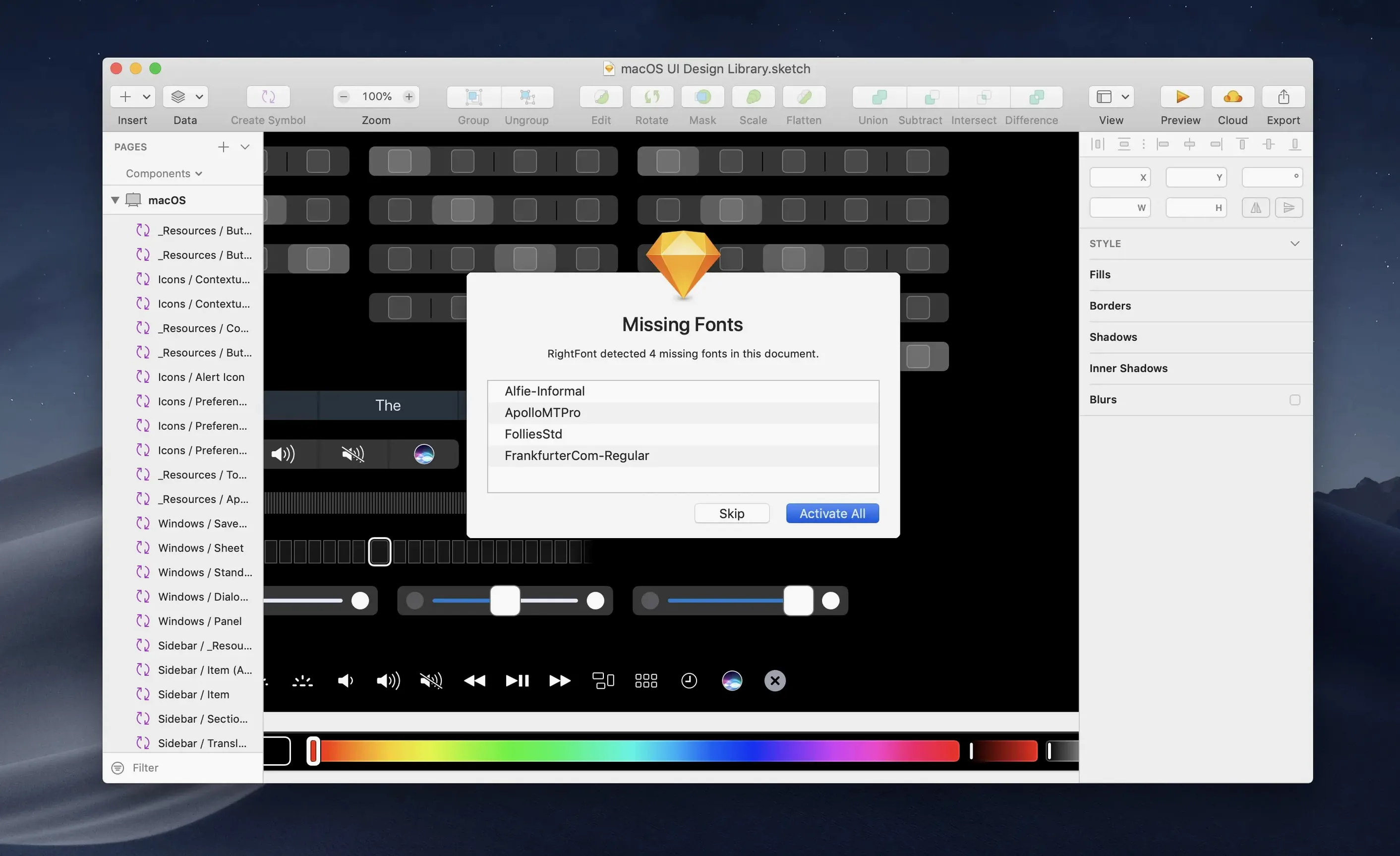
Yes, RightFont provides direct access to fonts from Adobe Creative Cloud apps and Sketch, including the ability to change a text layer's font by double-clicking.
Does RightFont work on Apple Silicon Macs?
Yes, RightFont supports both Intel and Apple Silicon architectures, as long as you're running macOS 11 or later.
How do I organize fonts in RightFont?
You can create and manage font lists, and in version 10.2.1, subtags can be dragged back to the main Tags section for easier organization.
Install procedure
- Mount the disk image and run Open Gatekeeper friendly.
- Press Enter to bypass Gatekeeper in Terminal.
- Drag the app to the Applications folder.
- Launch the app when installation is complete.
Reports from players
Sign in or create a tester account to file a report.
No reports filed yet.