
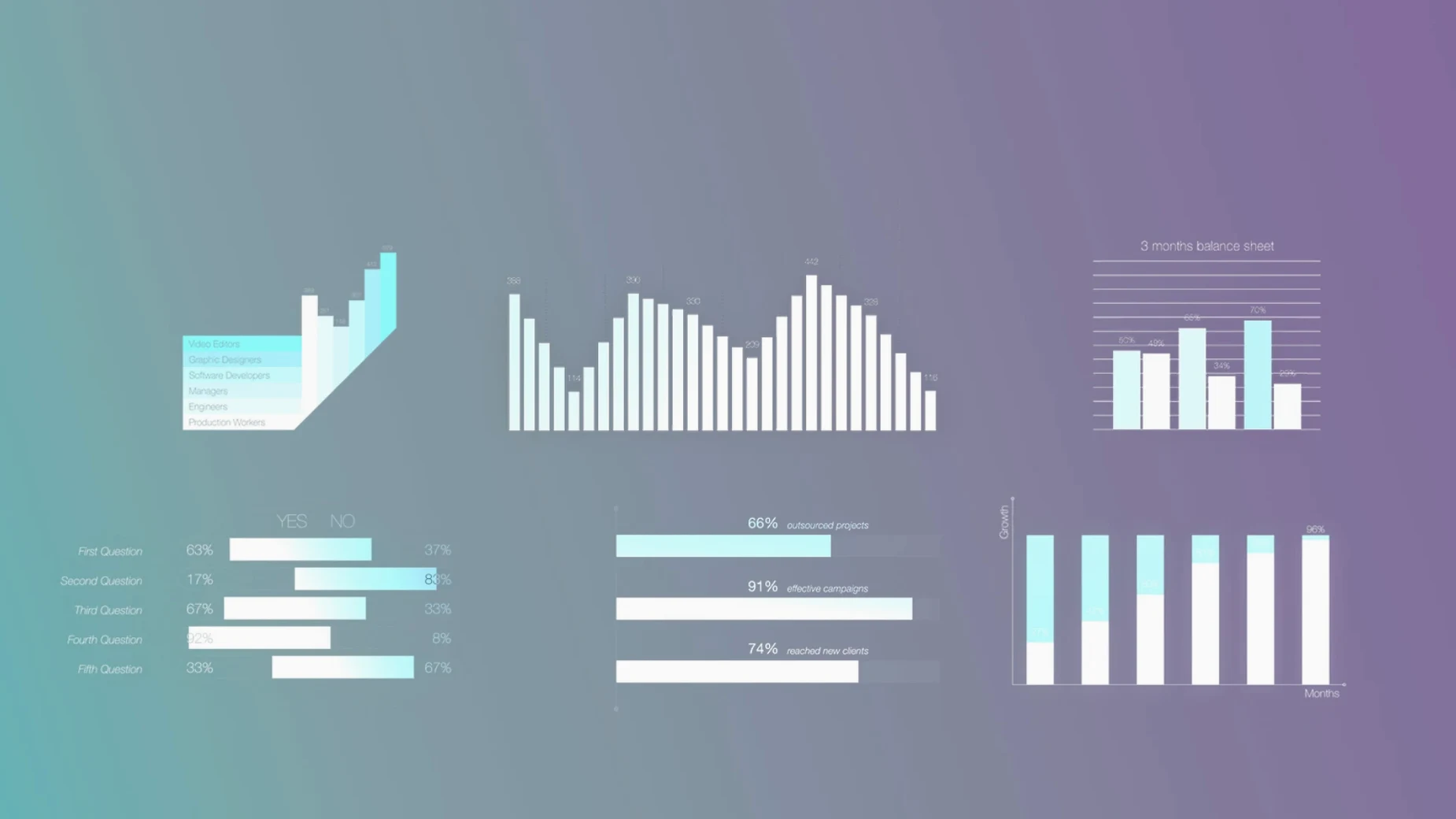
MotionVFX mInfographics runs on any Mac that can handle Final Cut Pro, with both Intel and Apple Silicon supported. It’s a plugin that drops 60 universal infographic elements into your timeline, covering charts, graphs, and typographic captions.
Number and description customization for each element
- Number and description customization for each element
- On-screen controls for quick workflow adjustments
- Data visualization via charts and graphs
- Informational captions with typographic styling
Working with it
The plugin sits in the Titles browser, ready to drag onto your clip. The on-screen controls let you edit values and labels without digging through inspectors. It’s a practical set for explainer videos or any project that needs readable data.
No activation or license key required
The plugin does not require activation. You unpack the folders and move them to the right location. There is no license key to enter, no online step. Language is English, and you do not need to switch Final Cut Pro to a different interface language to use it.
You might wonder whether it adds to the Titles library or creates a separate bin. It installs into the Titles folder inside Motion Templates. After placing the files at /Users/USERNAME/Movies/Motion Templates/Titles, the elements appear in Final Cut Pro under the Titles browser. They behave like any other title template. You do not need to restart Final Cut Pro every time — but if the new templates do not show up, a restart usually resolves it.
Because mInfographics is designed for Final Cut Pro, it works with any version that supports the Motion Templates system. Both Intel and Apple Silicon Macs are supported. The host machine only needs to meet Final Cut Pro’s own system requirements.
Test on-screen controls with a simple project first
Start by dragging a few different elements onto the timeline and test the on-screen controls. Adjust the chart values and the label text. You will see how each element responds. Do this with a simple project before inserting the elements into a real edit. That way you learn which infographic fits a given data set without wasting time in an active timeline.
If you use the same few elements repeatedly, note how the customization settings carry over when you duplicate a clip. Duplicating an adjusted title preserves the values. This saves time if you need a series of similar charts or numbered lists.
Open the Titles browser and search by name. The 60 elements are not grouped in the browser, so a systematic test session helps you memorize what is there. Consider a mental note of the ones you use most. Do not trust the preview thumbnail alone — some elements look similar until you edit the text.
A small footprint that renders through Final Cut's native engine
The plugin adds a folder of template files to your storage. The actual footprint inside Final Cut Pro is small; you do not install a separate application. The elements render using Final Cut Pro’s native engine, so the performance you see in playback and export depends on the complexity of the graphic and your timeline settings. Background rendering works as usual.
Both architectures work identically for the plugin. M-series Macs do not need Rosetta or compatibility layers. The same folder structure and titles path apply regardless of processor.
The on-screen controls are part of Final Cut Pro’s standard title interface. They appear in the viewer when you select an mInfographics clip. You adjust values without opening the Effects panel or the Inspector. The controls remain visible as long as the playhead is on that clip. They disappear when you select a different clip.
60 universal infographic elements with unchanged installation
The current version of mInfographics continues to ship with 60 universal infographic elements. No elements were removed or renamed. The installation steps remain the same: unpack the folders and move them to the Titles directory. There is no mention of new elements, so the set is stable across updates.
The product has not changed its macOS requirement or architecture support between recent versions. You can update from an earlier version by replacing the old folders with the new ones. Your existing project files using mInfographics elements continue to work after the update because the template IDs stay consistent.
Placing mInfographics on a clip that already has a title track
A common mistake is placing an mInfographics title on a clip that already has a title track. The plugin is a title, not a generator. It replaces or stacks with existing titles the way any Final Cut Pro title works. If you want the infographic overlaid on a lower third or another element, you need to put it on a separate track above the base clip.
Another misstep is not checking the timeline resolution setting before placing a chart. If your timeline is set to a resolution that mismatches the infographic’s intended aspect ratio, the on-screen controls may look misaligned in the viewer. The rendered output is fine, but the control handles appear displaced. Set your timeline to the project’s target resolution first, then position the element.
Beginners also try to edit the template files directly in the folder. That is not how MotionVFX mInfographics works. The customization happens inside Final Cut Pro through the on-screen controls and the Inspector. Changing the template files risks breaking the element. If you need a different font or color scheme, adjust the built-in settings within Final Cut Pro instead.
A final mistake is assuming the 60 elements cover every possible infographic need. The set is universal but finite. For specialized charts or complex animated data flows, you might need a different tool. Plan your data visualization around what mInfographics provides, and use it where it fits, rather than trying to force it into every data-heavy scene.
- macOS: not specified
- Architecture: both Intel and Apple Silicon
Questions from the notes
Does mInfographics work on Apple Silicon Macs?
Yes, the plugin is universal and runs on both Intel and Apple Silicon Macs.
How many elements are included?
The plugin includes 60 universal infographic elements for Final Cut Pro.
Can I customize the numbers and descriptions?
Yes, each element supports number and description customization.
Install procedure
- Unpack the downloaded folders.
- Move them to /Users/USERNAME/Movies/Motion Templates/Titles.
Reports from players
Sign in or create a tester account to file a report.
No reports filed yet.