

Version 16.93 of Office for Mac is the current build of the suite, and it lands with the usual set of apps: Word, Excel, PowerPoint, Outlook, OneNote, and OneDrive. The package information notes Office LTSC Standard for Mac 2024, which means the same installer covers the standalone apps and the full suite.
Sits Next to Your Existing Mac Tools
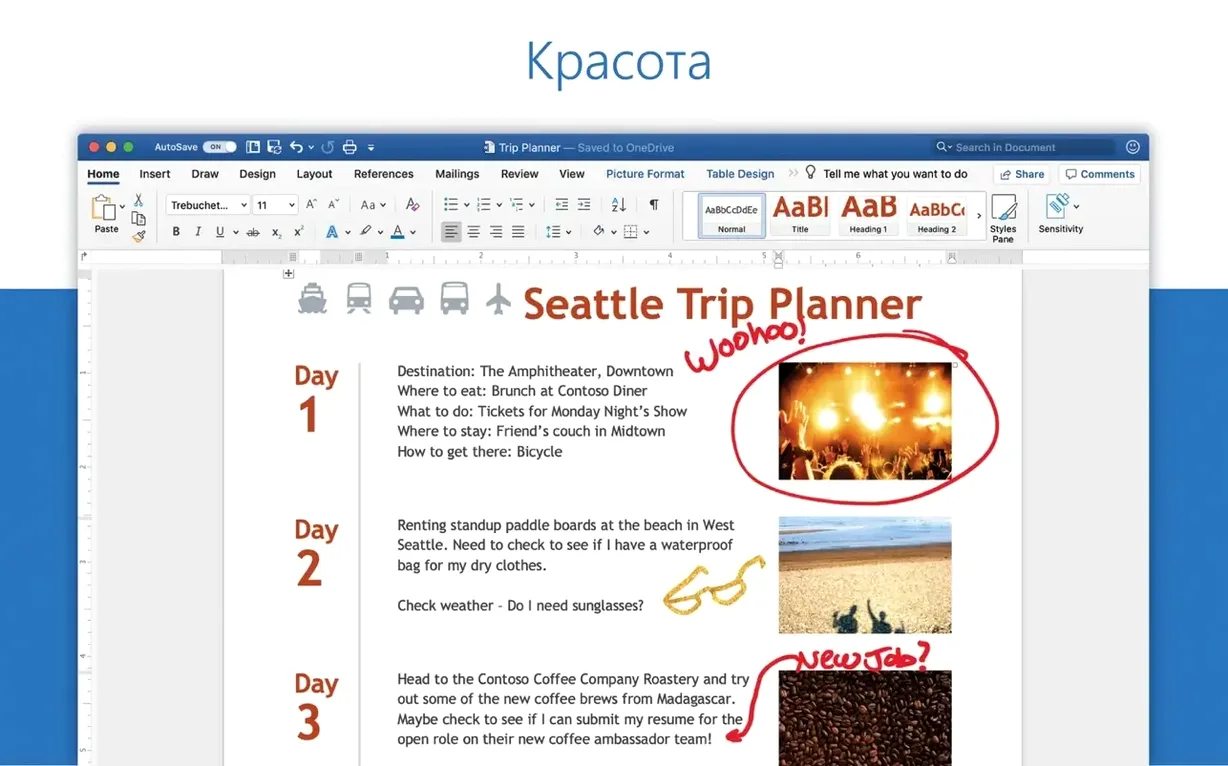
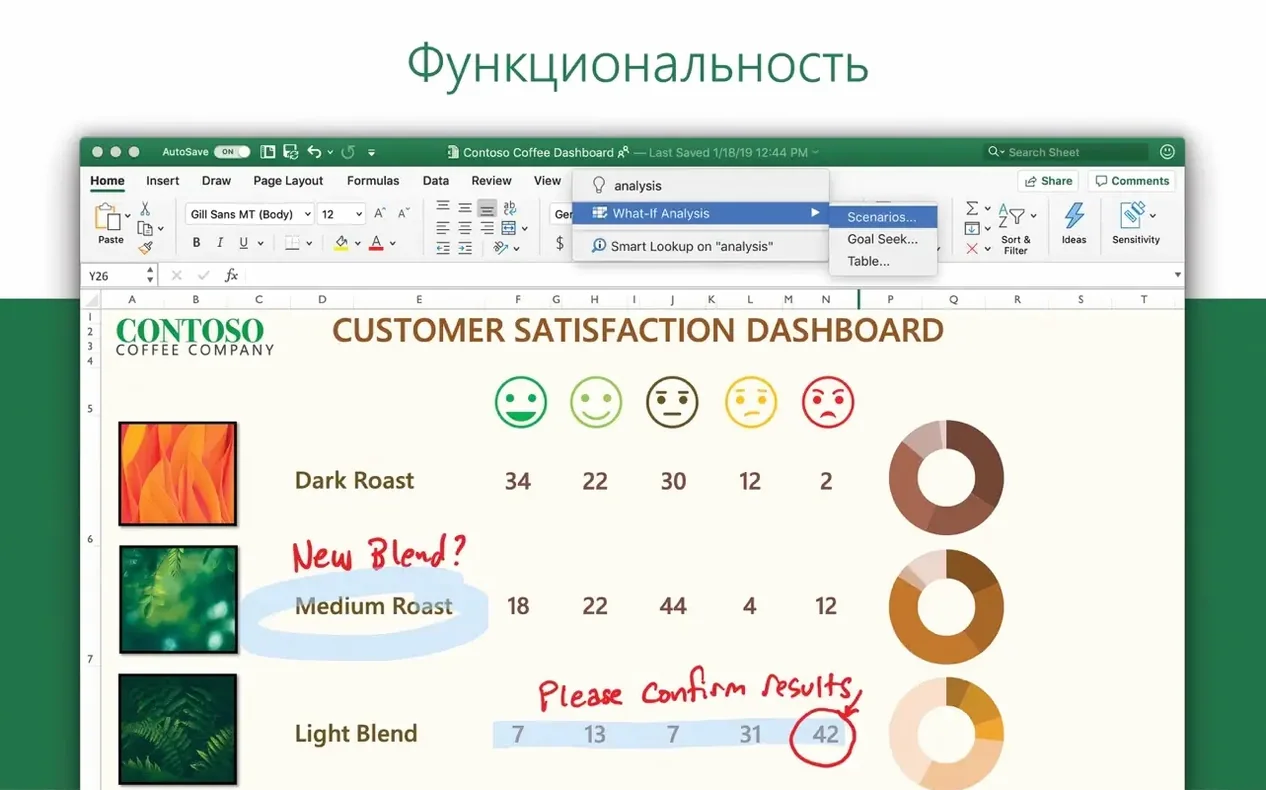
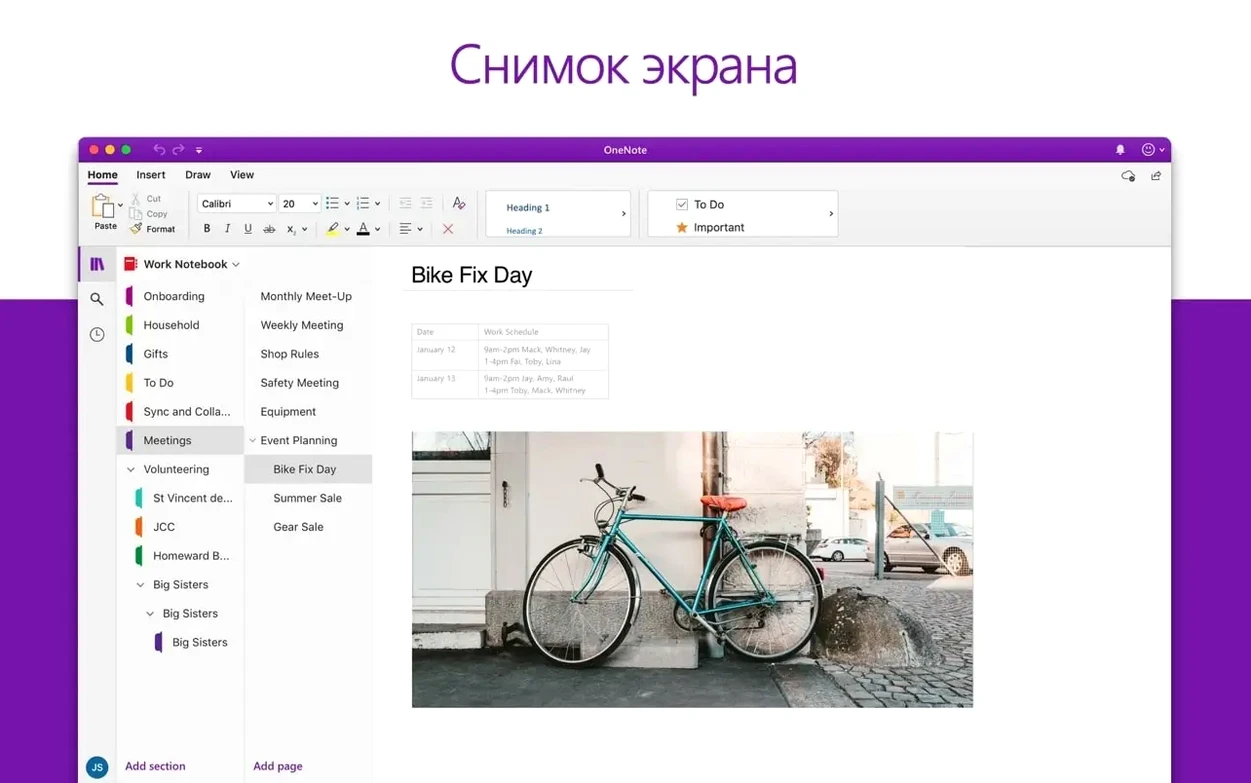
Outlook pulls email accounts and calendars into a single window, which is handy if you already juggle multiple inboxes. Word handles document creation, editing, and sharing, including files attached to email. Excel includes charts and an Ideas feature for spotting trends without building every visualization by hand. OneNote works as a digital notebook for planning and note taking. All of it is 64-bit only, so it runs on both Intel and Apple Silicon Macs as long as you're on macOS 13 or later.
Updates and Collaboration
Office for Mac updates roughly once a month, and version 16.93 is the current suite build. OneDrive links your Microsoft 365 files and enables real-time collaboration in Word, Excel, and PowerPoint, which fits naturally alongside the other cloud-synced apps on your Mac. The suite is available in a wide range of interface languages, including English, Spanish, French, German, Japanese, and Korean.
Common Snags After Installation
Most issues people hit with this Office build are activation-related or file-access problems. Here is what to check first if something does not behave.
- Activation fails. The standard fix is a clean reinstall. Remove Office completely — drag the entire Office folder from your Applications folder to the trash, empty the trash, reboot, then install again. Run the Office LTSC 2024 VL Serializer again after the fresh install. If you use the Microsoft AutoUpdate (MAU) tool, apply it after activation, not before.
- Word or Excel opens but hangs at the splash screen. This is usually a permission issue with the app’s cache. Quit the app, open your user Library folder (in Finder, hold Option and select Go > Library), find the
Application Supportfolder, and delete any folder namedMicrosoftorOfficeinside it. Then restart the app. The suite will rebuild its cache on first launch. - OneDrive does not sync. Make sure you are signed into the same Microsoft account you used during activation. OneDrive for Mac sometimes loses its connection after a macOS update; restarting the OneDrive app from the menu bar icon usually restores it.
- Outlook cannot find your email accounts. Outlook for Mac supports Exchange, Office 365, IMAP, and POP accounts. If you are using a third-party email provider, double-check that the incoming and outgoing server settings are correct for that provider. A typo in the server name is the most common cause.
- PowerPoint animations or 3D models look flat. Ensure your Mac's graphics driver is up to date. This is not an Office issue — macOS manages the video driver for Apple Silicon and Intel chips via system updates. Installing the latest macOS 13.x or newer patch usually resolves it.
Set your default language to save time later
You do not need to configure much, but these habits save time later.
- Set your default language. The suite includes more than a dozen interface languages. Go to the language settings in any app (usually under Preferences > Language or the app menu) and pick yours early. Changing it later forces a restart of all open Office apps.
- Link OneDrive first. Open OneDrive, sign in with your Microsoft account, and let it sync your existing files. This step makes real-time collaboration in Word, Excel, and PowerPoint work immediately. If you skip it, the "Share" and "Collaborate" buttons in the apps will prompt you to sign in anyway.
- Check the Ideas feature in Excel. It is located in the Home tab. If you work with spreadsheets, try it once with a sample data set. It suggests chart types and trends, which can show you patterns you might miss in a plain grid.
- Pin the apps you use most. Drag Word, Excel, PowerPoint, and Outlook to your dock or taskbar. OneNote lives in the Applications folder, but you can also pin it. You will open these apps more often than you expect once you start using the suite.
- Test a real-time collaboration session. Open a Word document, click the Share button, send a link to a colleague who also has a Microsoft account, and edit the same paragraph. This confirms everything is working before you need it for a deadline.
Stability refinements in the January 2025 update
The update to version 16.93, dated January 14 2025, focuses on stability and alignment with Microsoft’s monthly update cycle. No new headline features arrived. The build number 25011212 indicates it was compiled in early 2025. In practice, the changes are invisible unless you hit a bug that the previous build fixed. The apps open and behave the same way. The suite version is 16.x for Microsoft 365 for Mac, Office LTSC for Mac 2024, and Office LTSC for Mac 2021, meaning all three tracks share the same core. Version 16.93 is simply the latest monthly snap of that core.
If you are coming from an earlier 16.x build, you will not notice any difference in the interface, the available features, or the file formats. The update exists to keep the suite compatible with macOS 13 and later. If you are using Office 2024 for the first time, version 16.93 is the starting point with no extra steps needed.
It is useful for anyone who works offline sometimes — the apps do not require a constant internet connection, unlike the web versions of Word and Excel. It is also useful for people who need the full feature set of Excel, PowerPoint, or Outlook, which are more capable than their web counterparts.
- Spreadsheet users. Excel with the Ideas feature and chart tools is the reason some Mac users look for office para mac torrent and office 2021 mac download specifically. The desktop version handles large files with complex formulas and pivot tables reliably. The web version struggles with the same files.
- Presentation creators. PowerPoint on Mac supports the same layouts, animations, motion camera effects, and 3D models as the Windows version. If you collaborate with Windows colleagues, you do not need to worry about file translation errors. The formats are identical.
- Academic or office workers. OneNote as a digital notebook works well for planning and note taking. Combined with Outlook for calendars and email, the suite covers the basic productivity needs of a student or administrator without extra software.
- Users who keep multiple email accounts. Outlook pulls together personal and work inboxes into one window. If you are used to Apple Mail, you might find Outlook handles calendar and contact syncing with Microsoft accounts more directly.
- Anyone who wants a permanent license. The LTSC (Long Term Support Channel) label means this build is intended for environments where you do not want feature updates every few weeks. It receives security patches and bug fixes until the next LTSC release. For users who search for office 2024 ltsc torrent, this is the version that matches that description.
How a freelance writer uses Word, Outlook, and OneDrive
Julie runs a small copywriting business from her MacBook. She uses Word for drafting and editing client documents, Outlook to manage two email accounts (a personal Gmail and a business Microsoft 365 inbox), and OneDrive to back up everything. She does not need Excel or PowerPoint regularly, but they are installed because the Office LTSC suite includes them.
On a typical Monday, she opens Outlook first. It shows her work calendar and personal appointments in one view. She clicks a meeting link, which opens Word with the agenda attached. She edits the agenda, saves it to OneDrive, and the changes appear on her client's Windows machine in seconds. Later, she opens OneNote to draft an article outline, then exports it to Word when she is ready to write. The suite handles all of it without needing separate logins or file conversions.
- Version 16.93 released as the Office suite build for Word, Excel, PowerPoint, Outlook, and OneNote.
- macOS 13 or later
- Intel or Apple Silicon (64-bit only)
Install procedure
- Install Office 2024 using the standard procedure, or download the needed package for Word, Excel, PowerPoint, Outlook, or OneNote.
- Use packages downloaded from Microsoft’s official servers.
- Install Microsoft Office LTSC 2024 VL Serializer to activate the suite.
- Install Microsoft AutoUpdate (MAU) to enable updates.
- If activation fails, remove Office completely and reinstall it.
Reports from players
Sign in or create a tester account to file a report.
No reports filed yet.