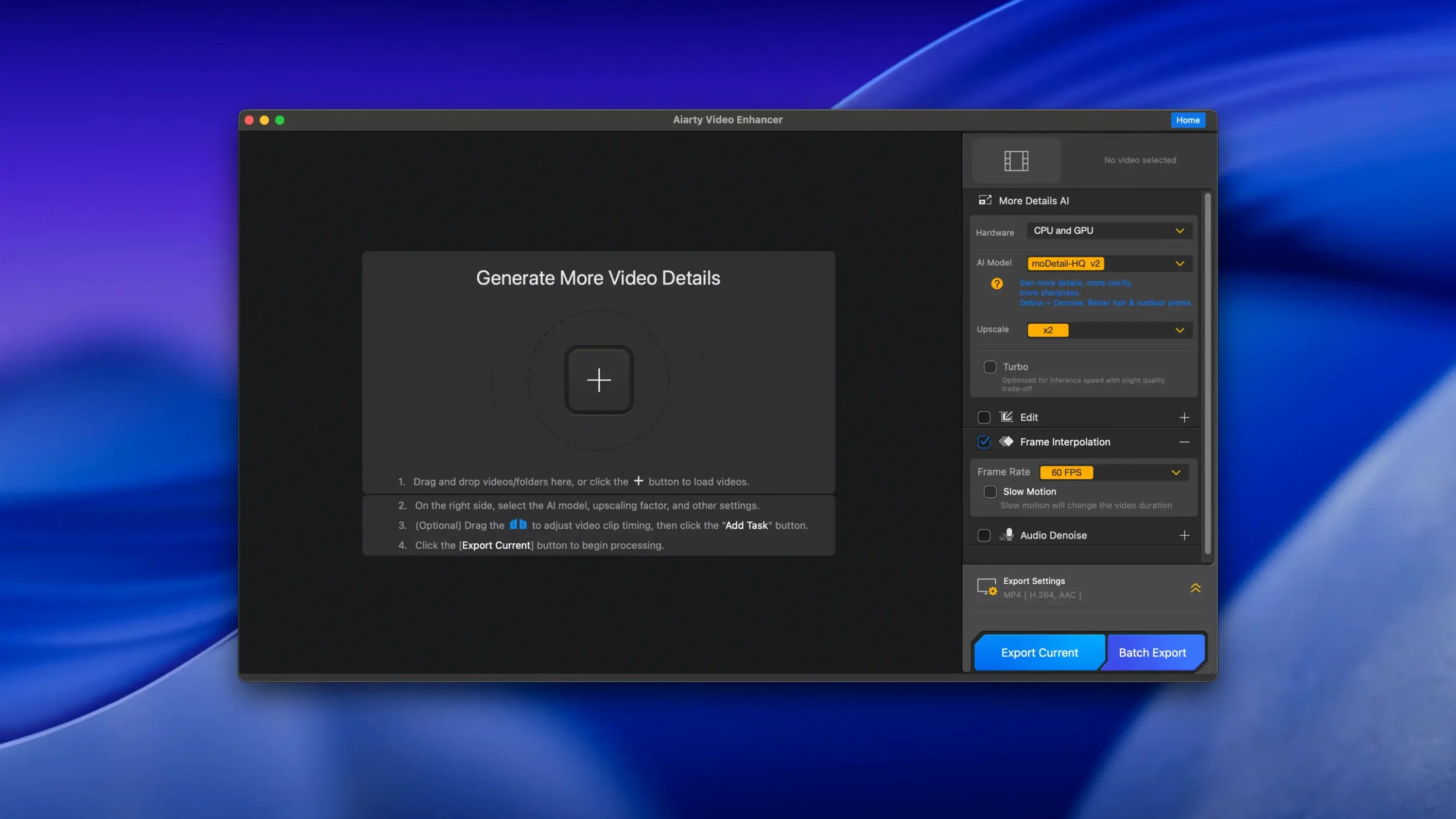
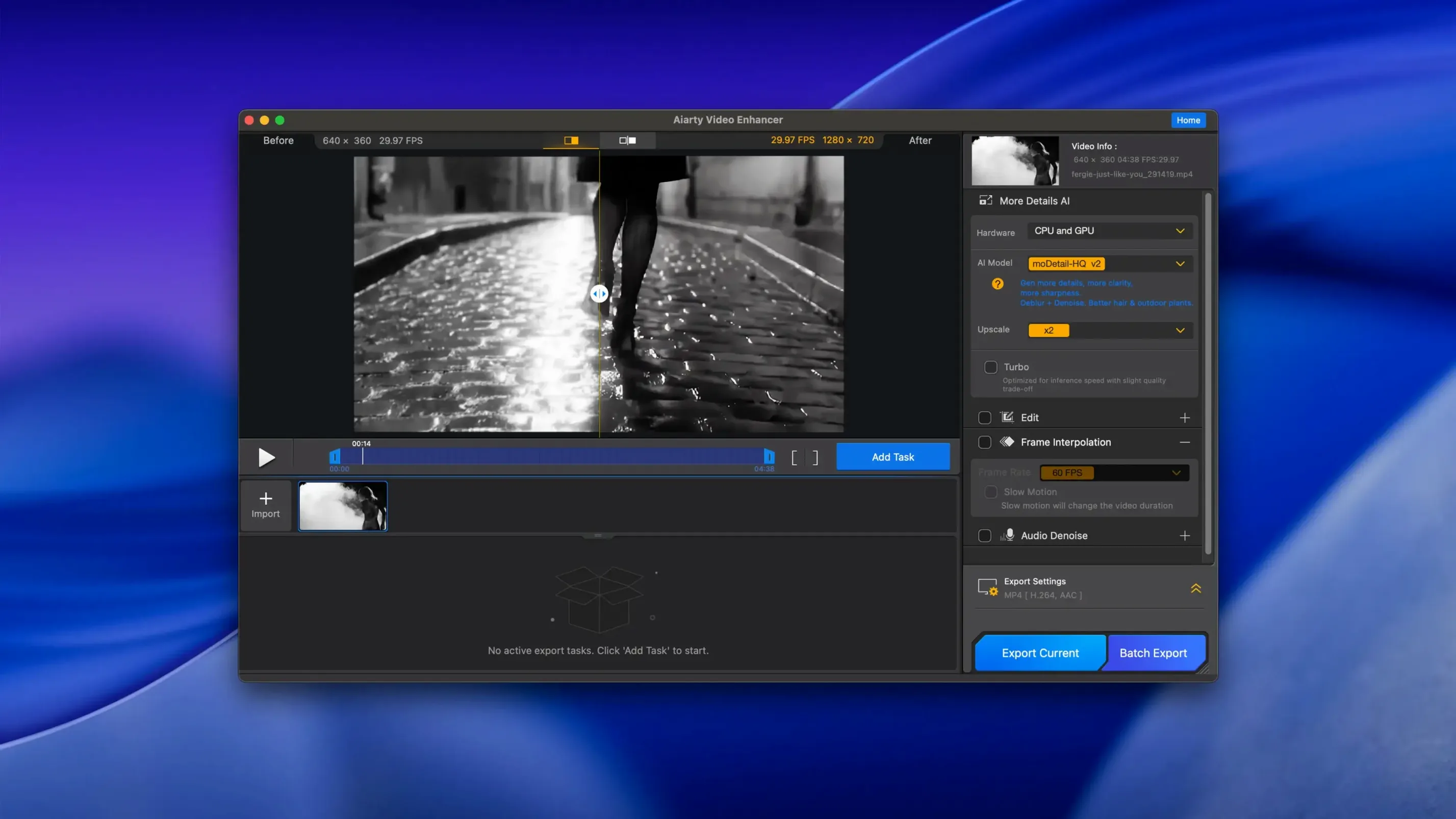
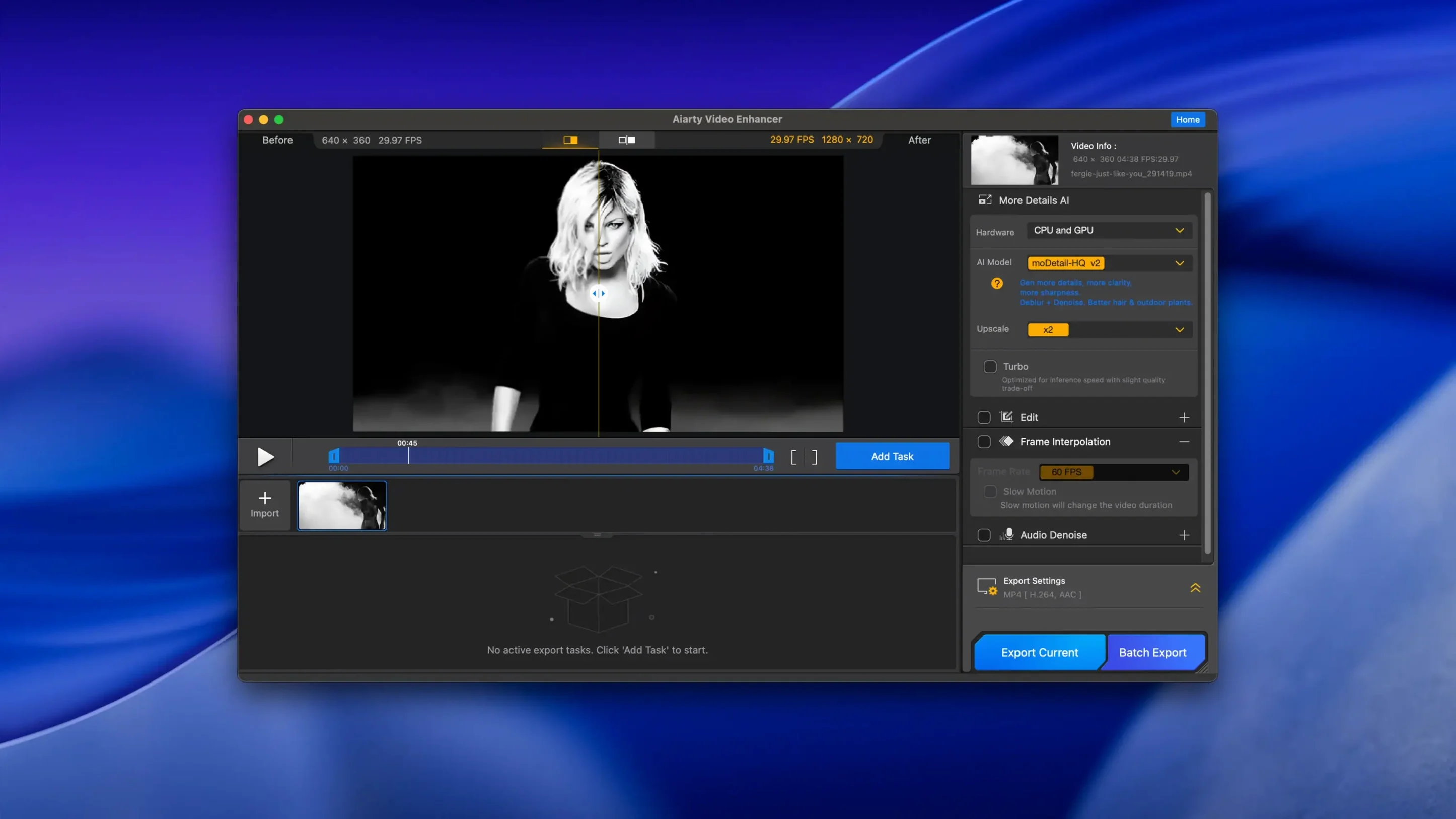
Aiarty Video Enhancer folds those jobs into a single pass. It is an AI upscaler, denoiser, detailer, and enhancer that targets blurry, stuttering, and low-light clips, and it also includes an Audio Denoise module to clean up voice tracks in one click.
| Detail | Spec |
|---|---|
| Version | 3.8 |
| Platform | macOS, Windows |
| Apple Silicon | Supported |
| Frame interpolation | Up to 8X and 16X slow motion |
| Audio Denoise | Yes |
For Mac users, the app fits alongside existing editing tools. It handles the heavy lifting—upscaling, denoising, deblurring, and frame interpolation—so you can drop the result into Final Cut or Davinci without extra plugins. The current version adds resumable exports and MKV support, which helps with long renders. Apple Silicon is covered, though Intel Macs need a dedicated GPU with 4 GB VRAM. The 512 GB disk requirement is worth planning for if you work with large source files.
Topaz AI demands more system resources
Aiarty Video Enhancer sits alongside a few other AI video tools for macOS, each with a different focus. Topaz Video AI is the better-known name for upscaling and frame interpolation, but it demands more system resources and its interface is built around batch processing first. Aiarty handles the same core tasks—upscaling, denoising, deblurring—but wraps them into a simpler workflow that feels closer to a single-click enhancer than a full production suite. The Audio Denoise module is something Topaz does not include natively, which saves an extra step if you are cleaning up dialogue.
Another option is DVDFab Enlarger AI, which also upscales video and supports frame interpolation. Its Mac version has been slower to adopt Apple Silicon optimizations, and it lacks the resumable export feature that Aiarty 3.8 added. Neither DVDFab nor Topaz offers a one-click audio cleanup pass, so if voice clarity matters, Aiarty has a practical edge.
For frame interpolation specifically, RIFE-based tools like Flowframes exist for Windows but require a workaround on macOS. Aiarty integrates its own interpolation models directly, supporting 8X and 16X slow motion without needing separate software or a Windows VM. That makes it the more self-contained choice for Mac users who want smooth slow-motion output without stitching together multiple apps.
A real-world scenario: restoring a wedding video
A videographer has a client's wedding footage shot on a consumer camcorder from 2008. The original files are 720p, slightly blurry in low-light reception scenes, and the audio has a persistent HVAC hum. Opening the project in Final Cut and applying filters manually takes hours per clip, and the results are never clean enough.
Instead, the videographer runs the raw clips through Aiarty Video Enhancer. The AI upscaling brings the resolution to 4K, the denoising model cleans up the grain from the dim church interior, and the deblurring sharpens the dance-floor shots. The Audio Denoise module removes the HVAC hum in one pass, leaving the vows audible. The whole batch processes overnight, and the next morning the exports are ready to drop into the timeline. The resumable export feature means a power interruption during the long render does not waste the previous five hours of work.
Old or heavily compressed footage may not reach full 4K
People often wonder how Aiarty handles very old or heavily compressed source files. The AI models are trained to reconstruct detail from low-bitrate and damaged footage, but results depend on the source. A heavily pixelated 240p clip will not become pristine 4K, but it will look noticeably cleaner and sharper than a standard bicubic upscale. The same applies to audio: the denoise module works best on steady background noise like fans, traffic, or hum, rather than erratic pops or clipping.
Another common question is whether the app works alongside video editors like Final Cut Pro or Premiere. Aiarty is a standalone app, not a plugin. You process the video inside Aiarty, then export and import the result into your editor. That keeps the enhancement separate from your edit, which some users prefer because it avoids slowing down the timeline with real-time effects.
Some users ask about the system requirements for Intel Macs. The app needs a dedicated GPU with at least 4 GB VRAM on Intel machines. That rules out MacBook Airs and base Mac minis from the Intel era, but Apple Silicon Macs handle the work without that limitation. The 512 GB disk requirement is for installation and scratch space; your source and output files add to that, so an external drive is practical for large projects.
Enables 4K upscaling and denoising from the preview panel
The session starts by opening Aiarty and adding the clips. The interface lists each file with a preview thumbnail. The editor selects the first clip, then enables the upscaling model to 4K and the denoising model to reduce compression artifacts. The Audio Denoise is toggled on because one of the clips has keyboard chatter in the background.
The editor queues the remaining clips with the same settings. The app processes them one by one, showing progress per clip. Since version 3.8, interrupting the process and resuming later works without losing completed clips—useful when the editor needs to free up GPU time for a render in Davinci Resolve. After two hours, all files are done.
The frame interpolation produces smooth slow-motion for the montage without the stutter that a simple optical flow plugin would introduce. The denoising preserved fine detail in the UI elements of the game, which a heavier noise reduction might have blurred. The editor only needed one pass, no re-encoding or manual cleanup afterward.
- Resumable exports added.
- MKV support added.
- CUDA memory optimizations added.
- macOS 11 or later
- 8 GB RAM
- 512 GB disk space
- Dedicated GPU with 4 GB VRAM or more on Intel Macs
Questions from the notes
Does Aiarty Video Enhancer work on Apple Silicon Macs?
Yes, the macOS version supports Apple Silicon processors. Intel Macs are also supported but require a dedicated GPU with 4 GB VRAM or more.
Install procedure
- Mount the disk image and run Open Gatekeeper friendly.
- Press Enter in Terminal to bypass Gatekeeper.
- Drag the app into the Applications folder.
- Open the app to start using it. Rosetta and a VPN may be needed.
Reports from players
Sign in or create a tester account to file a report.
No reports filed yet.