

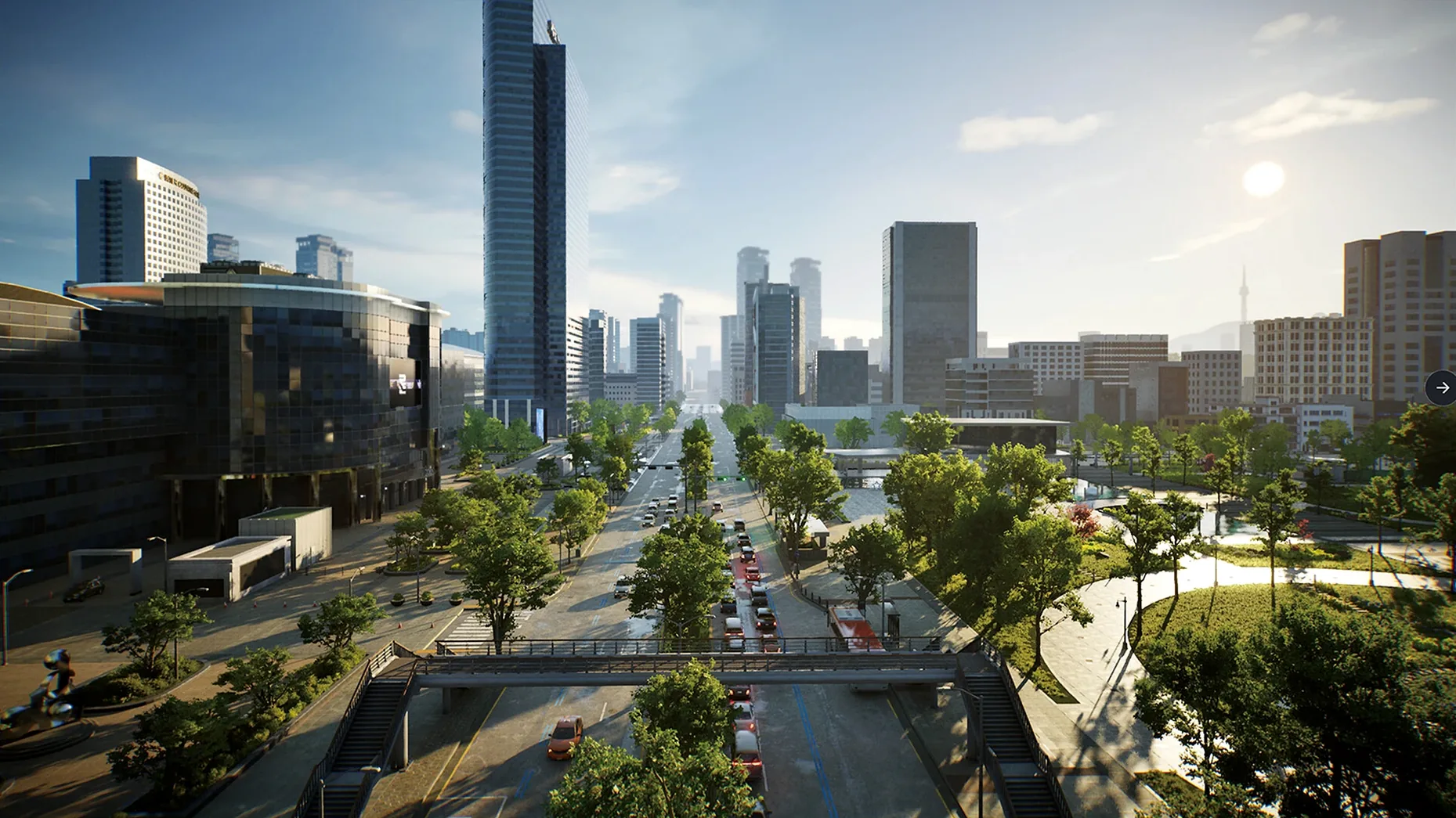
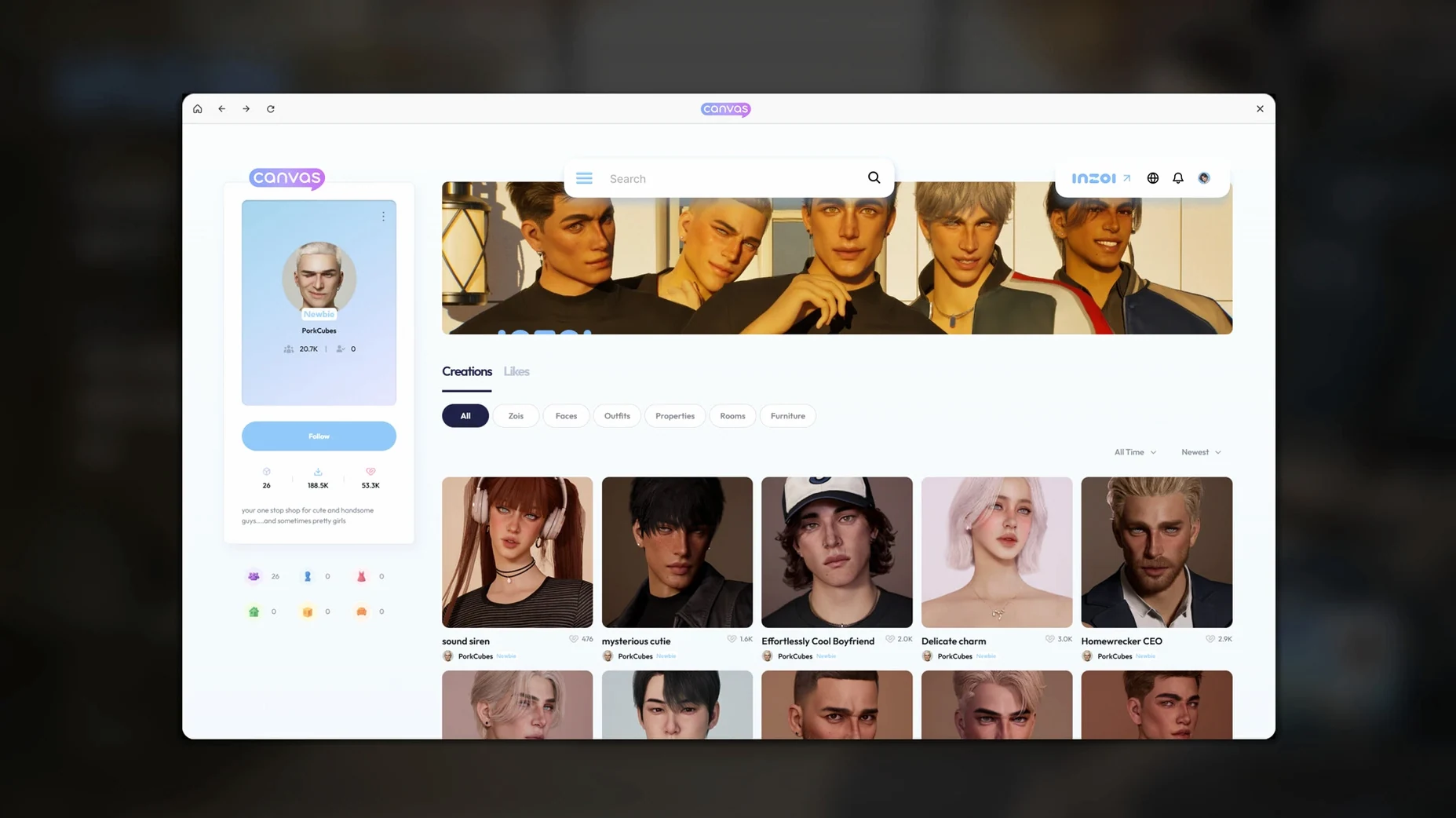

inZOI is a life simulation game where you shape a living community down to the smallest detail.
| Detail | Value |
|---|---|
| Developer | inZOI Studio |
| Version | 0.10.4 |
| Release date | 2025-03-28 |
| Engine | Unreal Engine 5 |
| Architecture | Apple Silicon |
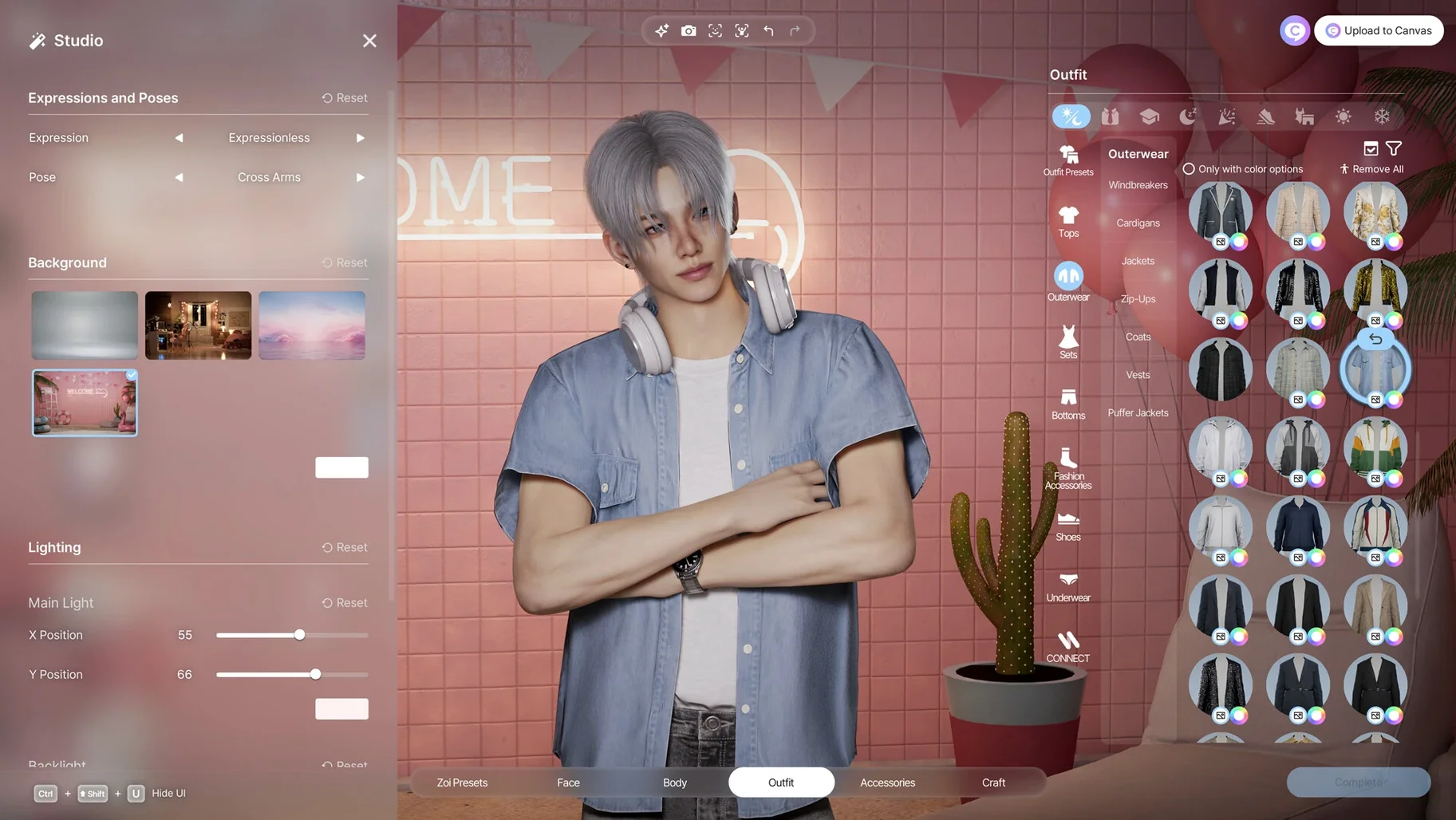
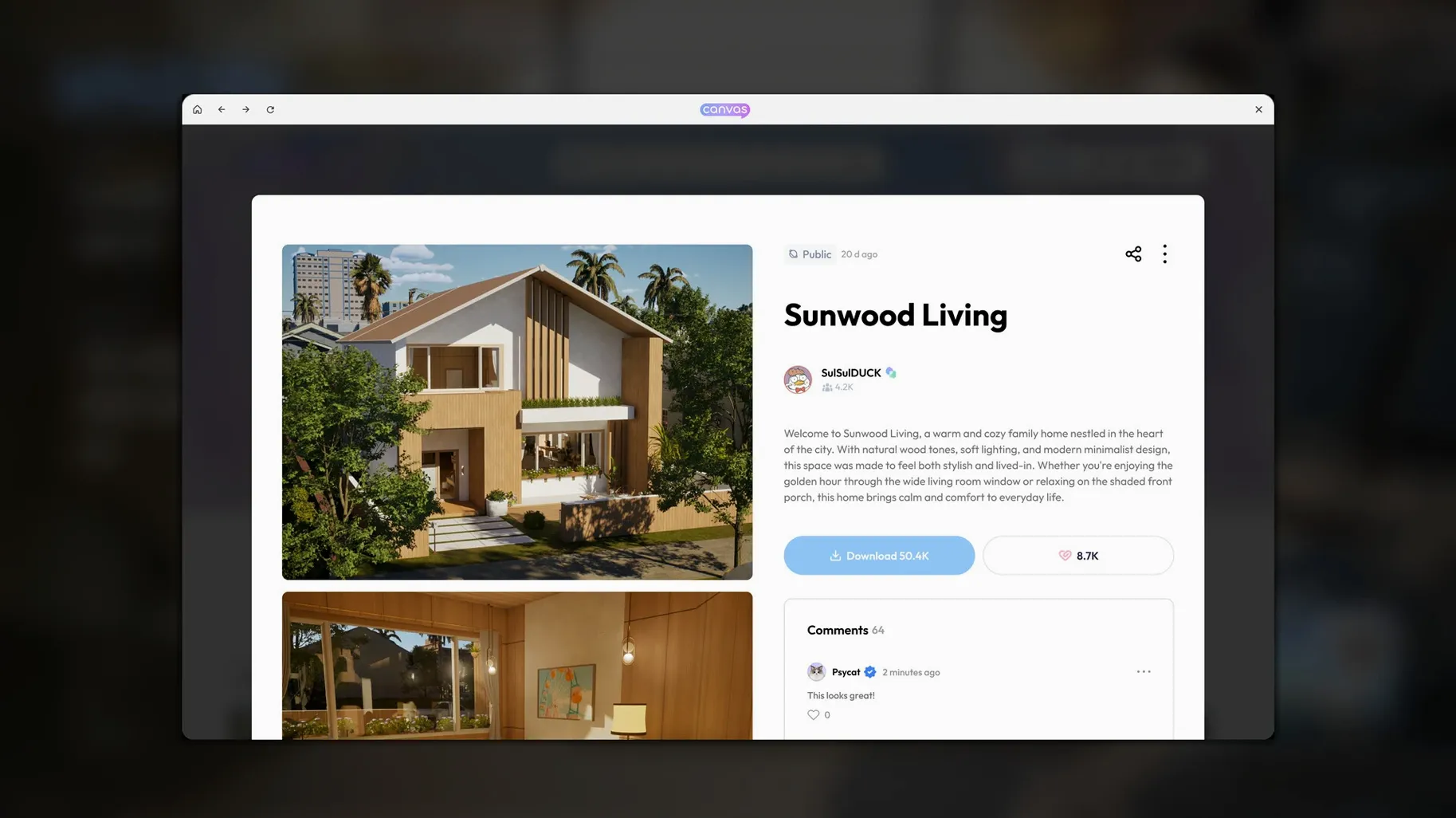
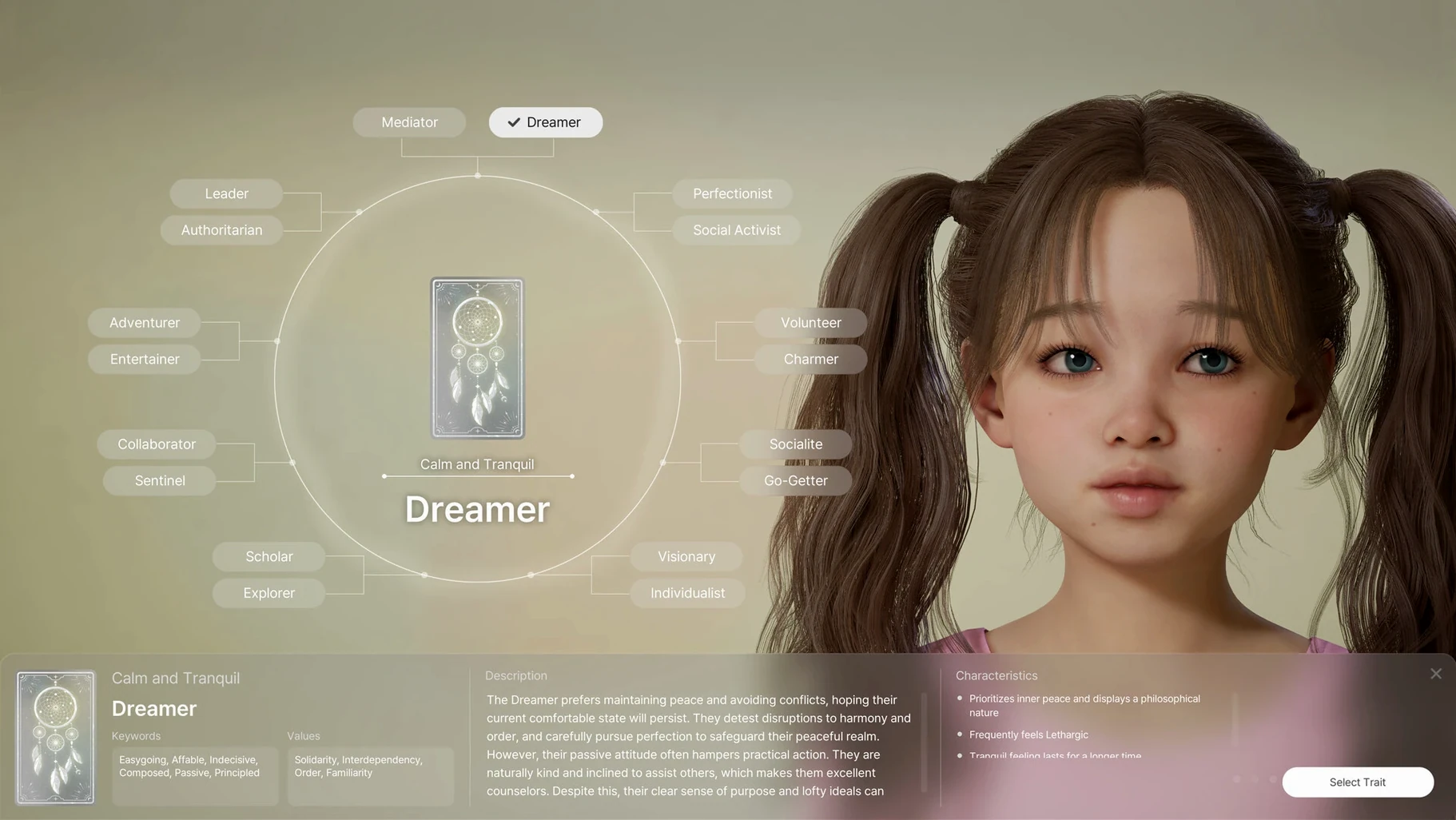
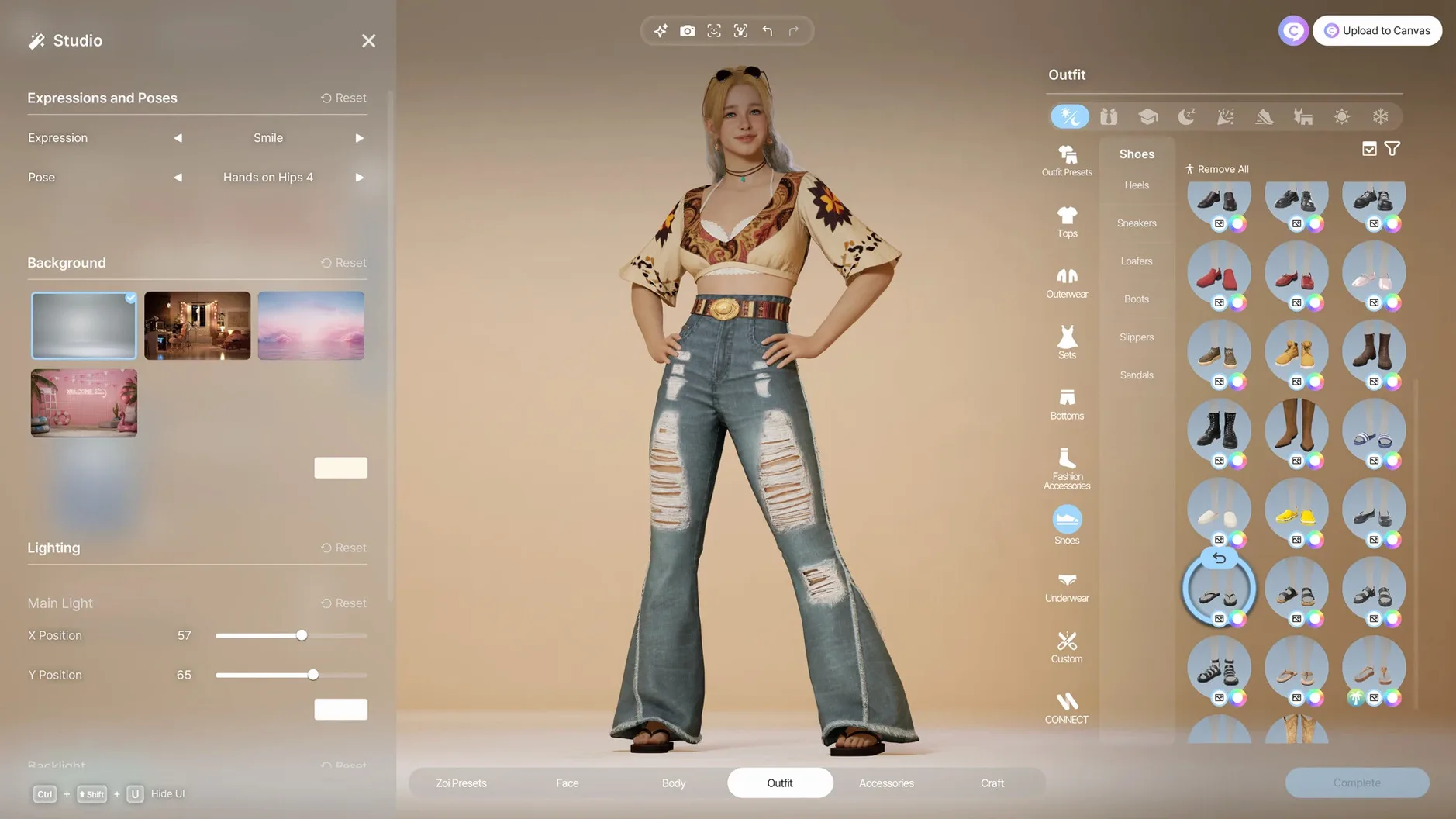
The game puts you in charge of a fully functional community modeled after real cities. You act as a creator, shaping the world to your vision. Character creation supports facial and motion capture, so you can bring your own expressions into the game. A local generative AI model adds another layer: text prompts generate patterns and images for clothing, decorations, and furniture, and 2D models can be turned into in-game 3D objects. Building tools cover walls, roofs, stairs, fences, platforms, and gates, giving you the pieces to construct almost anything. inZOI download for Mac is optimized for Apple Silicon, which keeps the simulation running smoothly on current hardware.
Workflow: creating a character and building a lot from scratch
Start with character creation. Open the character customization screen and pick a base face. The sliders for facial features are granular — jaw width, eye depth, brow angle, all independent. Adjust skin tone using the color wheel or a hex value if you have a specific reference. Hair comes in layers: cut first, then color, then highlights. The AI pattern generator works here too: type a short prompt like "ombre waves" or "metallic blue gradient" and it applies the result to the selected hairstyle. Save the character as a preset before moving on.
Switch to city management. Pick a lot from the neighborhood view. The zoning tool lets you set the lot type — residential, commercial, or community. For a first build, choose a medium residential lot. The building mode places walls and roofs from the catalog. You can snap walls to a grid or place them freehand. Add a roof, then use the platform tool to raise one section for a split-level look. Place windows and doors from the architectural elements tab. Interior mode is separate: furniture, appliances, and decoration items are organized by room. Drag a couch, rotate it, and paint it with a custom texture generated from a text prompt. Drop a wall art image the same way.
Once the lot is furnished, save it as a preset lot. Return to the city view and assign your character to the house. The simulation starts when you unpause time. Zois will enter, interact with the furniture, and form routines based on their personality traits. If something looks off — a wall clipping through a window, a chair that blocks a door — you can re-enter build mode without stopping the simulation.
Lower shadow quality or crowd density for city scenes
- Graphics quality. The default preset balances visuals and performance. If the simulation stutters during city crowd scenes, lower the shadow quality or crowd density slider. These two settings consume the most resources on Apple Silicon.
- Set it to 15 minutes in the gameplay settings. The simulation can generate unexpected events — a fire or a trend wave — and losing more than a few minutes of city state is annoying.
- AI generation resolution. The in-game AI for patterns and textures defaults to 1024x1024. Drop it to 512x512 for faster generation during early testing. You can raise it later for final pieces.
- Voice language. The music track is the only voice option. That is intentional — the game uses environmental audio and sound effects, not spoken dialogue. Leave it at the default.
- Camera sensitivity. The default rotation speed in build mode feels slow to most players. Bump it up by one notch in the camera settings.
Scenario: the interior designer
Marie runs a small online shop selling custom furniture textures. She uses inZOI to prototype her patterns before printing. Her workflow: open the furniture customization panel, upload a flat 2D sketch of the pattern, and use the AI prompt tool to refine the colors. "Boho floral in muted sage and terracotta" generates a texture she applies to a sofa model. She exports the result as a high-res PNG and sends it to her fabric printer. For her, the game replaces a dedicated 3D texturing tool for quick concept work. She keeps the AI resolution at 1024 for export quality and sets the autosave to 15 minutes to avoid losing texture files during system crashes.
Play fully offline after the initial download
Does the game require an internet connection? No. The AI generation runs locally on the Mac. No data is sent to a server. You can play fully offline once the game is downloaded. The only exception is future updates — those come through the normal download channels.
Can I use a mouse and keyboard or a controller? The game supports both. Mouse and keyboard is the primary input, especially in build mode where you need precise cursor placement. A controller works for navigation and basic interactions but lacks the fine control needed for construction or pattern editing.
Is all content from version 0.10.4 available from the start? Yes. Early access means content is still being added, but everything in this build — character creation, building tools, city management, the AI generator, facial and motion capture — is unlocked. No content gatekeeping.
Will it run on an Intel Mac? The requirements specify Apple Silicon. The game is compiled for ARM and uses M1 or later chips. It will not run on Intel-based Macs.
Can I mod the game? The inZOI download itself does not include a mod manager or workshop integration. You can replace texture files manually if you know where the asset folders are located, but there is no official mod support yet. The local AI generation is the intended customization route.
Avoid cluttering presets with repeated saves
- Oversaving presets. The game saves character presets and lot presets to separate folders. Beginners often save a character, then immediately tweak it and save again with a similar name. The old preset is not overwritten, so the preset list fills with near-identical entries. Use a naming convention — "Marie_V1" vs "Marie_V2" — and prune old ones from the folder.
- Ignoring weather effects. The simulation includes dynamic weather. A lot designed without roofing or with open windows will let rain in, degrading furniture quality and making Zois unhappy. Check the weather forecast in the city overlay before finishing a build. Add awnings or enclosed porches if rain is common in the current season.
- Maxing out all AI prompts at once. Generating five or six textures simultaneously on a single lot can slow the game noticeably, especially at high resolution. Generate one at a time, apply it, then move to the next. The local model shares GPU memory with the simulation, so concurrent jobs compete for resources.
- Forgetting to save after building. The autosave interval is your safety net, but if you spend two hours on a lot and the game closes unexpectedly, you lose everything since the last autosave. Press the manual save key after placing structural elements, before decorating, and after assigning a character to the lot.
- Loading a lot from the catalog without checking the zoning. The catalog includes lots from various city zones. A commercial lot dropped into a residential zone will trigger a zoning violation, and Zois will not move in. Always verify the lot's intended zone in the city overlay before placing it.
- Apple Silicon Mac
Install procedure
- Open the downloaded disk image.
- Drag the app into the Applications folder alias.
- After copying finishes, launch the app from Launchpad.
- If the app does not start, run the listed Terminal commands or allow it in Privacy & Security settings.
Reports from players
Sign in or create a tester account to file a report.
No reports filed yet.