
How Mojave stacks up against other macOS versions
If you are deciding between Mojave and something newer, the comparison is straightforward. macOS 10.15 Catalina introduced 64-bit-only apps and dropped 32-bit software support entirely, which Mojave does not force. If you rely on older 32-bit productivity tools or plug-ins that never got updated, Mojave keeps them running. Catalina also removed iTunes in favor of separate Music, Podcasts, and Video apps — Mojave still ships with the classic iTunes if that workflow matters to you.
Compared to macOS 10.13 High Sierra, Mojave adds the interface refinements that make daily use less cluttered: Dark Mode, Stacks, and the Finder improvements. High Sierra had none of those. If you are on High Sierra and your hardware is supported, the jump to Mojave is worth it for the desktop organization alone.
Against macOS 10.12 Sierra, Mojave is a bigger leap. Sierra lacks Dark Mode, Stacks, Gallery View in Finder, and the Continuity features. The system requirements are also tighter: Mojave drops support for many 2011 and earlier Macs that Sierra still runs on. If your Mac is from 2012 or later, Mojave gives you a more modern interface without the app-compatibility break that Catalina introduces.
A typical session: setting up and working in Mojave
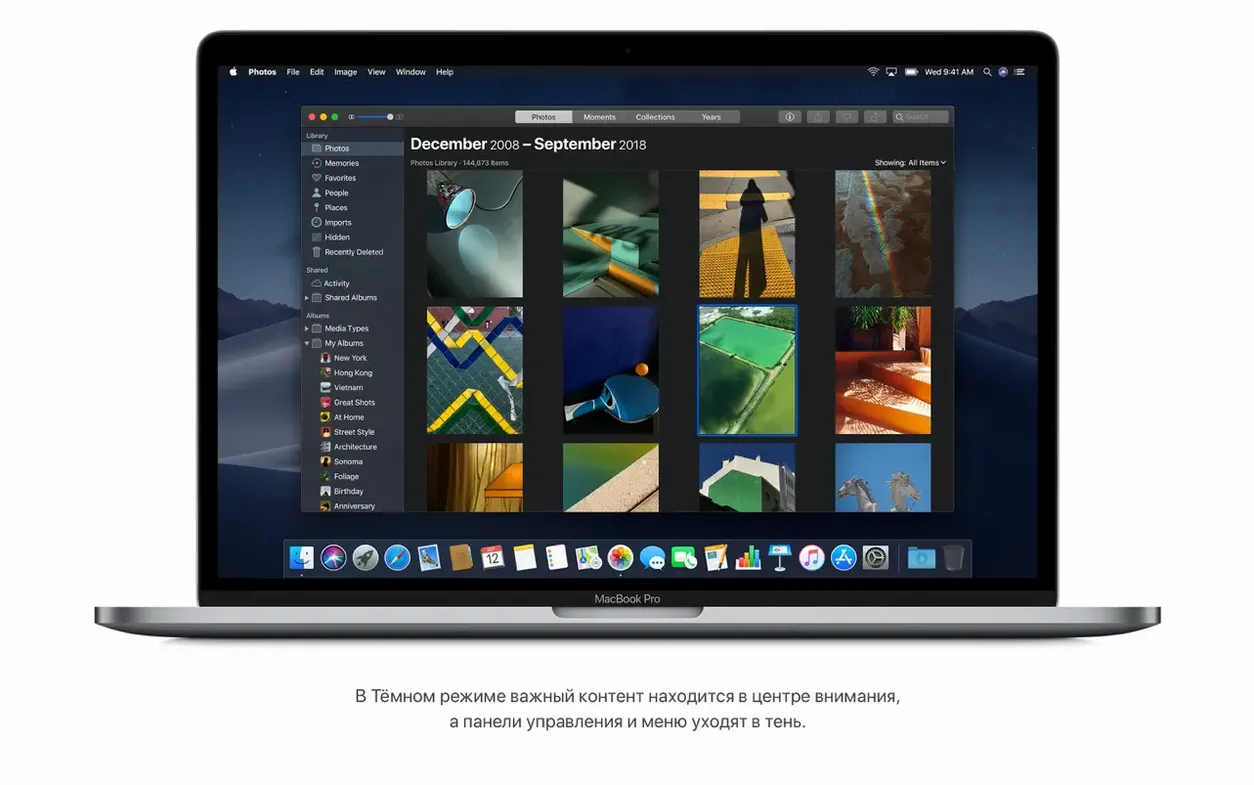
Start with a clean install from the disk image. Open the downloaded .dmg file, extract the installer app, and move it into the Applications folder. The installer walks through the usual partition selection and account setup — nothing unusual there. Once the desktop loads, the first setting I change is the appearance: open System Preferences, switch to the Dark Mode option, and the entire chrome goes dark gray. It reduces eye strain if you work late.
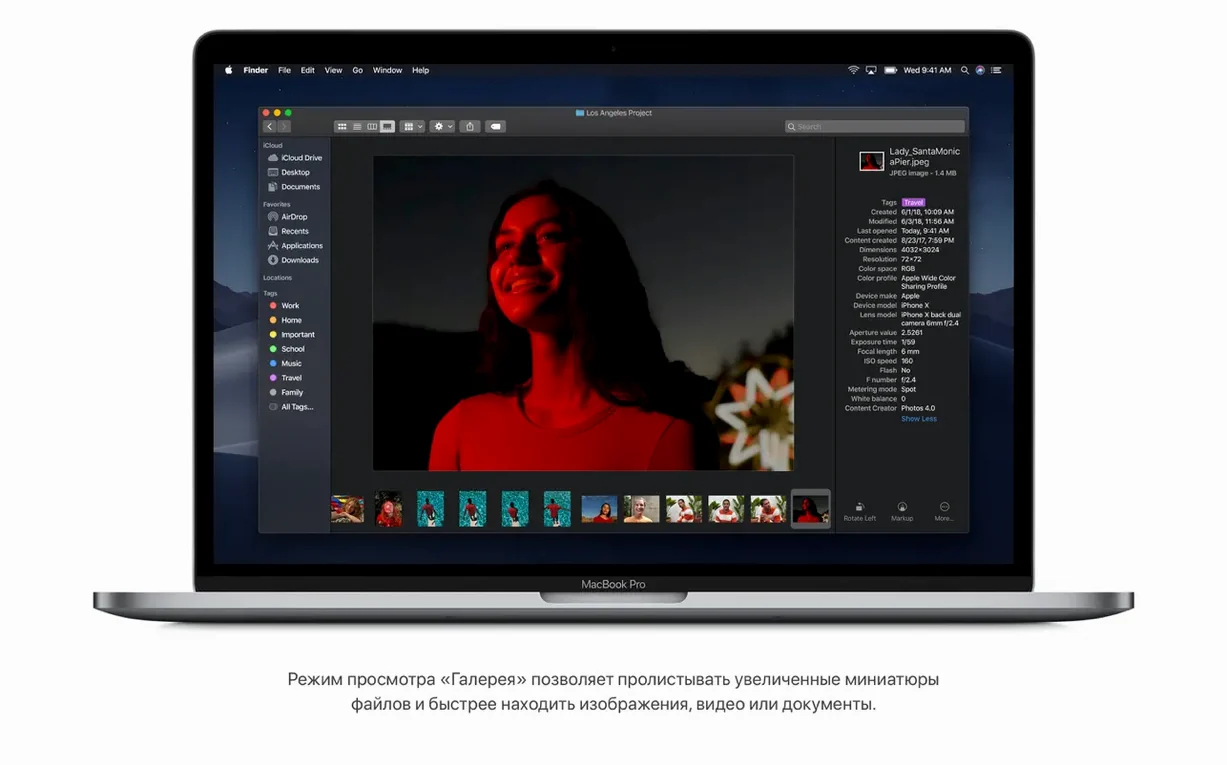
Next, I turn on Stacks. Right-click the desktop, select “Use Stacks,” and every file groups itself by type — PDFs stack together, images stack separately, folders go on their own pile. It is not a search replacement, but it clears the visual noise instantly when you have a messy desktop. I then open Finder and switch to Gallery View for a folder full of screenshots. The thumbnails are large enough to identify files without opening them, and the metadata panel on the right shows file size, dimensions, and date without extra clicks.
For a quick edit, I select a video file in Gallery View and click the trim icon in the preview toolbar. The built-in trimmer handles start and end points — enough for cutting a long recording down before sending it. A right-click on a confidential PDF brings up “Protect Document,” which lets me set a password without opening Acrobat or Preview. It is one less app to launch for a simple task.
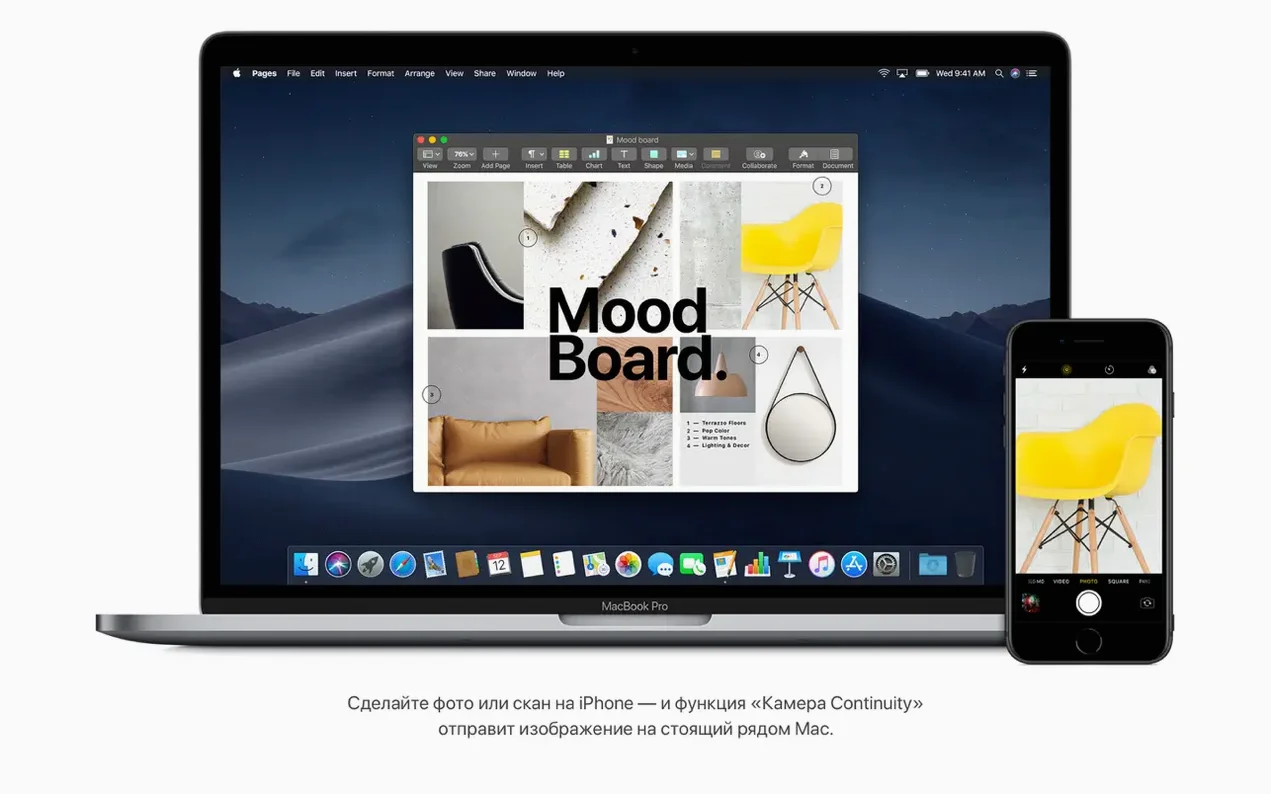
I open Safari and check that Intelligent Tracking Prevention is active — it defaults to on. The privacy settings in Safari Preferences let me adjust the level if needed. For a group FaceTime call, I start the app and invite up to 32 people; the interface handles the grid layout automatically. Continuity Camera works from the iPhone: take a photo on the phone, pull down the Notification Center on the Mac, and the image appears ready to drag into an email or document.
Fewer hangs when switching virtual desktops
Version 10.14.6 is a stability-focused update. The release notes do not list new features — instead, the improvements target reliability. In practice, that means fewer unexpected hangs when switching between virtual desktops, and the Finder does not stall when browsing network shares as often. If you are already on a previous Mojave build, the update installs on top without changing your settings or Stacks layout.
Voice Memos and Stocks replace third-party tools
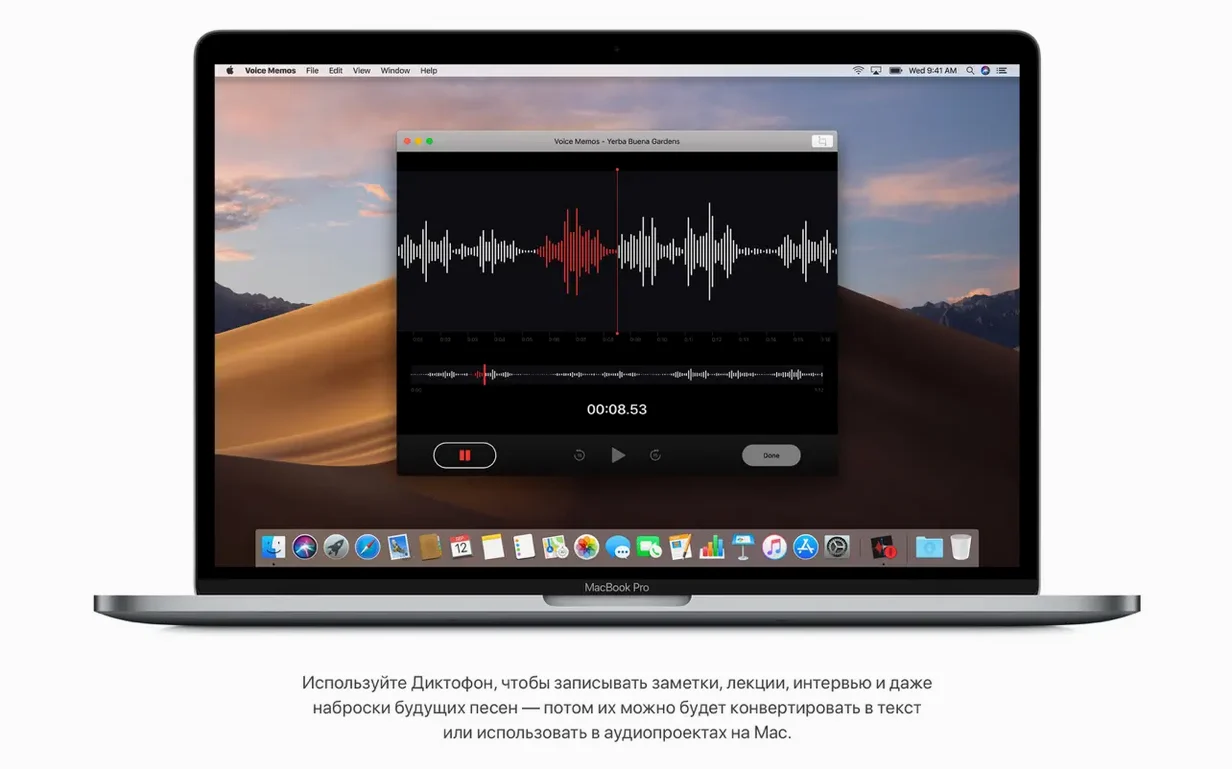
Mojave includes several built-in apps that replace third-party tools. Voice Memos records audio natively and syncs through the same Continuity system — no extra app needed. The Stocks app gives a live market ticker in a floating window, useful if you monitor indexes without opening a browser. Home controls smart-home devices from the desktop if you have compatible gear, though it requires setup in System Preferences first.
It is not a fundamental change, but browsing for apps feels less like a directory listing and more like a storefront. The built-in News app pulls headlines from multiple sources in a clean single-pane view — no account required. For users who prefer a dedicated reader over browser bookmarks, it is a quiet addition that stays out of the way.
Language support covers over thirty interfaces, which matters for multi-user Macs or installations in non-English regions. Switching the system language in System Preferences changes all menus, dialogs, and built-in apps without a reinstall — useful if you maintain machines for different users or regions.
- macOS 10.8 or later
- Intel-based Mac
- 2 GB of memory
- 12.5 GB of available storage
- Compatible models: MacBook Early 2015 or newer, MacBook Air Mid 2012 or newer, MacBook Pro Mid 2012 or newer, Mac mini Late 2012 or newer, iMac Late 2012 or newer, iMac Pro 2017, Mac Pro Late 2013 or Mid 2010/Mid 2012 with recommended Metal-capable graphics cards
Questions from the notes
Does macOS Mojave 10.14.6 support 32-bit apps?
No, macOS Mojave is a 64-bit Intel architecture, and it does not run 32-bit apps. Check your software for 64-bit compatibility before installing.
Install procedure
- Open the downloaded disk image.
- Extract the installer app to the Applications folder.
Reports from players
Sign in or create a tester account to file a report.
No reports filed yet.