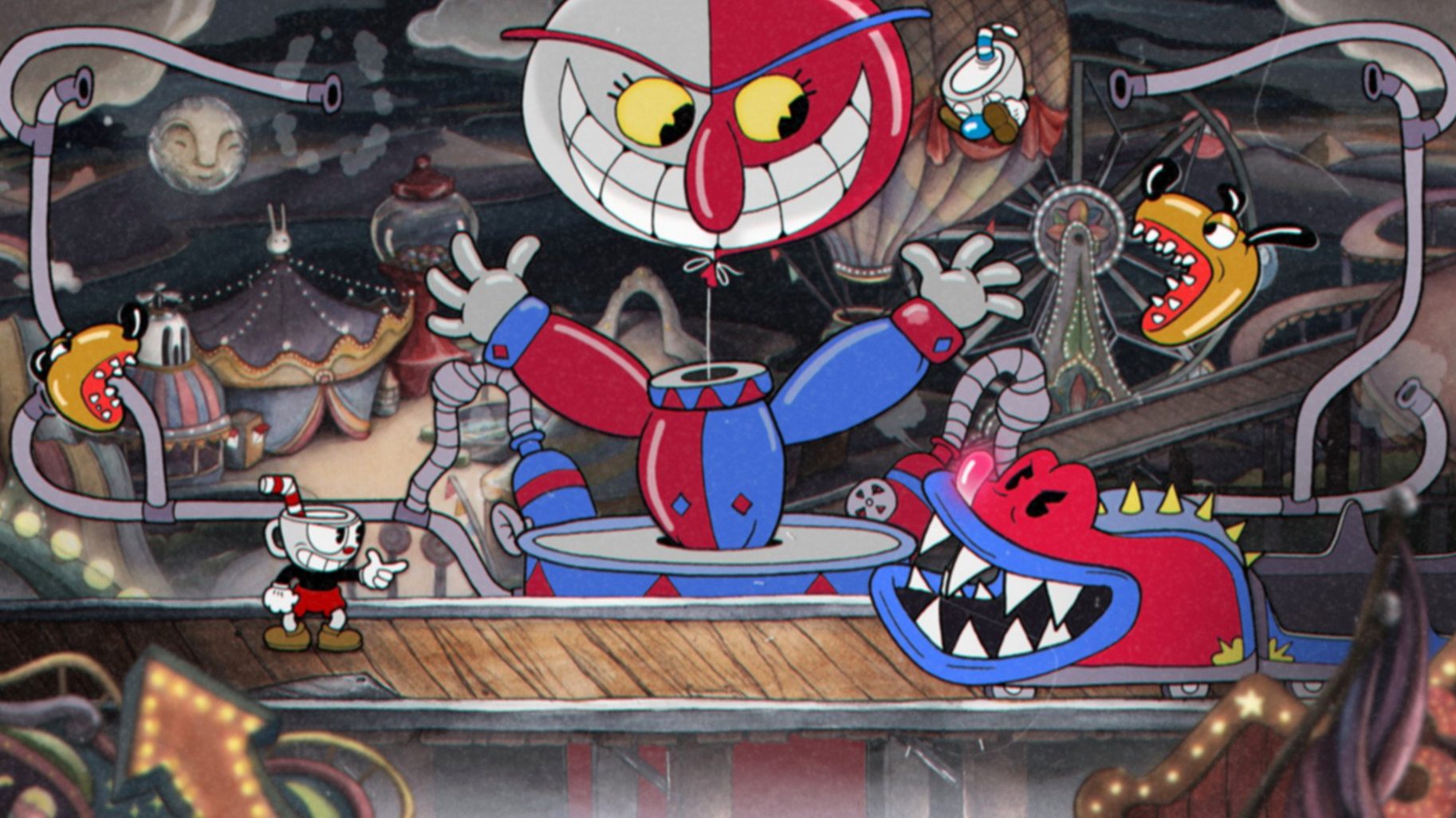
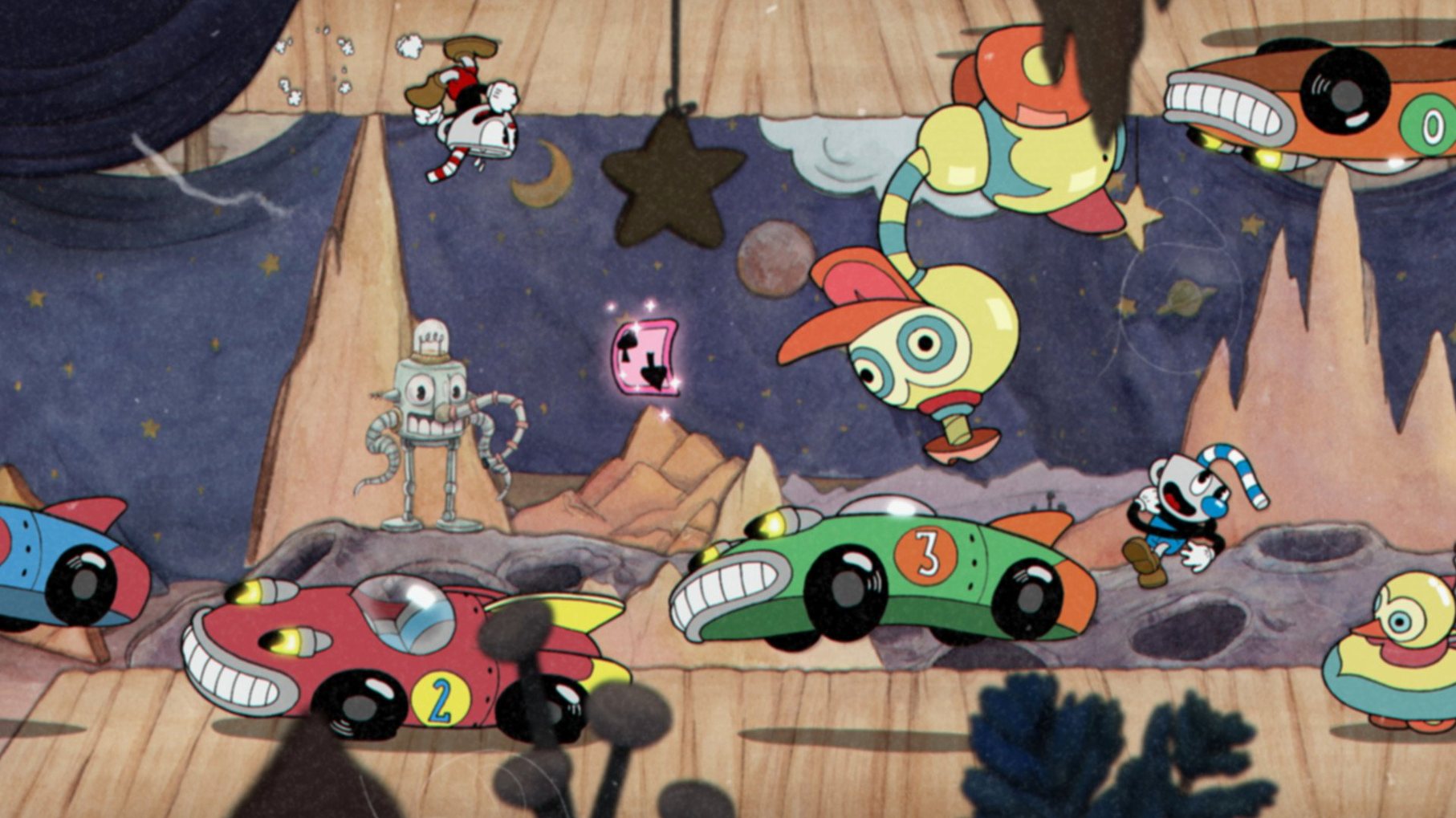
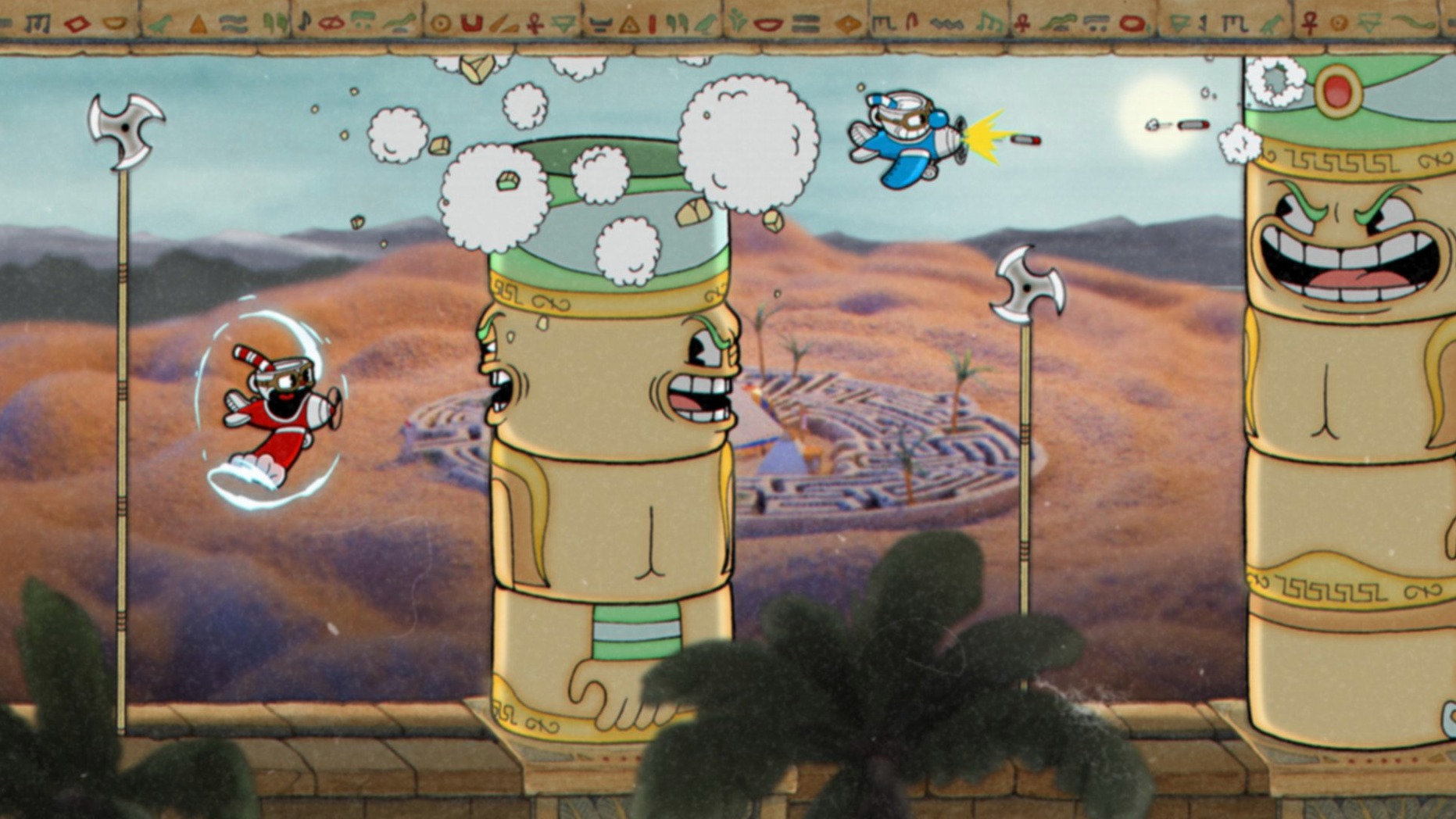
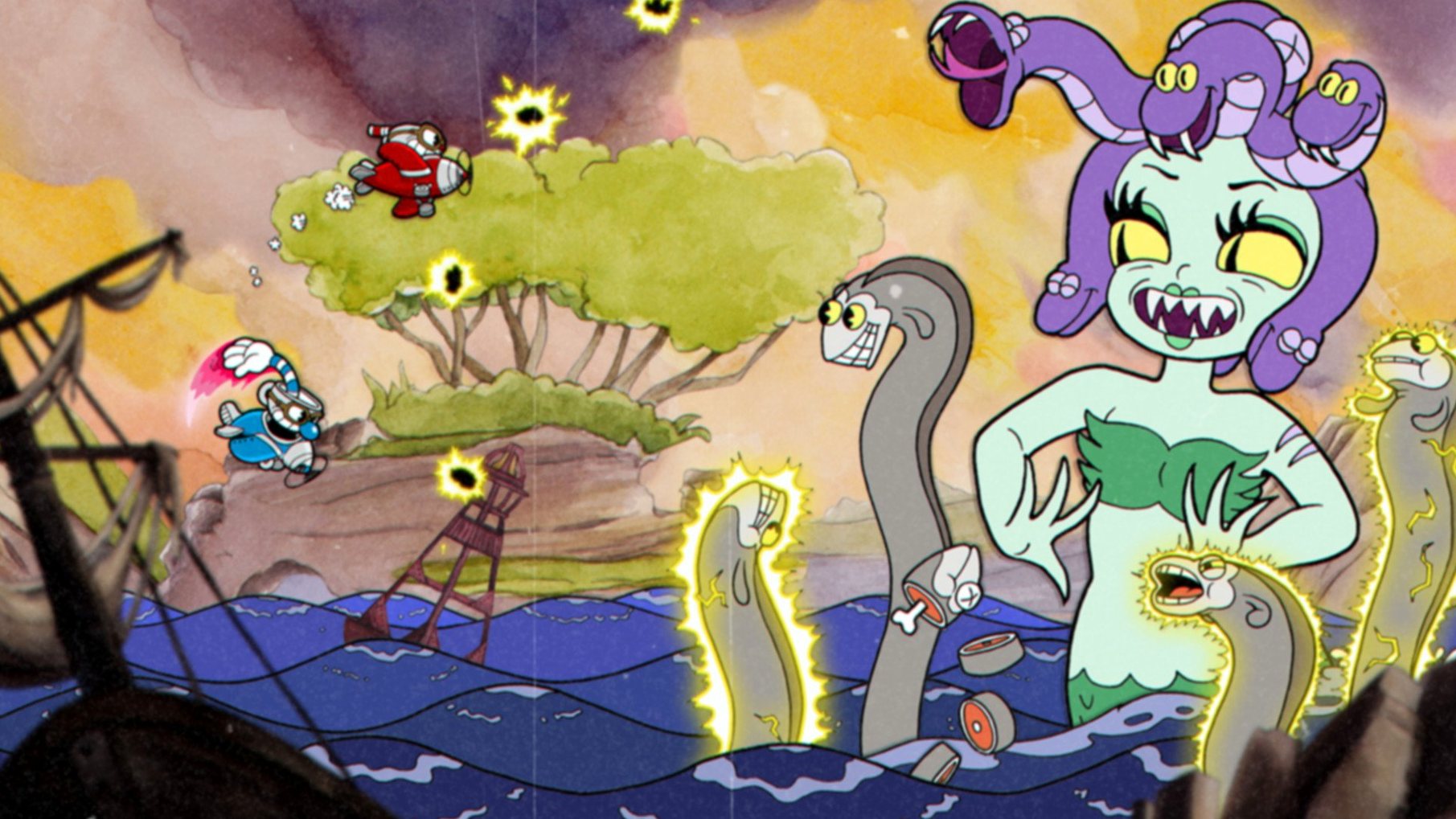
Cuphead is for players who like their action in concentrated bursts. You play as Cuphead or Mugman, both trying to repay a debt to the Devil. The game is a run-and-gun, but it's built almost entirely around screen-filling boss battles. You dodge, jump, and fire, learning each pattern until it clicks.
Designed for boss fight fans who love hand-drawn animation
- Boss fight fans who want a challenge, not a long campaign.
- People who appreciate hand-drawn animation and original jazz recordings — the whole thing looks like a 1930s cartoon.
- Players who like switching weapons to match a situation; different loadouts change how you approach each fight.
Hard difficulty and a focus on bosses, not platforming
- It's hard. Expect to retry fights often.
- The focus is on bosses, so there isn't much platforming in the traditional sense.
- The current version, 1.3.3 (57402), is a DLC fix, which suggests the main game and its expansion are covered.
Questions people often ask before installing
Cuphead's controls are keyboard and mouse by default, and the game also supports most standard USB gamepads. If you plan to use a controller, plug it in before launching the game — the game detects it at startup. The DLC fix in version 1.3.3 (57402) does not change the control scheme, so what worked before still works.
People sometimes wonder whether the game saves progress locally or needs an online connection. Cuphead saves to your local user folder. There is no cloud sync by default, so if you switch machines, copy the save files manually. The game itself runs entirely offline once installed.
Another common question is about language. The installer lets you pick from the supported languages during setup. You can change it later inside the game's options menu. The voice language is listed as music only, which is accurate — there are no spoken lines, just jazz recordings and sound effects. The language setting affects subtitles, menus, and text.
Set native resolution and swap weapons to match the fight
Before you start playing, open the options menu and adjust a few things. The defaults work, but these changes save you some frustration:
- Set the resolution to your display's native value. The game does not always pick the right one automatically on macOS, especially if you use an external monitor.
- Turn on the option that shows hit points for bosses if you want feedback on your damage. It helps during longer fights.
- Adjust audio levels separately for music and sound effects. The jazz soundtrack is good, but the sound cues for enemy attacks matter more for survival.
- If you are using a controller, check the button mapping before the first fight. Some actions, like parrying or dashing, are easier with certain layouts.
Workflow: tackling your first boss
This walkthrough covers the first encounter from launching the game to beating the boss. It is a general approach, not a strategy guide.
- Unpack the archive and run the installer. Choose the Applications folder when asked. The setup takes about a minute.
- Launch Cuphead from the Applications folder. The game opens to a title screen. Press any key to continue.
- Select the language from the first menu. English is fine if you prefer it. The subtitles match the selected language.
- Go to Options and change the resolution and audio balance as described in the previous section. Confirm the changes.
- Start a new game. You see a short cutscene introducing the debt to the Devil. After it, you land in the first world.
- Follow the path to the first boss. The game tells you which direction to go. Do not skip the tutorial pop-ups — they explain basic moves like shooting and dodging.
- Enter the boss arena. The fight begins. Your goal is to learn the attack pattern. The first boss has three phases. Focus on dodging first, then find openings to shoot.
- When you die, you respawn at the start of the fight. Use the retry option from the pause menu. You keep any weapons you collected.
- After the boss is defeated, the game saves automatically. You now have access to new areas and weapons.
The whole process takes anywhere from ten minutes to an hour depending on how fast you learn the pattern. There is no penalty for dying except time lost.
Talk to every NPC in the overworld to find the spread shot
Spend the first session just exploring the overworld. It is small, and it is easy to miss the NPCs that sell weapons or teach moves. Talk to everyone with a speech bubble. One of them sells a spread shot weapon that makes early fights easier.
Do not spend all your coins on the first weapon you see. Different bosses are weak to different shot types. Buy one weapon, test it against a boss, then buy another later. You keep all weapons permanently.
Try local co-op if you have a second player. Mugman joins in as a second character. The game scales difficulty slightly for two players, but having someone else distract the boss can help. Both players need their own controller.
If you get stuck on a boss, take a break and try a different world. The game does not force a linear path after the first few fights. You can come back later with better equipment.
Save often by completing a fight or reaching a save point. The game does not have a manual save option, so quitting mid-fight means you restart that fight next time.
Runs as a standard macOS app with no background services
Cuphead runs as a standard macOS application. It does not install any background services, drivers, or kernel extensions. You can quit it through the menu bar or by using Command+Q. Force quitting via the Activity Monitor works if the game ever stops responding, but that is rare.
The game respects macOS display settings like HiDPI mode and multiple monitor setups. If you play on a laptop with an external display, set the external monitor as your primary display before launching the game. The game picks the primary screen by default.
You can use macOS screenshot tools — Command+Shift+3 or Command+Shift+4 — while Cuphead is running. The game does not override those shortcuts. The screenshots save to your desktop or clipboard as usual.
Cuphead does not interfere with streaming or recording software like OBS. If you want to capture gameplay, OBS can record the game window directly.
The game does not use macOS notification center or calendar integration, but it does not block them either. You receive notifications normally while playing, though it is best to turn on Do Not Disturb mode to avoid interruptions during boss fights.
For players who use multiple accounts on one machine, each user needs their own copy installed. The save files are stored per user, so switching accounts starts a fresh game for that user. You can copy save files between accounts manually if needed.
- Fixes related to the DLC.
- macOS Catalina or later
- Intel processor
Questions from the notes
Is Cuphead on Mac?
Yes, this version runs on macOS Catalina or later, but it's Intel-only, so Apple Silicon users will need Rosetta or a compatibility layer.
Install procedure
- Unpack the archive.
- Run the standard installer.
- Choose where to install when prompted.
- Use the Applications folder if you can.
Reports from players
Sign in or create a tester account to file a report.
No reports filed yet.