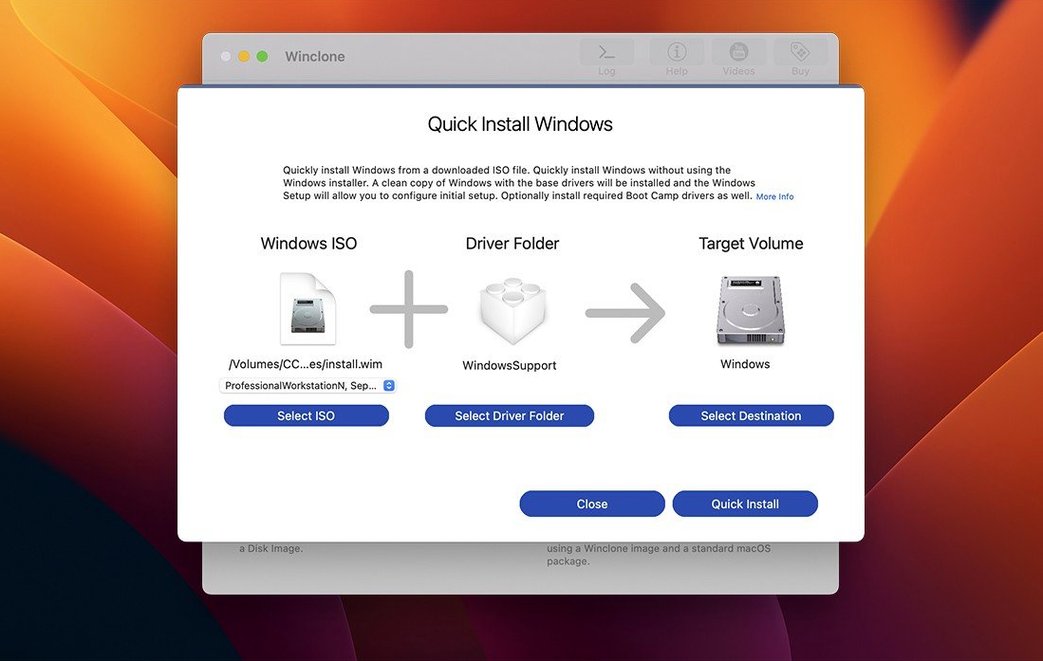
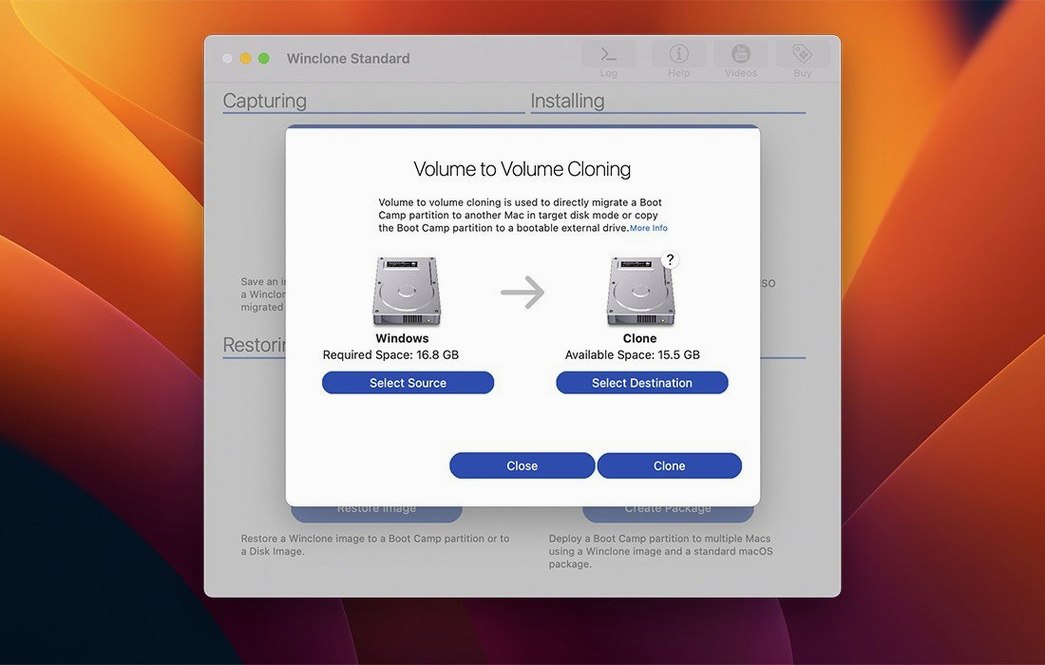
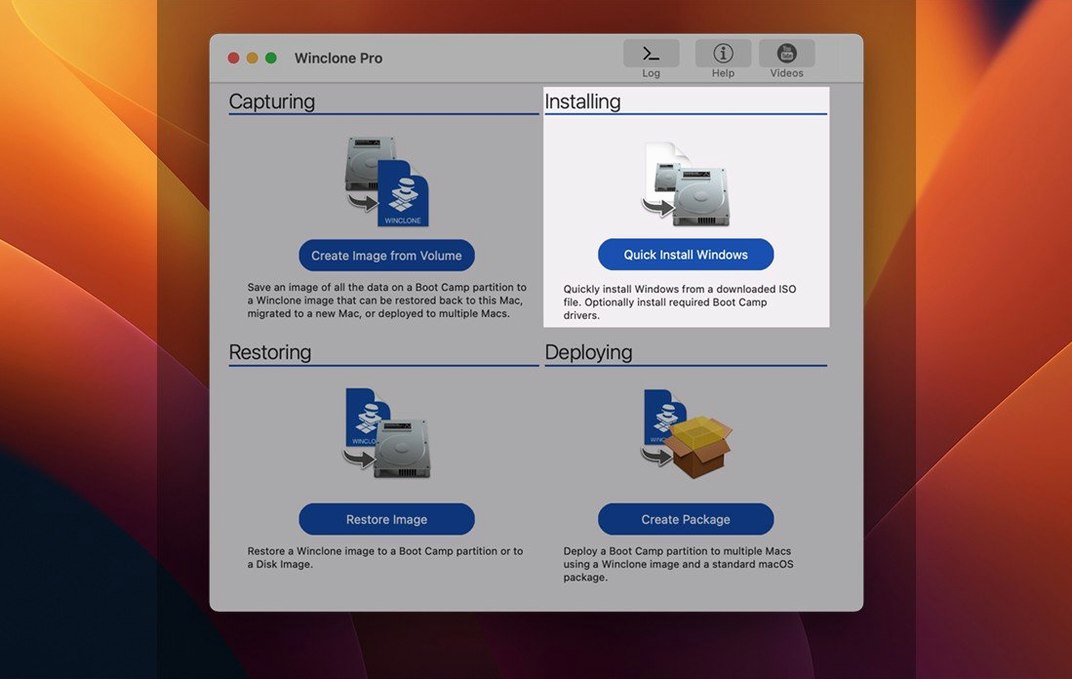
Incremental images are where Winclone Pro earns its keep. Instead of re-copying an entire Boot Camp partition each time, it saves only the changes since the last snapshot. That makes routine backups of a Windows install practical, even on a schedule.
What it does and who it's for
- Clones and restores Boot Camp partitions, with support for basic storage volumes.
- Creates incremental images to keep backup size and time down.
- Detects and reports inconsistent GPT and MBR boot records before you restore.
- Shows progress estimates and completion percentage, and plays a sound when the job succeeds or fails.
- Includes in-app links to support resources when you need them.
Winclone Pro is the business and education tier of the Winclone line. The standard edition covers a single Mac, while Pro adds the scheduling and imaging features that labs and IT departments actually use. Version 10.5 build 50105, released September 8, 2025, updated the OS requirements and verified compatibility with macOS Tahoe. If you manage more than one Boot Camp machine, this is the tool that makes the job repeatable.
For IT teams that clone Windows on multiple Macs
IT deployment teams are the primary fit. If you maintain a lab of Macs that dual-boot into Windows, Winclone Pro removes the manual work. You clone a master Windows install once, then push that image to other machines. The same workflow applies to refresh cycles or re-imaging after a semester. Mac administrators in education or corporate environments who need a consistent Windows setup across hardware can use the package installer feature to build a deployment package that creates the partition and restores the image in one pass.
Boot Camp users with a single machine also benefit, especially those who rely on Windows for specific software and want a fast recovery path. If you have ever spent an afternoon reinstalling Windows and its drivers, then setting up your tools one by one, the incremental image feature is the practical alternative. It makes a regular backup routine realistic without a multi-hour wait each time.
Anyone who stores Boot Camp images on network storage or external drives will find the save-to-network option useful. It means the backup target does not have to be physically attached to the Mac, which fits environments where the backup server is in a closet or another building.
Before installing Winclone Pro
Does this replace Time Machine for my Boot Camp partition?
Winclone Pro and Time Machine handle different things. Time Machine backs up macOS files and system state. It does not understand Boot Camp partitions. Winclone Pro works directly with the Boot Camp volume, reading its structure and saving a bit-for-bit image. If you need to restore a working Windows install after a disk failure or a bad update, Winclone Pro is the tool that can do it. Time Machine cannot.
Can I restore a Winclone image to a different Mac model?
Restoring to different hardware is possible but not guaranteed. Windows holds hardware-specific drivers and configuration. If the target Mac has a different GPU, chipset, or other hardware, Windows may need driver updates after the restore. The image itself restores. Whether Windows boots and runs properly depends on driver compatibility. For deployment across identical hardware, it works without extra steps.
Disable Fast Startup but Secure Boot stays on
Winclone Pro does not require changes to Secure Boot settings for cloning. Fast Startup in Windows can cause issues. That feature puts Windows into a hybrid shutdown state that may leave the partition in a condition that Winclone cannot read cleanly. It is safer to turn Fast Startup off in Windows power settings before making an image.
Works alongside Time Machine without conflict
Winclone Pro operates at the disk level, so it stays out of the way of most macOS features. You can keep Time Machine running its schedule for macOS without conflict. The incremental image files live wherever you put them, and macOS sees them as regular files that can be copied, moved, or stored in a cloud-synced folder if you prefer.
If your organization uses MDT or SCCM for Windows deployment, Winclone Pro supports those systems from version 10 onward. The package installer created by Winclone can be integrated into those deployment workflows, letting a Mac boot into a fresh Windows install without manual partitioning or driver hunting.
The sound notification for job completion uses macOS system sounds. It works whether you are in another room or just tabbed away. The in-app support links open in your default browser, which is the standard macOS behavior without any extra configuration.
Version 10.5 now supports macOS Tahoe
Version 10.5 build 50105, dated September 8, 2025, brought two changes that affect daily work. The updated OS requirements mean Winclone Pro now lists macOS Tahoe as a supported host. If you are running that version, you can use Winclone Pro without workarounds. The compatibility verification for Tahoe was the main technical change. For users on earlier supported macOS versions, the interface and workflow remain the same as in the previous 10.x releases. No new features were added in this point release, just the OS compatibility update.
If you were already on Winclone 10 and running a macOS version earlier than Tahoe, nothing changes. The incremental image format, the deployment tools, and the progress display all work as before. The update is a maintenance release that keeps the tool usable on current macOS versions.
Turning off SIP before installation
- Not disabling SIP before installing. Winclone Pro requires SIP to be off during installation. The setup steps in the installer tell you this, but it is easy to skip the Terminal step. If the app does not open or behaves strangely after you drag it to Applications, SIP is the first thing to check.
- Choosing the wrong restore target. Winclone Pro can restore to DOS-FAT32, ExFAT, and NTFS volumes, and to attached volumes depending on hardware. Beginners sometimes select the wrong volume and overwrite data. Double-check the target disk and partition before confirming a restore.
- Forgetting to turn off Fast Startup in Windows. As mentioned earlier, Fast Startup leaves the partition in a state that may not image correctly. A clone taken with Fast Startup enabled might restore to a system that behaves unpredictably.
- Skipping the consistency check. Winclone Pro detects and reports inconsistent GPT and MBR boot records. Beginners sometimes ignore these warnings and proceed with the restore. The result is a partition that does not boot. The warning is there for a reason.
- Not testing a restore before it is needed. An image that you have never restored is not a backup. It is a file. Verify that your Winclone images actually restore and boot by doing a test restore to an external disk or a spare partition.
- Updated OS requirements.
- Verified Tahoe compatibility.
- macOS 10.15 or later
- Intel-based Mac
- English interface
Questions from the notes
Can Winclone Pro restore a Boot Camp partition to a different Mac?
Yes, Winclone Pro can restore Winclone images to other Macs, provided the hardware is compatible and the boot records are consistent.
Install procedure
- Mount the disk image and run Open Gatekeeper friendly.
- Press Enter in the Terminal window to bypass Gatekeeper.
- Drag the app to the Applications folder.
- Disable SIP before installing.
Reports from players
Sign in or create a tester account to file a report.
No reports filed yet.