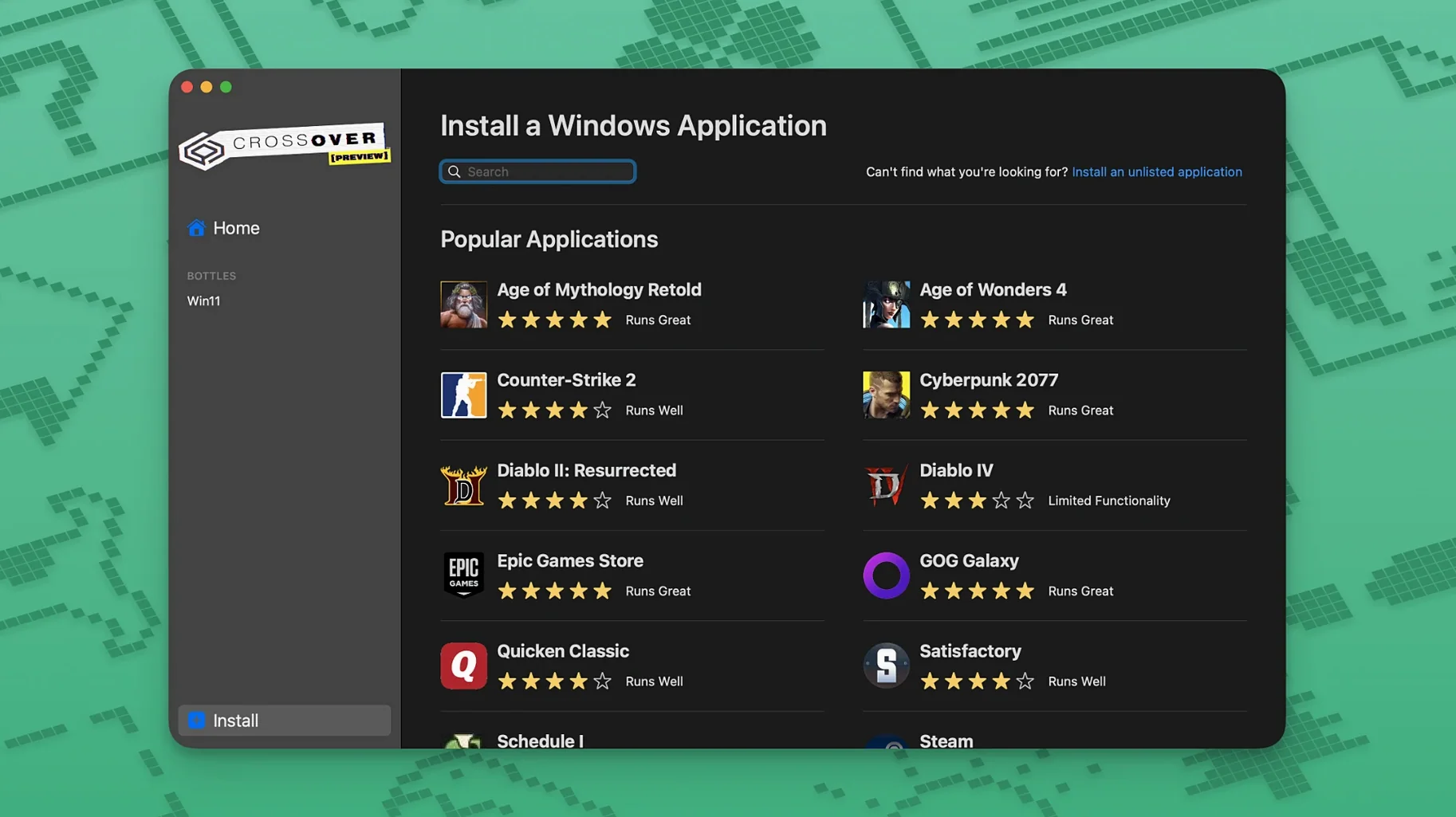
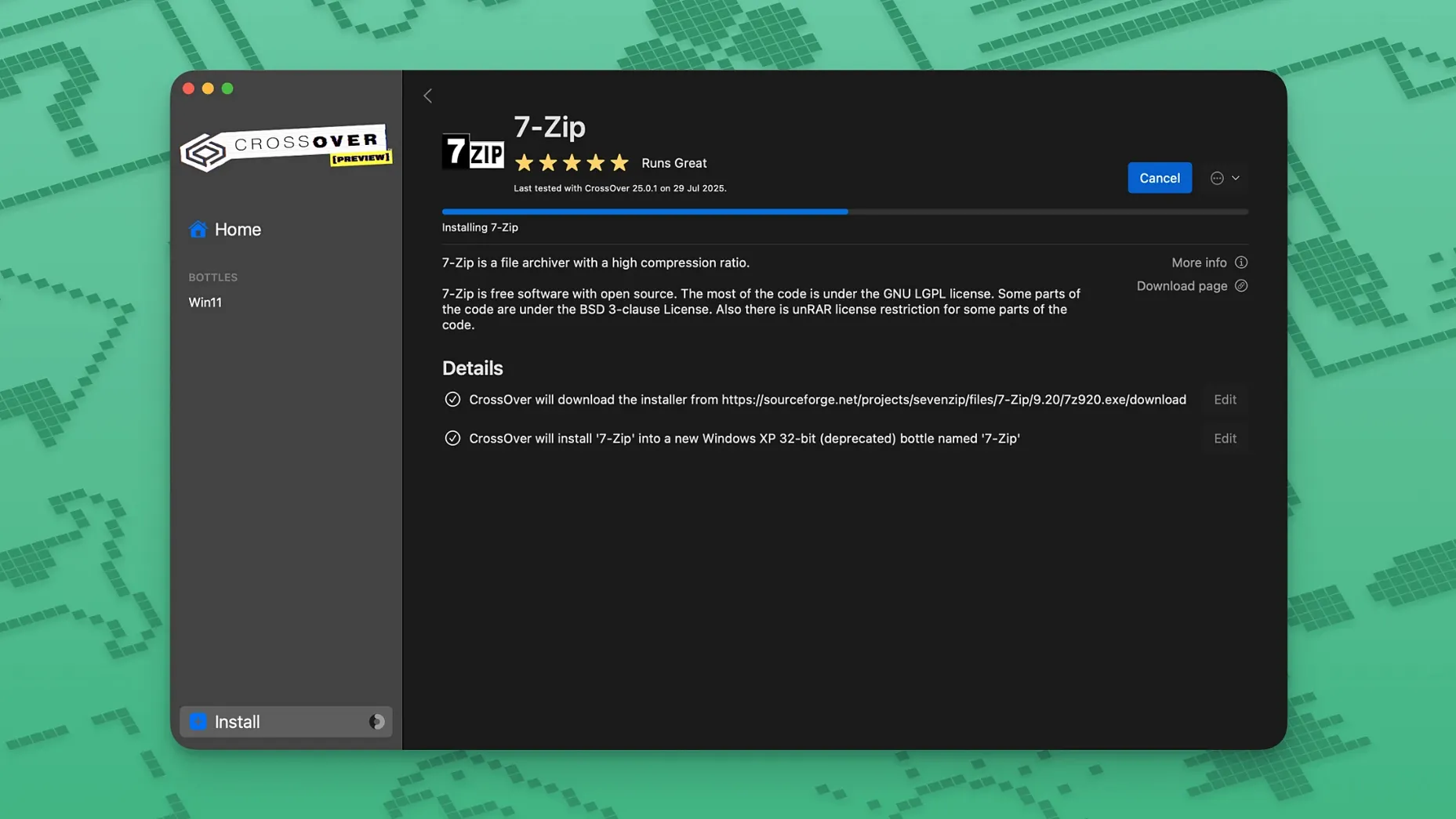
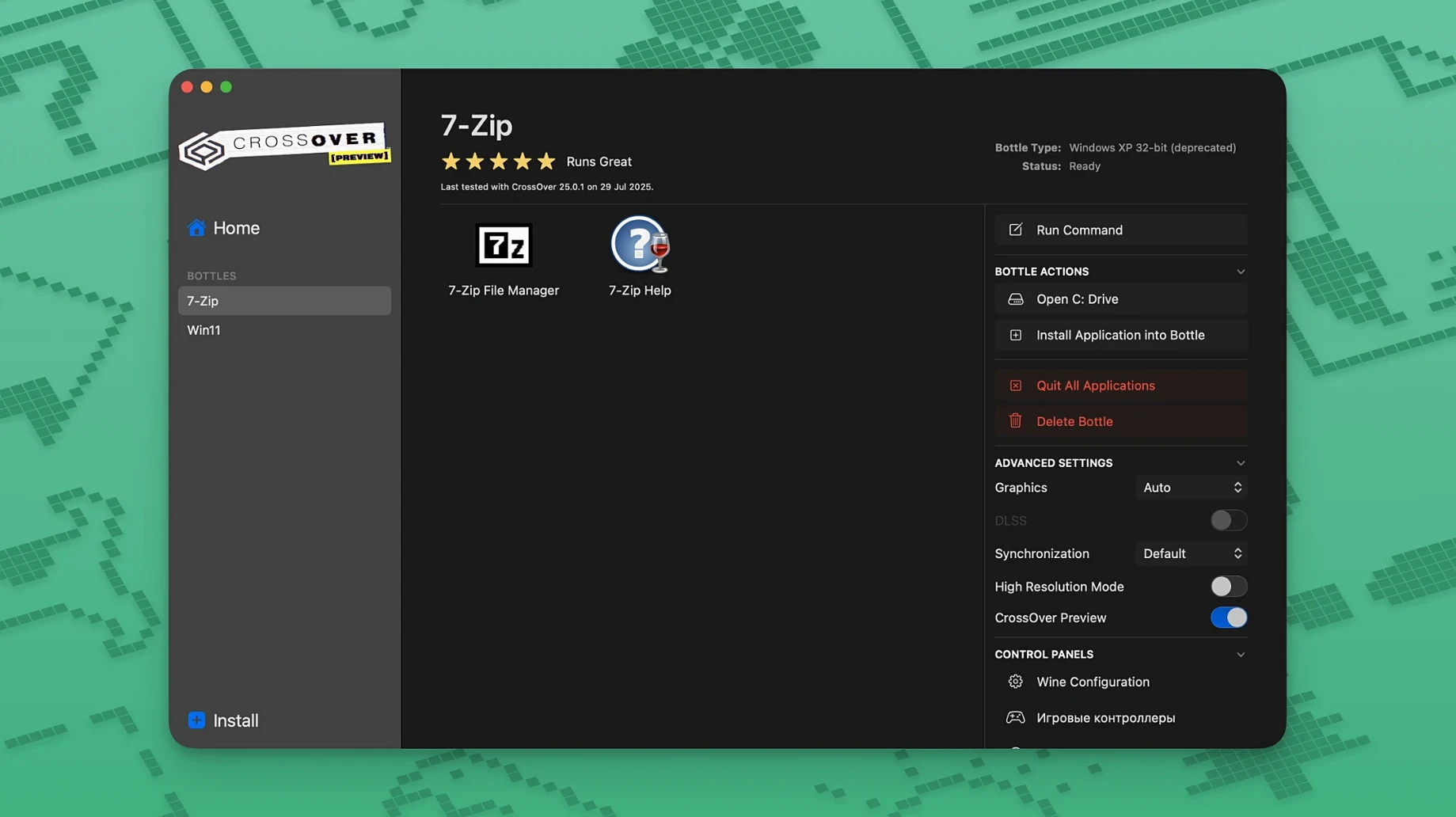
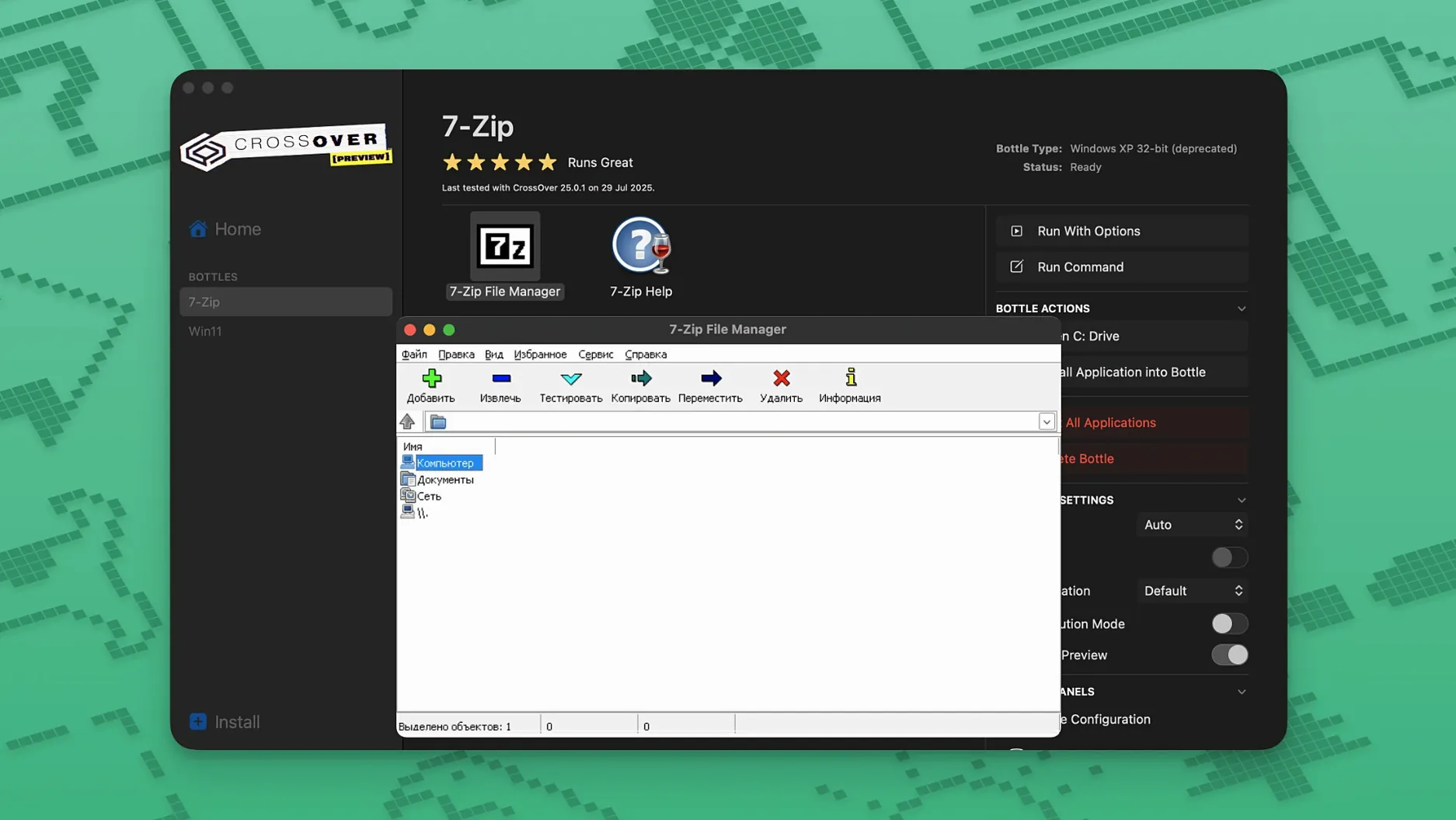
You have a Windows-only program your Mac needs to run—maybe a business tool, a utility, or a game that never got a Mac port. CrossOver 26.3.0 handles that by creating a Windows-like environment (they call them bottles) for each program. No separate Windows license, no dual-boot setup.
- Runs Windows productivity apps, utilities, and games in one application on macOS.
- Built on Wine compatibility technology; no Windows installation needed.
- Each bottle keeps its own settings and installed programs separate.
- Some Windows applications still require their own installer—CrossOver manages the rest.
- Works on Intel Macs running macOS 10.15 Catalina or later; Apple Silicon is supported via Rosetta.
- Interface available in English, Russian, German, Spanish, and several other languages.
It is not a magic bullet—some apps need tweaks or simply won't run. But for the things that do work, CrossOver saves you from running a full Windows VM or switching machines.
IT admins managing Windows-only tools on company Macs
CrossOver makes the most sense for specific Mac users, not everyone. The people who benefit most tend to fall into a few groups:
- IT administrators and sysadmins managing internal Windows-only tools on company Macs. Active Directory tools, database clients, or old HR apps that never got a Mac version run in a bottle without dedicating a whole VM to them. Each bottle stays isolated, so a tool for one department doesn't interfere with another.
- Game players with a short list of Windows titles. If you mainly play a handful of games that have known compatibility—Diablo IV, or older DirectX titles—CrossOver keeps your Mac from needing Boot Camp or a separate Windows partition. The 26.3.0 fixes for Diablo IV and GOG Galaxy matter more to this group than most.
- Users with legacy Windows software that is no longer updated or sold. Accounting packages, niche industrial tools, or old educational programs that still work fine but rely on Windows APIs. CrossOver bottles keep them running on modern macOS versions without maintaining a separate Windows machine.
- Developers and QA testers who need to verify a Windows app's behavior without leaving macOS. Quick smoke tests, UI checks, or installer behavior can be run in a bottle faster than spinning up a VM. The bottle separation also helps test different versions of the same app side by side.
Casual users who just need one Windows file reader—say, an old Access database viewer—also get value, but only if that specific app has Wine-based support. The effort of setting up a bottle is still smaller than installing a full OS.
Bottles stored in Application Support and accessible through Finder
CrossOver does not replace macOS—it sits on top of it. The bottles live inside the user's Application Support folder, and each one behaves like a self-contained Windows machine. Files inside a bottle are accessible through the Finder if you know where to look, but the normal workflow is to open Windows apps from CrossOver's launcher or from Launchpad after the bottle is created.
Because each bottle has its own registry and C drive, you can treat them like project folders: one bottle for work tools, another for games, a third for testing. macOS's native file management works around them—Time Machine backs up the bottle directories if they are in your home folder, and Spotlight indexes the app shortcuts CrossOver places in Launchpad.
CrossOver interacts with macOS Gatekeeper during installation. The activation steps use Terminal to bypass Gatekeeper for the license tool, which is a one-time process. Full disk access for Terminal may be needed if activation fails, which is standard for tools that touch system-level files.
On Intel Macs, CrossOver runs Windows x86 code natively. On Apple Silicon Macs, Rosetta 2 handles the translation layer between the Intel Windows binary and the ARM host—CrossOver itself runs under Rosetta. This works for most supported apps, but the extra translation step means compatibility is slightly narrower on M-series Macs. The 26.3.0 version is listed as an Intel download, so Apple Silicon users need Rosetta installed.
Dependent on the Windows app with macOS 10.15 or later and an Intel processor
The system requirements are straightforward: macOS 10.15 Catalina or later, and an Intel processor. There is no mention of a minimum RAM, free disk space, or GPU requirement in the specs. In practice, your experience depends on the Windows app you are running—a lightweight utility needs far less overhead than a modern game.
Disk usage comes from the CrossOver application itself (roughly a few hundred MB) plus each bottle's C drive. A bottle starts small and grows as you install software into it. The license activation tool and the croslic folder are part of the initial setup and do not add ongoing overhead.
Languages available in the interface include English, Russian, German, Spanish, Catalan, Czech, Danish, Estonian, Bulgarian, Belarusian, and Amharic. No extra language packs are needed—they are built into the download.
There is no mention of sandboxing or network restrictions. Windows apps inside a bottle have normal network access through macOS, so a game with online multiplayer or a tool that calls a web API should work as long as macOS allows the connection.
Treating CrossOver like a compatibility layer that works on everything
The most common mistake is treating CrossOver like a compatibility layer that works on everything. Some Windows applications simply do not run, and no amount of bottle tweaking will fix that. Beginners often install an app, watch it fail, and assume CrossOver is broken—when the app was never listed as supported by the Wine compatibility database.
Another frequent error is installing every Windows app into a single bottle. Each bottle has its own registry and C drive, and cramming multiple programs into one bottle creates registry conflicts over time. Separate bottles for separate software is the rule. Deleting an app from a shared bottle can leave leftover registry entries that confuse other installed programs.
New users also skip reading the activation steps. The process requires a Terminal command with the license tool, and some people drag the croslic folder to the desktop but never run license.tool through Terminal. Granting Terminal full disk access ahead of time prevents the most common activation failures.
Beginners often try to run Windows installers that require .NET Framework or Visual C++ redistributables without checking whether CrossOver supports those runtimes. Some installers fail silently, leaving the user wondering why the app never appears in the bottle. Checking the app's Wine compatibility rating before starting saves a lot of troubleshooting.
Parallels Desktop requires a Windows license and more RAM
CrossOver's main competition falls into two categories: virtual machine software and other Wine-based wrappers.
Parallels Desktop runs a full Windows VM on macOS. It requires a Windows license, a disk image of several GB, and more RAM to run both OSes simultaneously. CrossOver uses no Windows license and the bottles take up far less disk space. But Parallels can run virtually any Windows app, including those with complex dependencies, while CrossOver is limited to what Wine supports. Parallels also gives you a full Windows desktop environment; CrossOver only runs the app's window.
VMware Fusion is similar to Parallels—a full VM with a Windows license requirement and higher resource usage. It is better for running multiple Windows apps that interact with each other, or for apps that need direct hardware access. CrossOver is lighter and faster for single-app use, but VMware handles more edge cases with unsupported software.
WineBottler is another Wine-based tool, but it is less actively developed than CrossOver. WineBottler wraps Windows apps into standalone .app bundles, which can be convenient for one-off tools. CrossOver has a larger team behind it, more frequent updates (version 26.3.0 is current), and a broader compatibility database. WineBottler also requires more manual configuration for getting apps to run, while CrossOver includes a graphical bottle manager and pre-configured settings for many popular titles.
For users who only need one or two Windows apps, CrossOver is usually the right fit—lighter than a VM, more polished than a free Wine wrapper. If you need full Windows compatibility or multiple interacting Windows programs, a VM is the safer bet.
CrossOver 20261015-x86_64-FEX has landed. This build runs on the FEX emulation layer, which handles x86 instructions on Apple Silicon — useful for titles that don't play well with Rosetta. The full changelog is on the CodeWeavers site.
- macOS 10.15 Catalina or later
- Intel 64-bit processor
Questions from the notes
Does CrossOver work on Apple Silicon Macs?
CrossOver for Mac runs on Intel Macs. On Apple Silicon, it works through Rosetta 2 emulation, though performance and compatibility can vary per application.
Install procedure
The Intel 64‑bit disk image runs about 752 MB and asks for macOS 10.15 or later. Six steps follow the download, and each one leaves little room for misreads.
- Mount the disk image and launch Open Gatekeeper friendly. Press Enter in the Terminal window that appears to bypass Gatekeeper.
- Drag the CrossOver app into your Applications folder.
- Open the Extra folder inside the mounted image, copy the croslic folder to your desktop, then open it.
- Right-click license.tool, choose Open With, and select Terminal.
- When Terminal opens, type your Mac password — the characters won't appear on screen — and press Enter. Wait for the process to finish.
- If activation fails, check the Terminal log for errors. You may need to grant Terminal Full Disk Access in System Settings.
Reports from players
Sign in or create a tester account to file a report.
No reports filed yet.