
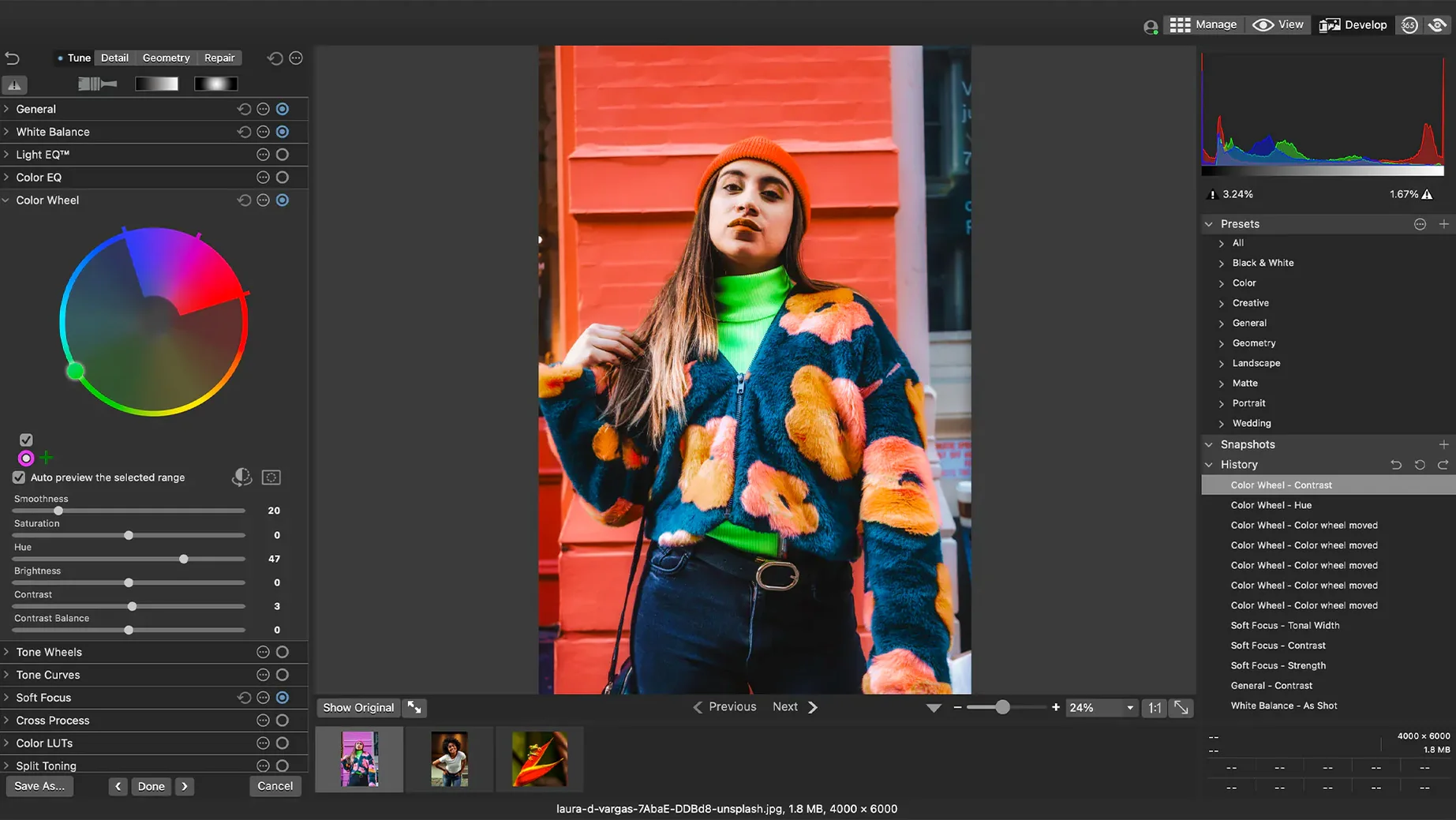
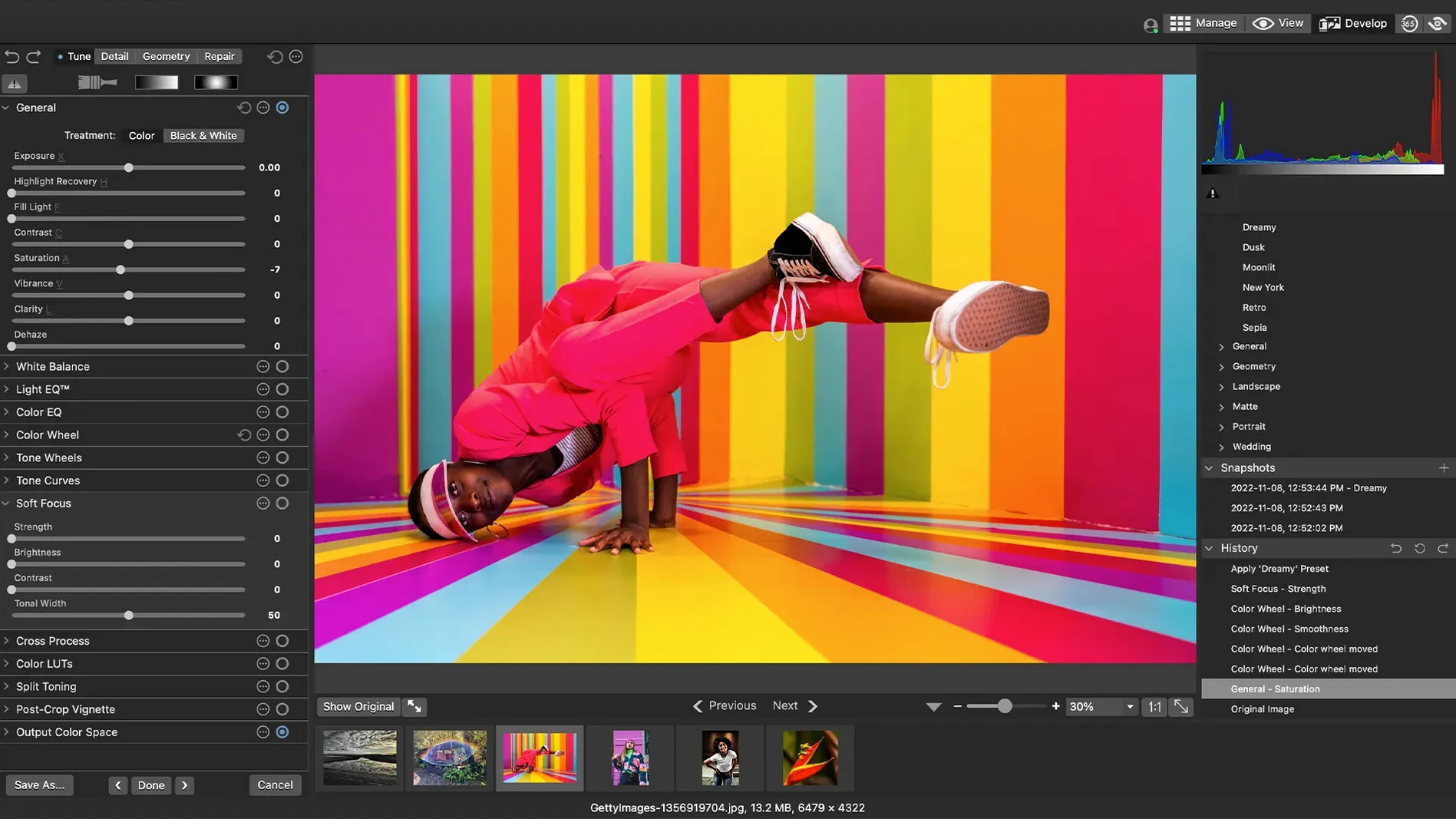
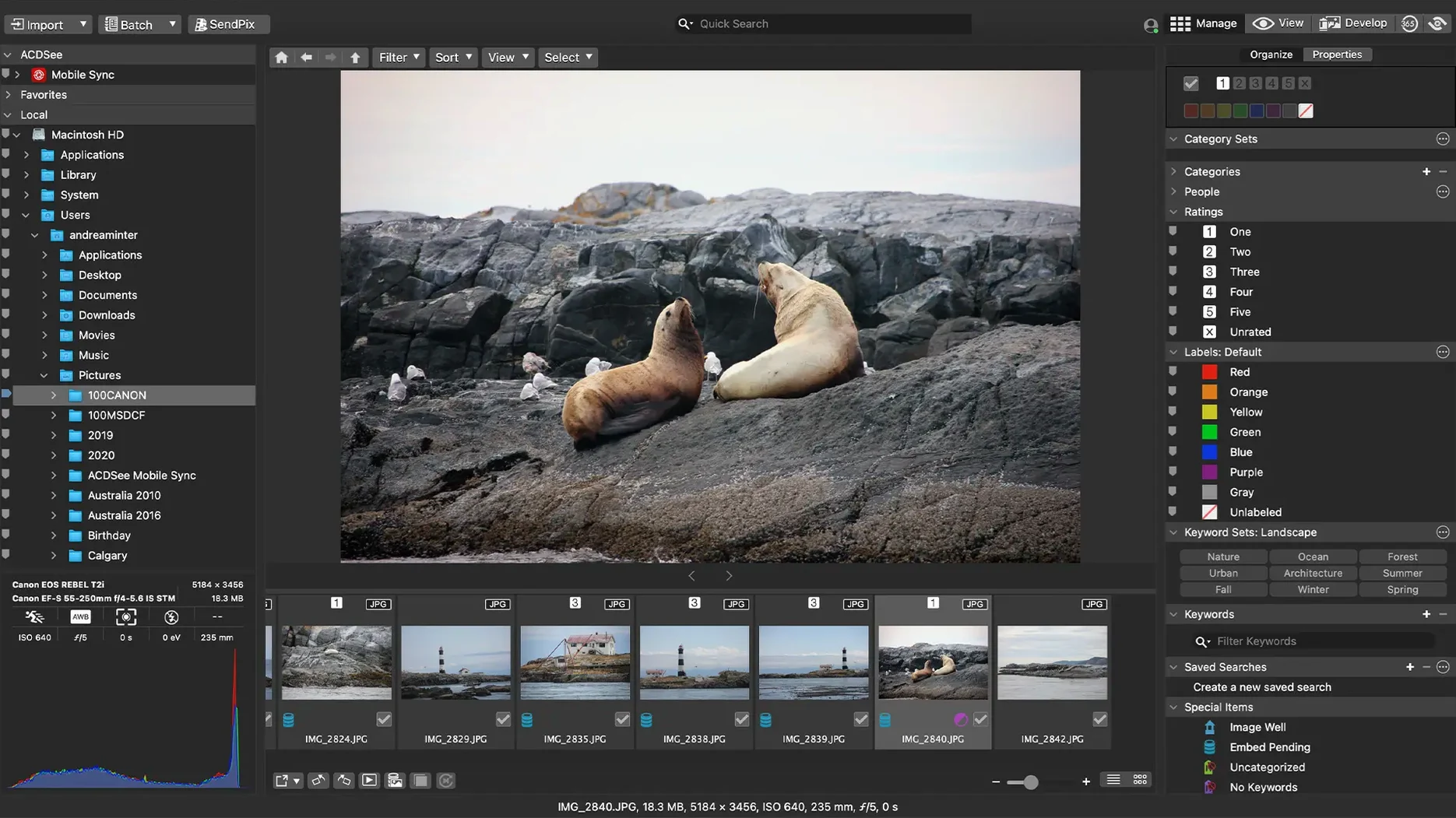
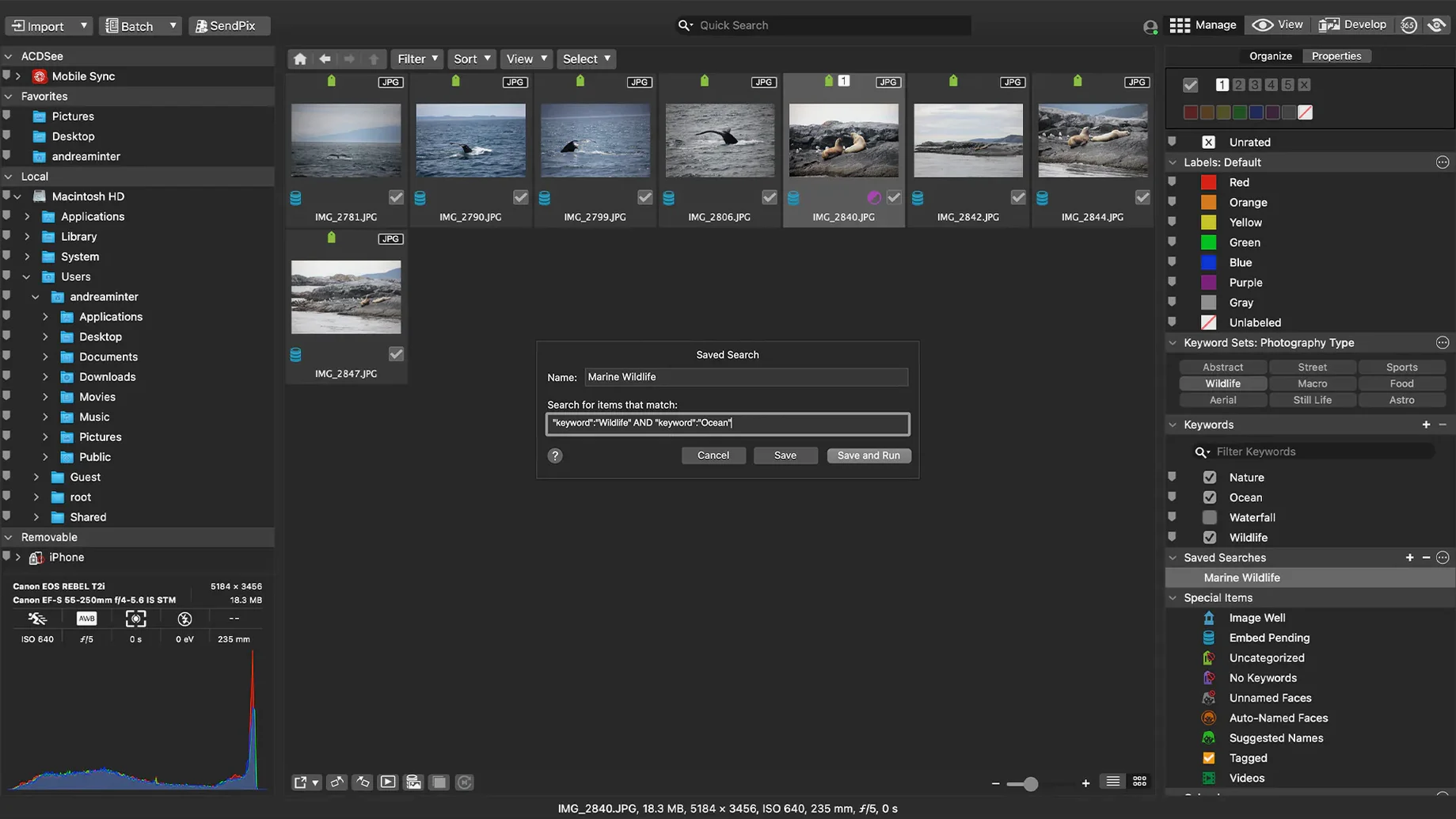
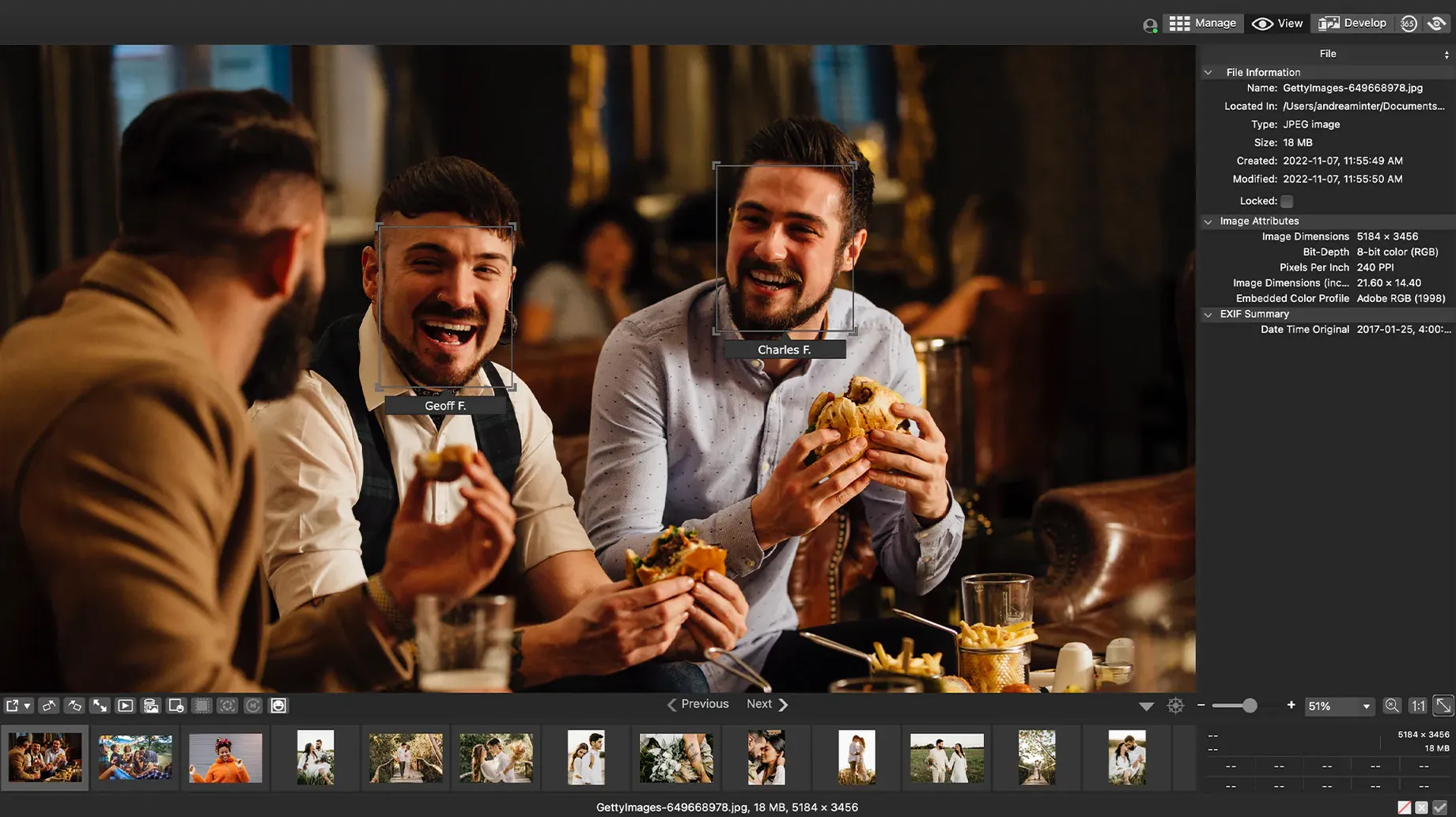
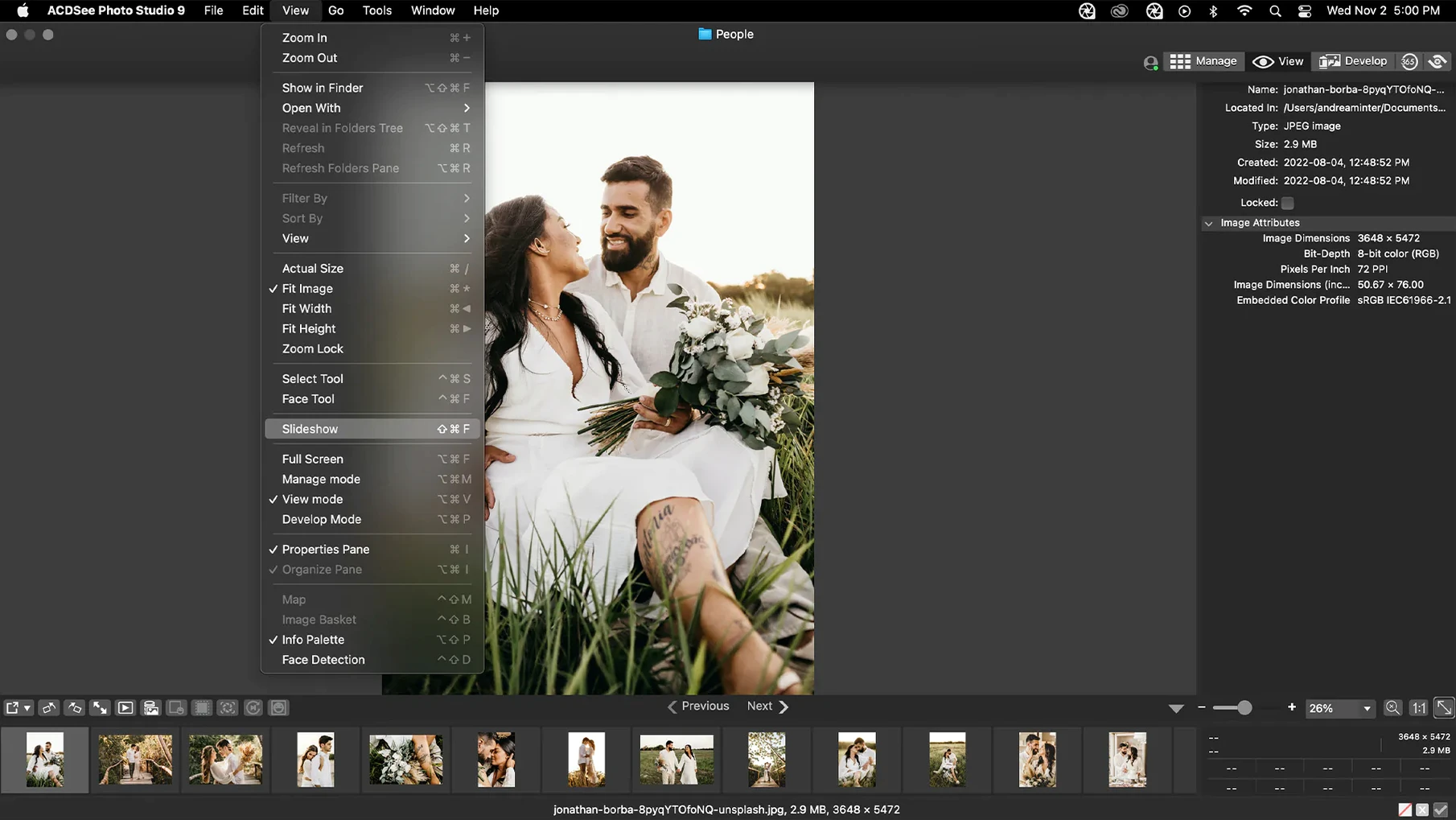
Most photo apps either organize well or edit well, rarely both. It is a full photo management and editing app that handles the workflow from import to output.
What it does out of the box
- Photo organization with categories, keywords, and ratings.
- Drag-and-drop search to find images by multiple criteria.
- Non-destructive adjustments for exposure, color, and tone.
- Customizable batch presets to apply the same edits or rename files in one pass.
- Duplicate file finder to reclaim disk space.
- RAW file support with fixed rating reading in version 26.0.3.
The interface is straightforward: import, tag, rate, edit, export. It runs on both Apple Silicon and Intel Macs, and version 26.0.3 fixed a few stability issues around keyword management and iCloud integration. If you need a catalog-based organizer that also does basic to intermediate editing, this is a solid pick.
Differs from Lightroom, Capture One, and Luminar Neo
On macOS, the main alternatives for photo management and editing are Adobe Lightroom Classic, Capture One Pro, and Luminar Neo. Each approaches the workflow differently.
Lightroom Classic is the industry standard for catalog-based organization and raw editing. ACDSee Photo Studio gives you the same catalog structure — keywords, ratings, metadata — without a monthly fee. The non-destructive editing approach is similar, though Lightroom's masking tools are more advanced. For photographers who do not need those layers, ACDSee covers the same ground at a lower commitment.
Capture One Pro offers tethered capture and color grading tools favored by studio and commercial photographers. ACDSee Photo Studio reads raw files from over 450 camera models and applies exposure, clarity, sharpness, lighting, color, noise, and detail adjustments. It does not support tethered shooting or session-based workflows. If you shoot in a studio, Capture One fits better. If you import, sort, and edit on your own schedule, ACDSee is more straightforward.
Luminar Neo markets itself as an AI-driven editor with sky replacement and relighting tools. Its organization features are weaker — it relies on folders rather than a true catalog. ACDSee Photo Studio has proper category and keyword assignment, duplicate detection, and EXIF/IPTC editing. For a library of thousands of images, ACDSee's structure saves time. Luminar Neo's editing layer system is more flexible for composite work, but ACDSee's batch presets and non-destructive adjustments handle most adjustments faster.
Gatekeeper blocks the app on first launch
Even with version 26.0.3's fixes, a few points trip up new users.
- Gatekeeper blocks the app on first launch. After mounting the disk image, the installer triggers macOS's security check. Run the provided command in Terminal to bypass Gatekeeper, then drag the app to Applications. Without this step, the app may fail to open or show a permission error.
- Keywords and categories do not save. A crash when adding a new keyword or category was fixed in 26.0.3. If you are on an earlier build, update. If the issue persists after updating, check that your catalog file is not stored on a synced folder like iCloud Drive — the iCloud integration fix in 26.0.3 addressed conflicts there.
- Raw file ratings appear wrong. This was another 26.0.3 fix. Ratings embedded by the camera or another app may not transfer perfectly. In the Manage mode, re-rate the images manually, then export a sidecar XMP file to preserve the rating for other software.
- Clicking away from a new keyword stops editing unexpectedly. Version 26.0.3 corrected this. If you still see it, the catalog may be corrupted. Try rebuilding it from the database maintenance options in the app's preferences.
A workflow for importing, organizing, and exporting a shoot
Here is a repeatable workflow for a photographer who just returned from a session with 200 raw files.
- Import. Connect the camera or card reader. In ACDSee Photo Studio, choose the source folder and destination. Apply a batch preset if you want to rename files or copy them into a dated folder structure. The app reads raw files from over 450 camera models, so your files should appear with their full metadata intact.
- Rate and tag. Switch to Manage mode. Go through the thumbnails and assign star ratings using the keyboard. Sort by date to see the timeline. Add categories like "Portrait" or "Event" and keywords such as "Indoor" or "Natural light." Drag and drop images onto search terms to filter later.
- Find duplicates. Before editing, run the duplicate file finder. The import step may have pulled in the same file from a backup card or a previous copy. Deleting duplicates now saves disk space and keeps the catalog clean.
- Edit non-destructively. Open an image in Edit mode. Adjust exposure, clarity, sharpness, lighting, and color. For raw files, you can also work on noise reduction and detail enhancement. Apply the same adjustments to similar images using a batch preset. None of these edits alter the original file — they are saved as sidecar information in the catalog.
- Export. Select the final images. Use the export dialog to choose a format, size, and destination. If you maintain a portfolio folder, apply a preset that resizes to 1920 pixels wide and converts to sRGB. The export keeps your originals untouched.
Requires macOS 14.0 or later and runs on Apple Silicon and Intel Macs
ACDSee Photo Studio 26.0.3 requires macOS 14.0 or later. It runs on both Apple Silicon and Intel Macs, so the same installer works on an M-series MacBook Pro and an older iMac. Once installed, it operates as a native macOS application with standard menus and keyboard shortcuts. The interface is in English. No background services or cloud sync run unless you connect iCloud — and the 26.0.3 patch addresses a sync issue there. For a photo editor that handles raw files and large catalogs, the app's disk usage will scale with your library size, as it stores previews and metadata alongside originals.
- Fixed a crash when adding a new keyword or category in a certain scenario.
- Fixed an issue where clicking away from a new keyword or category did not stop editing.
- Fixed inaccurate reading of RAW file ratings in certain scenarios.
- Fixed an issue with iCloud integration.
- macOS 14
- Apple Silicon or Intel processor
Install procedure
- Mount the disk image and run Open Gatekeeper friendly.
- Press Enter in the Terminal window to bypass Gatekeeper.
- Drag the app to the Applications folder.
- Open the app when installation is complete.
Reports from players
Sign in or create a tester account to file a report.
No reports filed yet.